
To export your contacts, click the list you want to export the contacts from, and then select Import/Export → Export members.
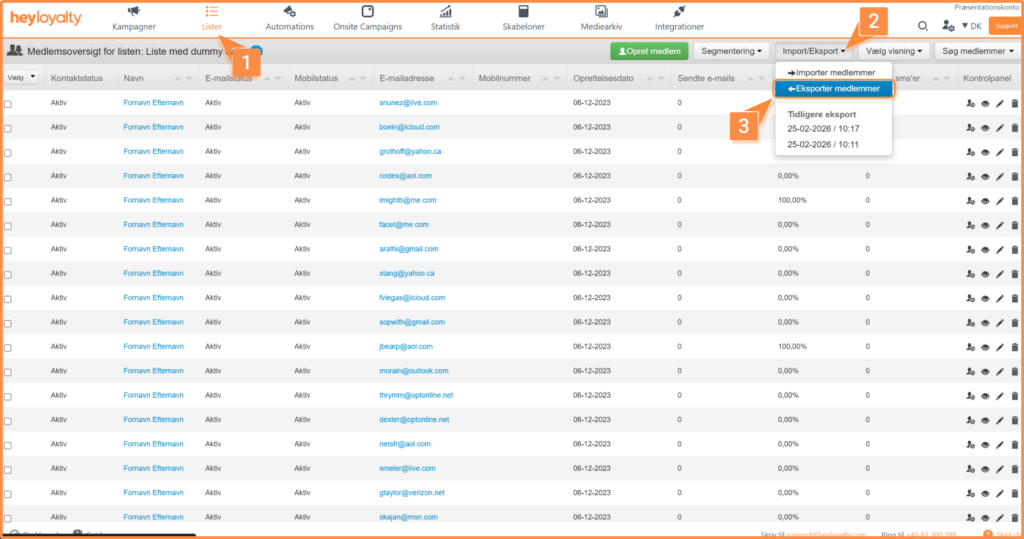
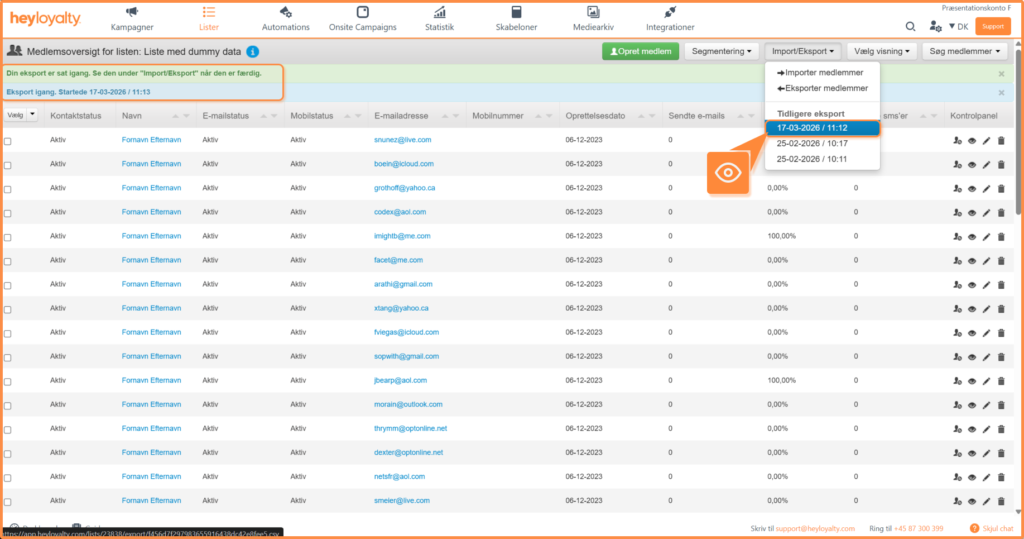
Now wait a moment and refresh the page. Once the contacts have been exported, you’ll be able to download the file by clicking the relevant file under Previous exports, which you can find by clicking Import/Export.
The translations are as follows:
- First Name = firstname
- Last Name = lastname
- E-mail = email
- Cell phone number = mobile
- Gender = sex
- Date of Birth = birthdate
- Address = address
- Postnummer = postal code
- By = city
- Country = country
- Reference = reference
- Store = shop
- Custom fields are exported with the selected field name.
Specify which contacts to export
Select the contacts you want to export by checking the boxes next to each entry. You can also select a segment from the list and then click Select, which is located below the order contact overview.
Next, scroll down to the bottom and select Actions for Multiple Members. Then select Export Selected. Once the export is complete, you can find the export file the same way as described in the section above.