


In this guide, we show you how to set up a customer club with the earning type Percentage discount (step) in Customer Loyalty Center.
With this setup, you can give your customers a percentage discount based on their purchases and place them in different tiers – the more they shop, the higher the discount they receive.
The guide walks you through the entire setup from start to finish so you can easily get started.
Step 1 – Create integration
Start by going to: Integration → List integration. Then find Customer Loyalty Center and click Set up integration.
Then click Create Customer Loyalty Center.
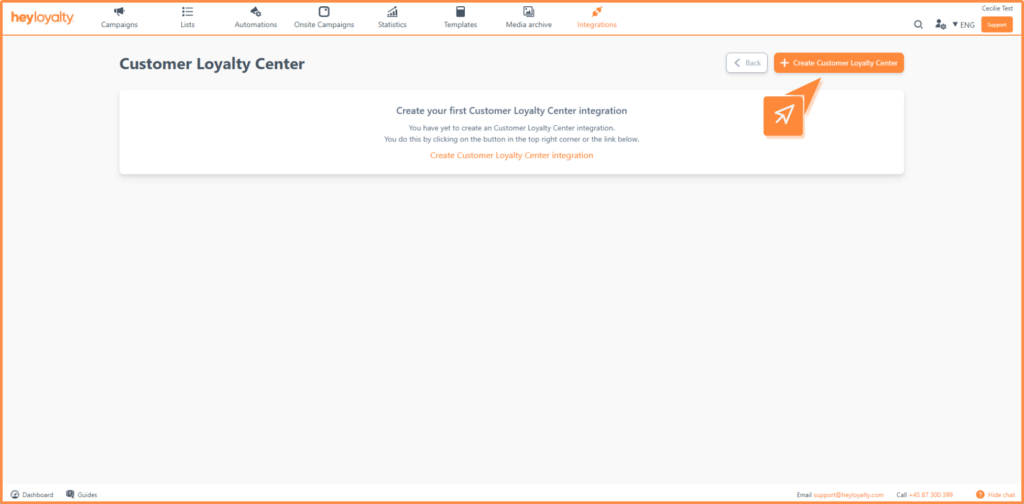
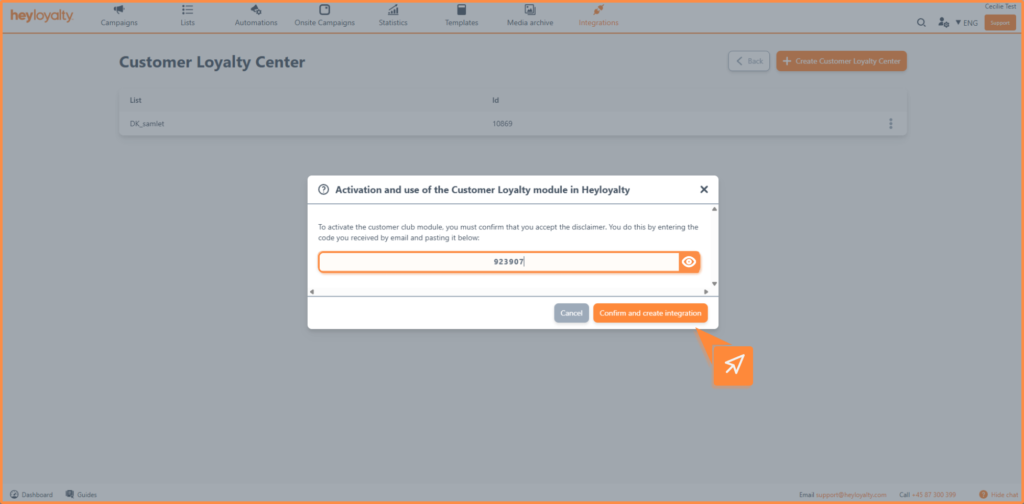
The first time you set up the integration, you need to accept the terms and conditions. This is done via a one-time code that is sent to your email.
Step 2 – Configure the integration
Once the integration is set up, you need to specify the relevant settings:
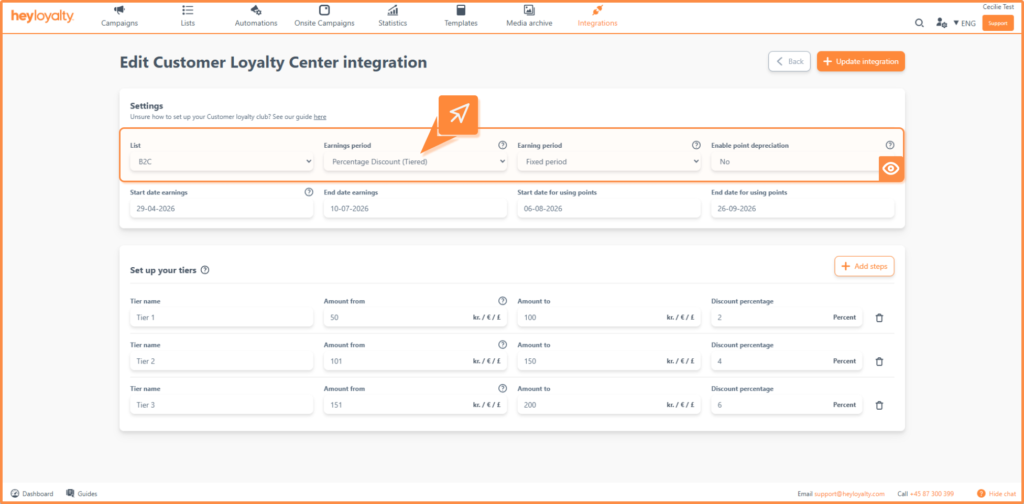
Once the integration is set up, you need to specify the relevant settings:
- List: Select the list to connect the customer club to. Only contacts on this list will earn a discount.
- Earning type: Select Percentage discount (step).
- Earning period: You can choose between two types:
- Fixed period: Here you set a specific period for both earning and using the discount. The period is automatically updated with a new year when the year has expired. Read more about the recommendation here.
- Dynamic period The earning period is calculated continuously for each customer based on their activity. Read more about the settings here.
- Enable points write-off: You can choose whether the earned discount can expire or be written off:
- No: Points can only be reduced if the customer uses our removePoints function via the API’s removePoints endpoint.
- Yes: Points can be subtracted if they are included in the tracking script or sent via the CreateOrder endpoint.
Step 3 – Define your discount tiers
Here you set up the levels that determine how much of a discount the customer receives.
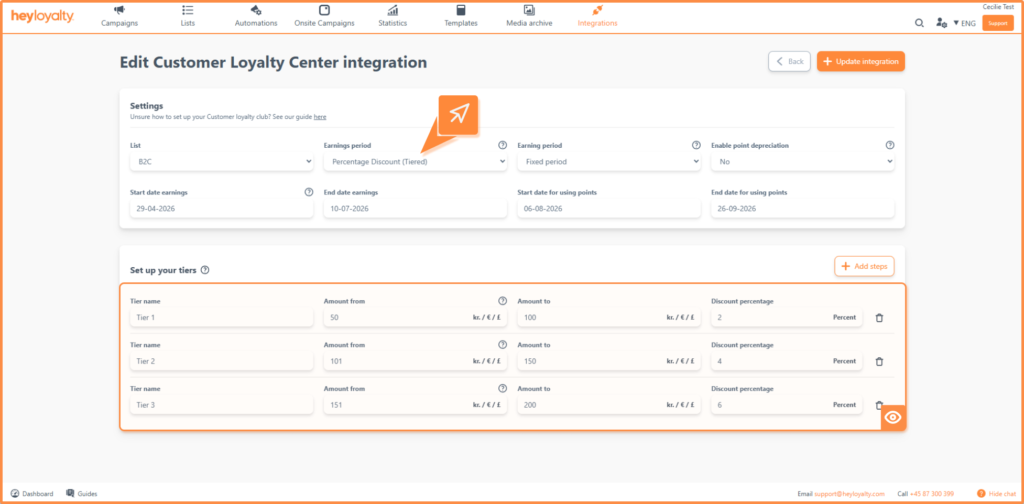
For each step, you need to fill in the following:
- Level name: The name of the level – e.g.:
- Member
- VIP
- Elite
- Amount from: The minimum amount the customer must have purchased to reach this level.
- Amount to: The upper limit of the level.
- Discount percentage: The percentage discount the customer receives within this range.
Add and remove steps
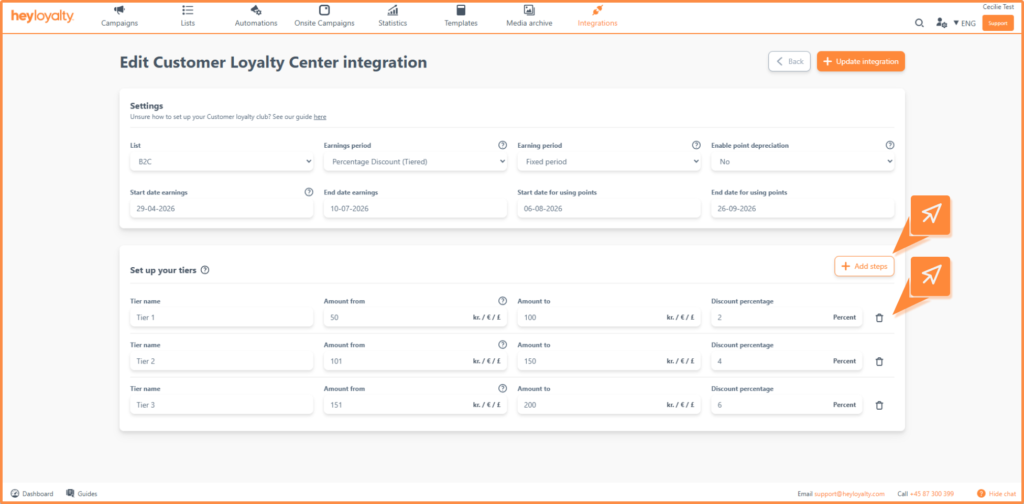
Click “Add steps” to create more levels
Remove a step by clicking onthe trash can icon
Example of setup
Member
- Amount from: 100
- Amount to: 500
- Discount: 10% off
VIP
- Amount from: 501
- Amount to: 700
- Discount: 20% off
Elite
- Amount from: 701
- Amount to: 1000
- Discount: 25% off
In the examples, customers receive a higher discount the more they shop within the amount range.
When you’re done setting up, click Save integration.
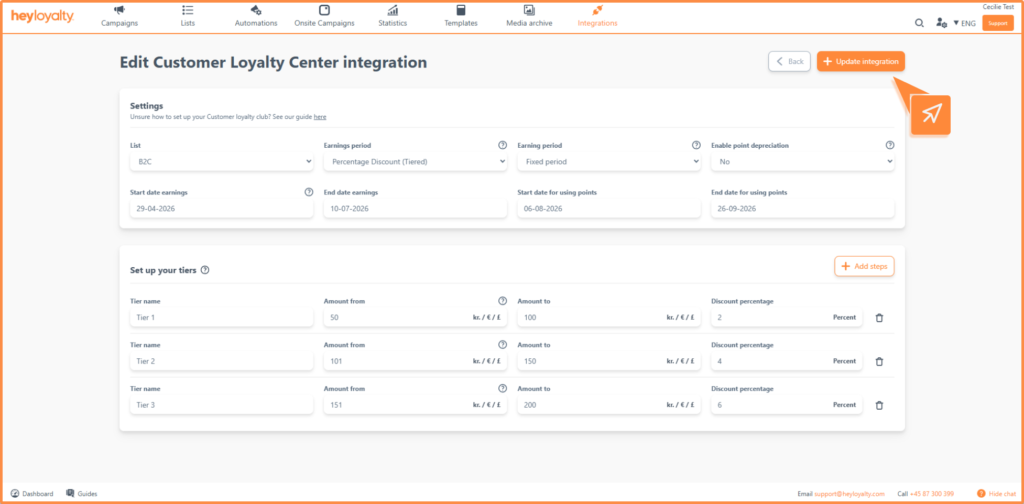
Once the integration is active, your customers will automatically be assigned discount levels based on their purchases – provided they can be identified in Heyloyalty.
Edit your setup
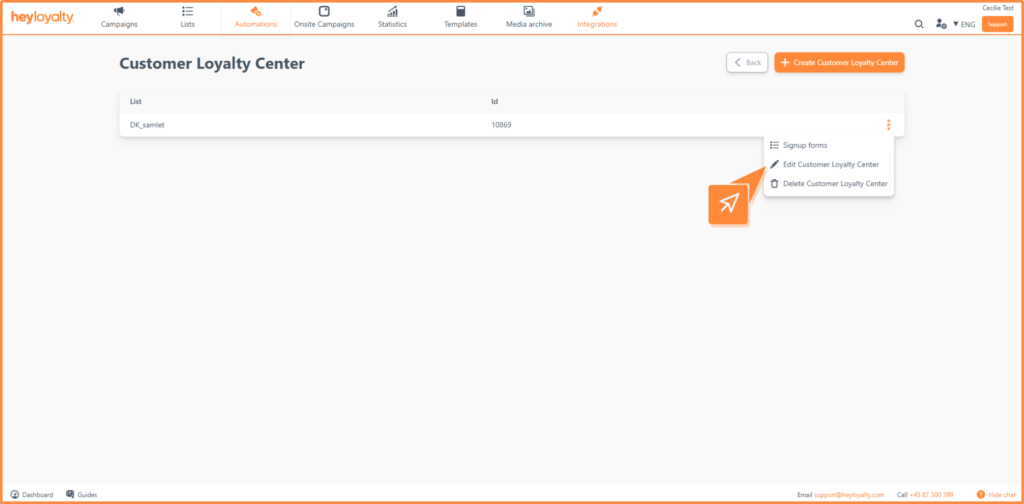
You can always change your customer club. Click the three dots next to the integration and select Edit Customer Loyalty Center.
From here you can also delete the integration if needed.
How to make the most of your customer club
You are now ready to work with a customer club based on percentage discounts. This type makes it easy to communicate the value to your customers and incentivize them to shop more.
For maximum impact, we recommend using discount levels actively in your campaigns and automated flows. For example, you can highlight the customer’s tier or make them aware of how close they are to the next discount level.
The more visible you make the benefits, the more engagement and loyalty you’ll create. 🚀

If you need information or help that you cannot find here on the guide site, you are always welcome to contact our support!
support@heyloyalty.com / tel. 87 300 399