


The Campaign Overview gives you a complete overview of all your campaigns in Heyloyalty, which can include both email and SMS campaigns.
In this guide, you’ll learn how to sort, filter, and find your campaigns using lists, labels, and the “Hide” feature, so you can easily navigate your campaigns.
Get an overview of the campaign list
On the campaign overview page, you can get an overview of your SMS and email campaigns. You can tell the difference between an SMS and an email campaign because they have two different icons, which are marked in box 1. In box 2, you can see the icons for an A/B split test and a recurring campaign.
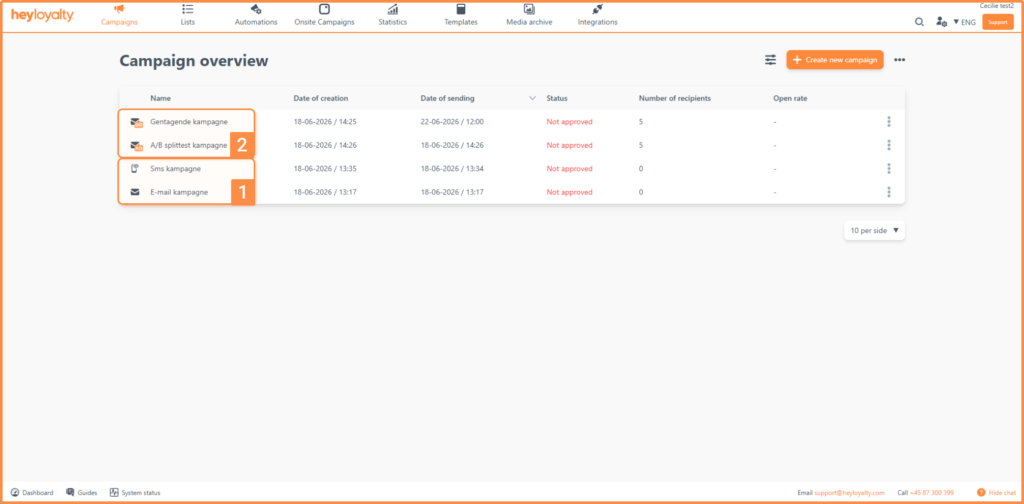
Each campaign includes the following data:
- Campaign Name: This is the internal name of the campaign
- Created: When the campaign was created
- Broadcast Date: When the campaign is scheduled to air
- Status: The campaign’s current status. Campaigns can have the following statuses:
- Not Approved: The campaign has not been approved for broadcast
- Approved: The campaign has been approved but not launched
- Sender: Heyloyalty is currently rolling out the campaign
- Sent: The campaign has been sent to all recipients. Once the campaign has been sent, Heyloyalty cannot withdraw it.
- Recipients: Number of recipients for the campaign
- Open Rate: The percentage of recipients who opened the campaign.
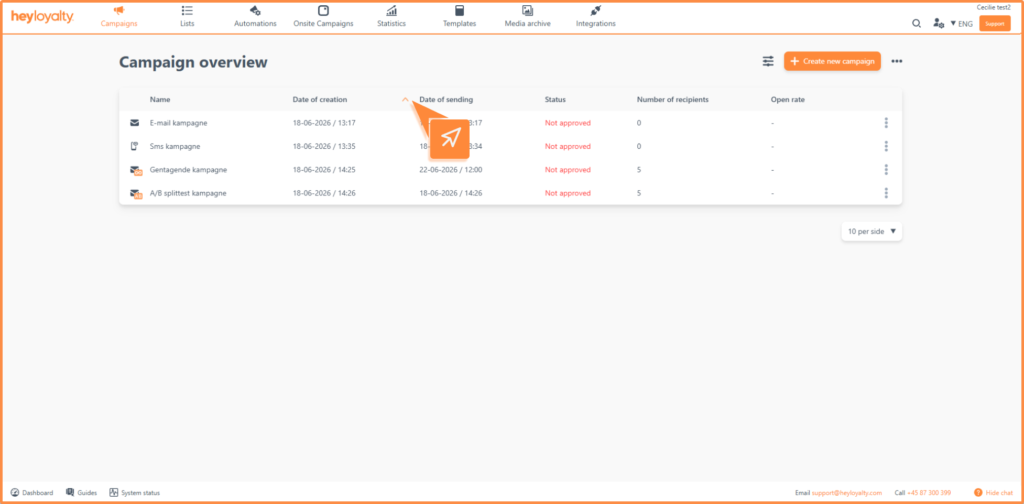
The campaign overview is sorted by creation date. If you’d like to sort by a different field, there’s an arrow to the right of the column header. Use the arrows to sort the campaign overview differently.
Filter your campaigns
In addition to sorting your campaigns, you can also find specific campaigns by filtering the overview. To open the filter menu, tap the filter icon.
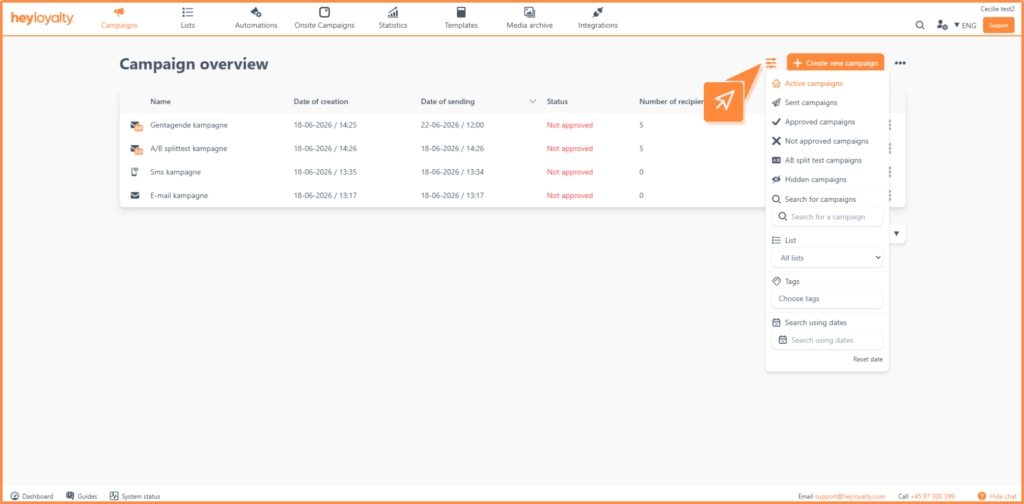
In the filter menu, you can filter by the following:
- Active campaigns: Here you can see all campaigns
- Campaign Status: You can filter by ” Sent,” “Approved,” “AB Split Test,” and “ Hidden” campaigns
- Search for campaigns: Here , you can search using the internal names of the campaigns
- Lists: Here you’ll see only the campaigns associated with that specific list
- Labels: Search for a specific label. Learn more about labels here.
- Search by date: Click the button to select a date range based on the broadcast date
Use campaign settings
From the campaign overview, you can access your campaign settings by tapping the three dots next to the campaign.
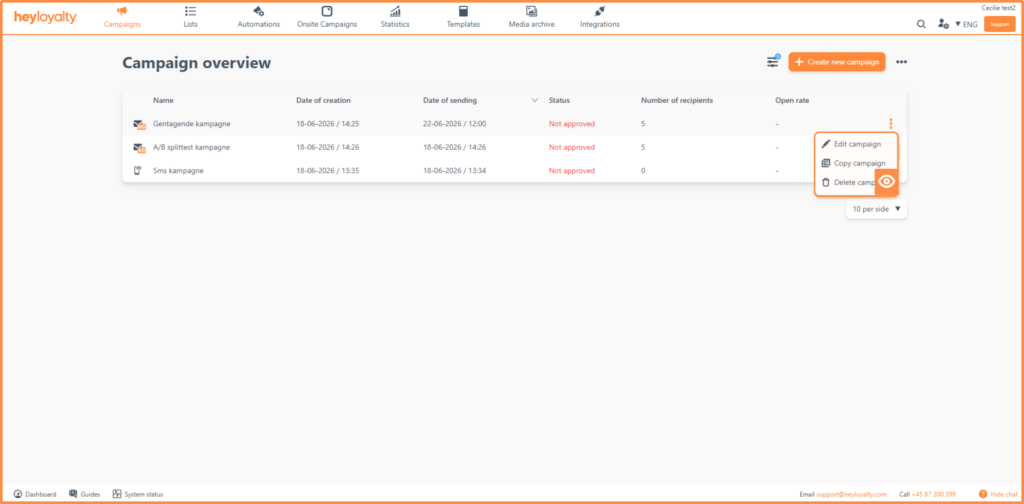
If this is not a published campaign, you have the following options:
- Edit Campaign: This takes you to Step 1.
- Copy Campaign: Here , Heyloyalty creates an exact copy with the same settings as the one you’re copying from.
- Delete campaign: A confirmation pop-up will appear here , so the campaign will be deleted intentionally
If the campaign has been launched, you’ll have other options:
- View statistics: Here you can see who has opened the campaign, the click-through rate, and general statistics about the campaign.
- Add to Archive: Add the campaign to an online page
- Copy campaign: Use this option if you want to use the same layout for a new campaign you’re setting up
- Hide Campaign: This hides the campaign from the campaign overview; you can always access it again.
If the campaign is an A/B split test, you can also view test details that provide information about the data from the test you created.
Hidden Campaigns
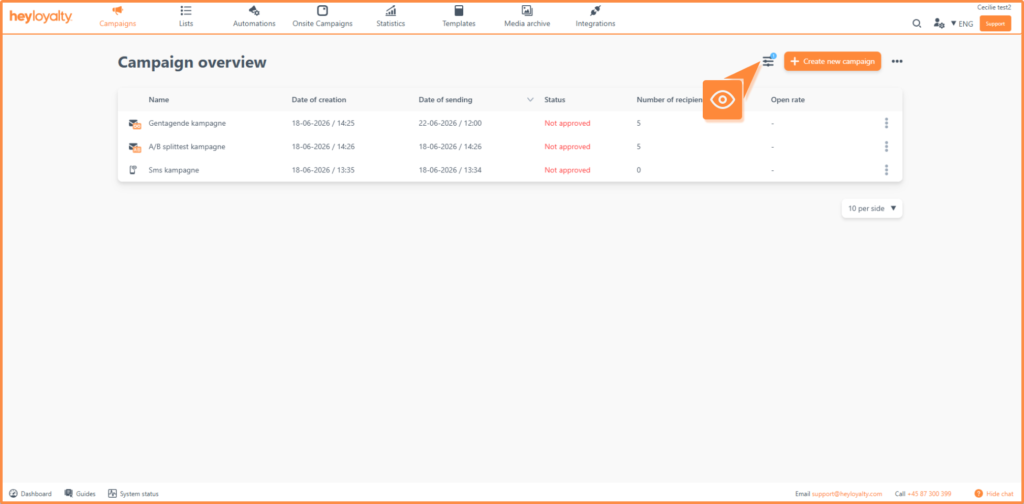
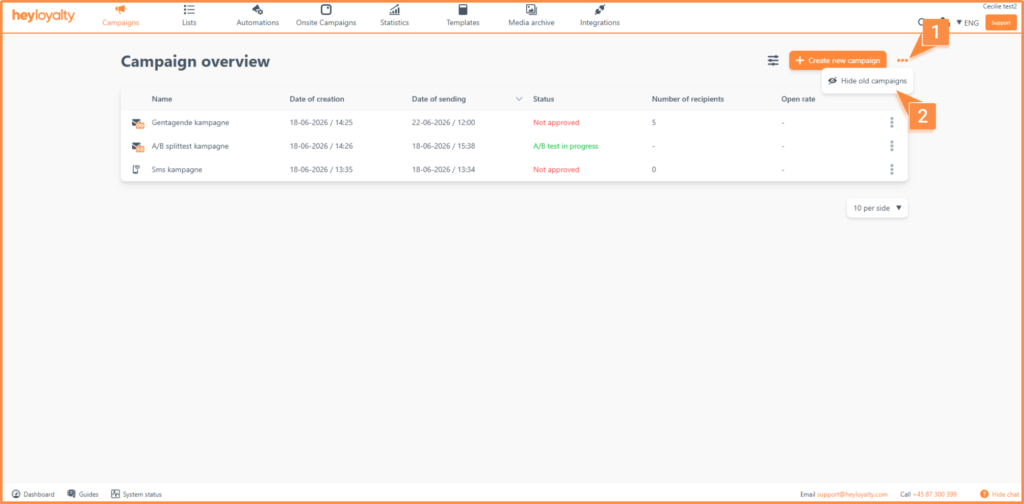
In the campaign overview, you can hide all published campaigns that are older than 30 days. To hide them, tap the three dots next to the “Create New Campaign” button .
You now have a good grasp of the campaign overview
You’ve now learned how to sort, search, filter, and organize your campaigns using lists, labels, and the hide feature. These tools give you a quick overview—even as the number of campaigns grows. The next step is to create your first campaign and try out the tools in practice.