


Tracking segmentation requires a Premium license in Heyloyalty. You can read about our license types here.
With tracking segmentation, you can segment your contacts based on their behavior and purchase data. This allows you to create more relevant and targeted emails tailored to each contact’s interests and needs.
For example, you can segment your contacts based on what they’ve purchased, how often they’ve made purchases, or which products they’ve shown interest in. That way, you can actively use the data you send to Heyloyalty in your communications.
Create a tracking segment
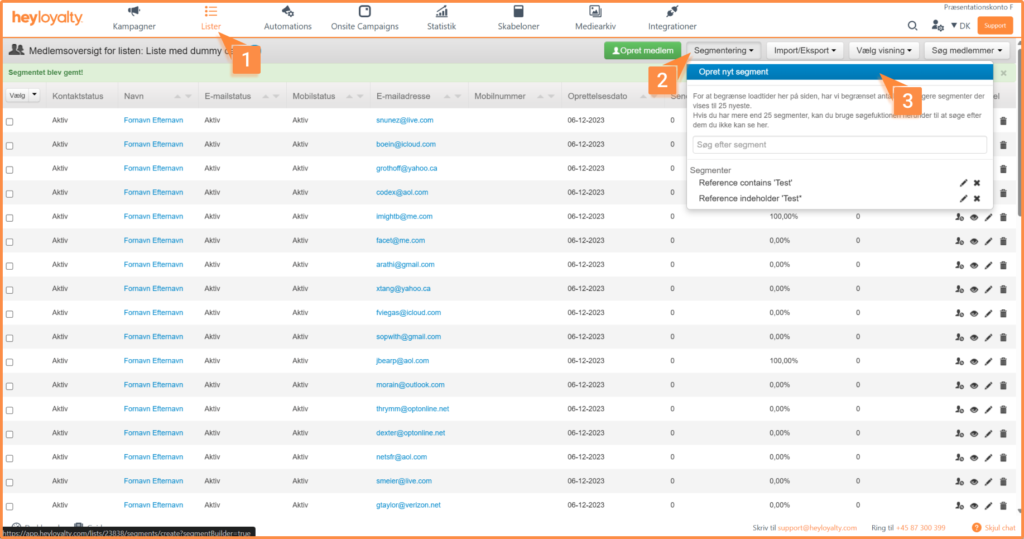
Click on ” Lists” – > Click on your list –> Segmentation – > Create a new segment.
From here, you can segment based on the fields available in your list.
Start by clicking New Rule – > New Criterion – > Select Field –> Tracking.
From here, you’ll need to choose what criteria to use for segmentation, and the options are limited only by how much data you send to Heyloyalty.
For example, you can choose to segment by: Has made a purchase, Has made a purchase (number of times), Has made a purchase (number of products), Number of abandoned carts, Average cart size etc.
You can also segment on actions such as Has/have seen, Has/have not seen, Has/have had in cart, Has/have not had in cart, Has/have bought, or Have not bought.
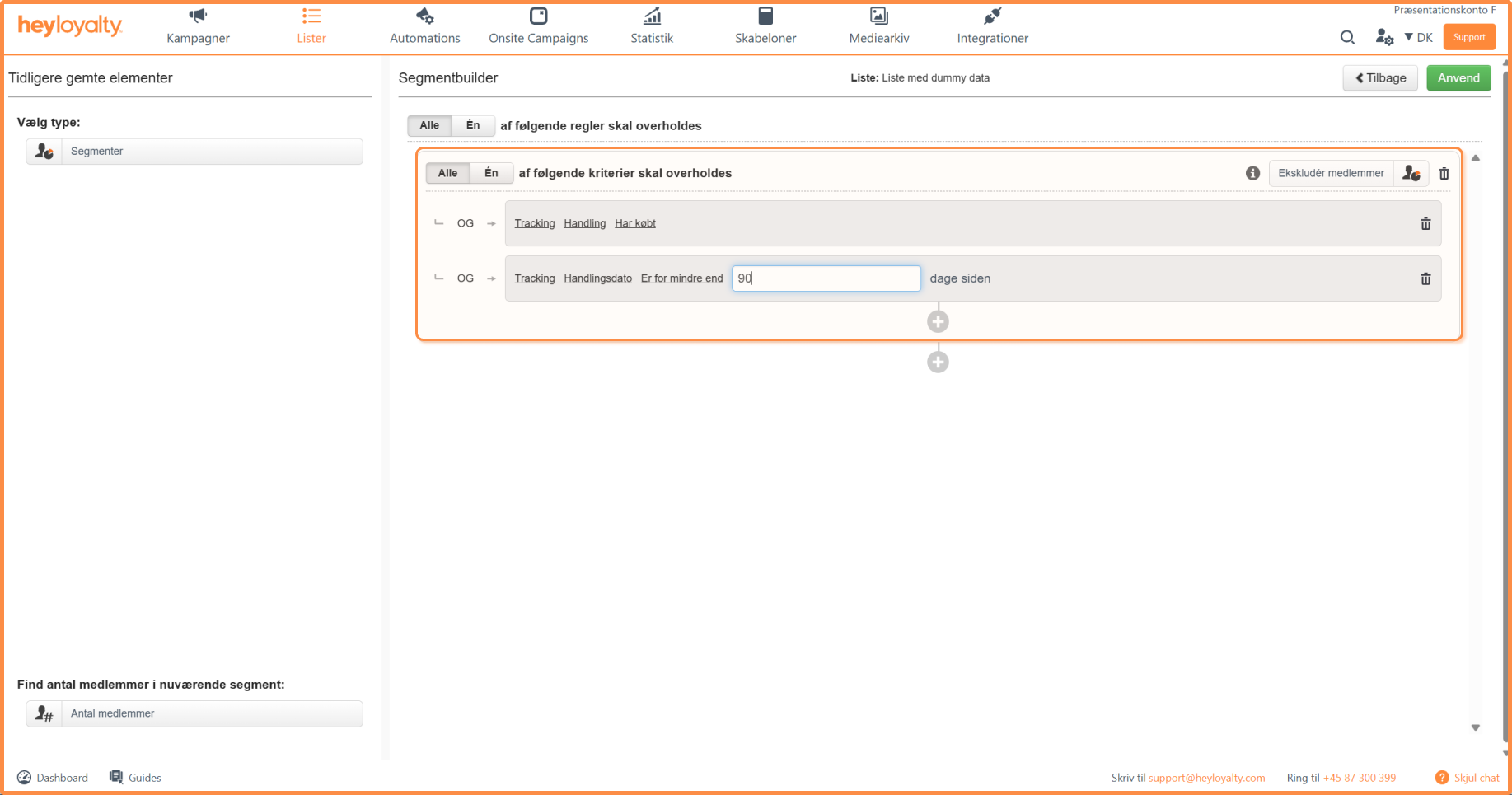
For example, if you create a segment like Tracking –> Action –> Purchased , then you will find everyone on the list who has ever purchased. If you would like to limit the period in which the purchase took place, add Tracking –> Action date –> Is for less than –> 90 days ago .
Of course, the 90 days are just an example; you can choose whatever time frame you find appropriate.
If you want to create the above segment and find everyone who has purchased within the last 90 days, then you build the segment like this:
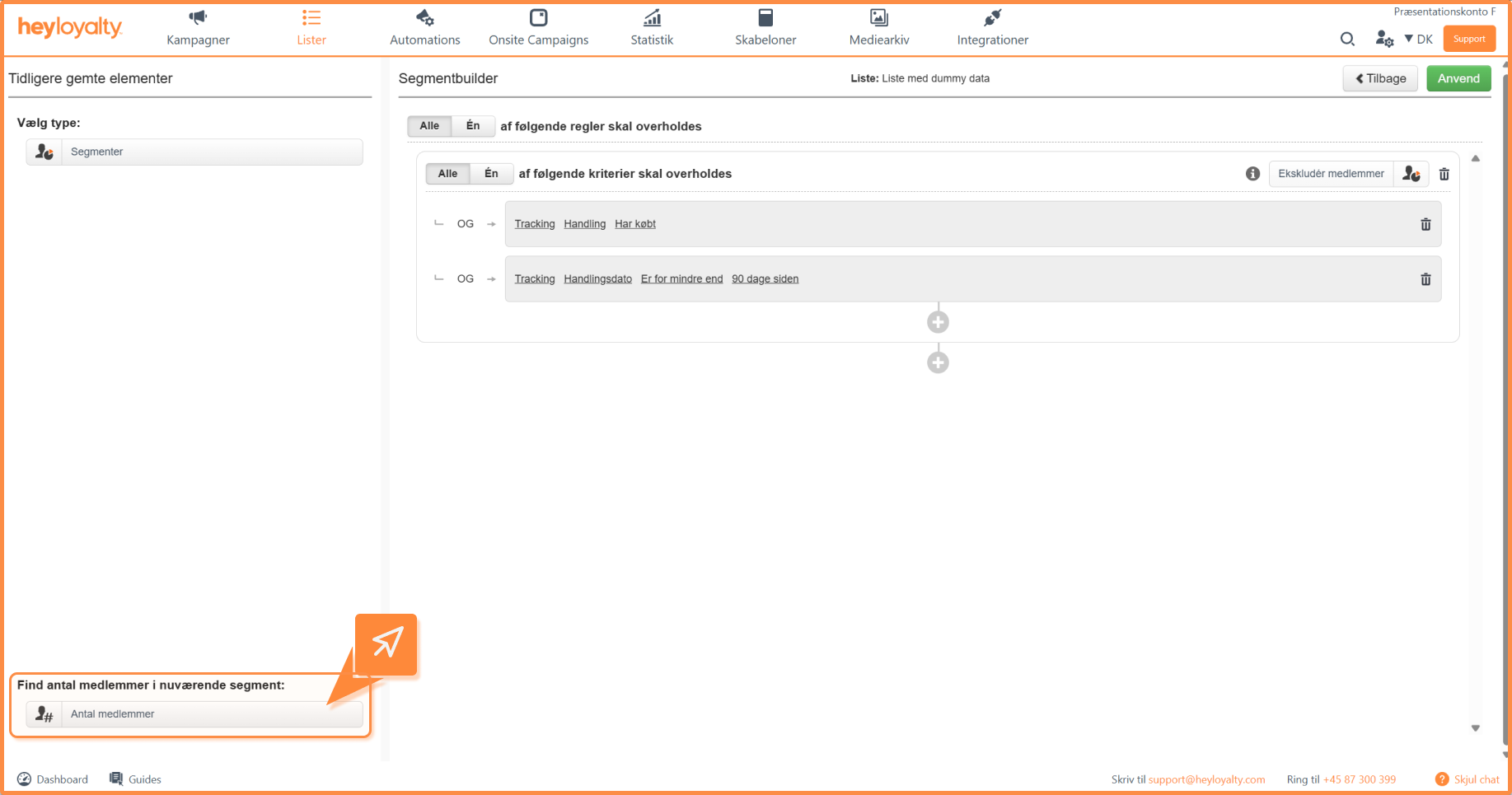
After you have selected your field, your operator and filled in the text, you can click on the bar under Find number of members in current segment. It will now be examined how many contacts on the list are part of the current segment you are building.
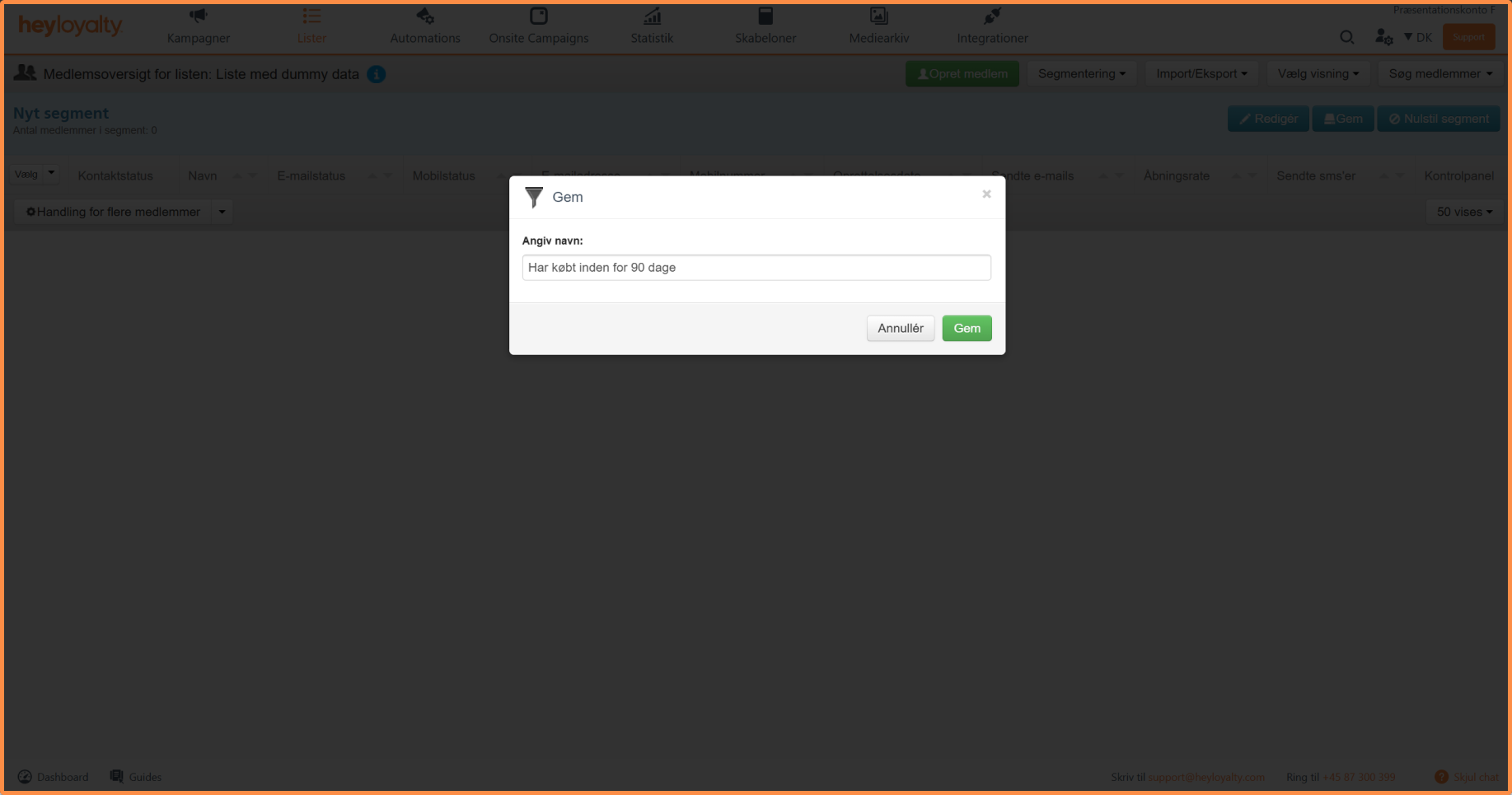
Click Apply and then Save and give your segment a name so you can easily remember what the segment does. Choose name and click Save again.

Hvis du mangler information eller hjælp, som du ikke finder her på guide sitet, er du altid velkommen til at kontakte vores support!
support@heyloyalty.com / tlf. 87 300 399