


This guide explains how to create a new user and manage existing users in your Heyloyalty account.
To access the user dashboard, click the user icon with the gear in the upper-right corner and select “User Management.”
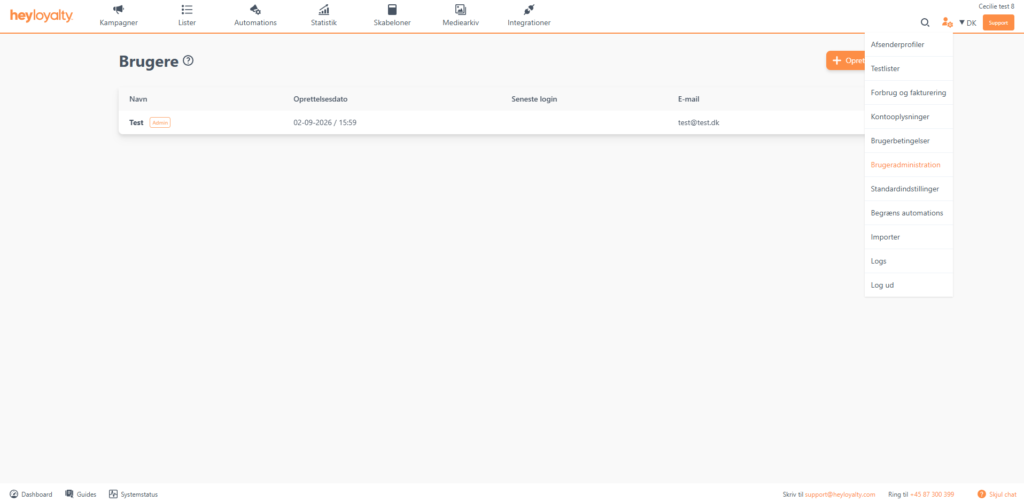
Creating a New User
To add a new user to your Heyloyalty account, go to User Management. See above for instructions on how to access User Management.
Then click on ” Create New User.”
Enter the user’s name and email address, and select the role you want to assign to the user.
Finally, click ” Save User.”
Once the user has been saved, Heyloyalty automatically sends an email to the specified email address. In the email, the new user is asked to choose a password.
Role Permissions in Heyloyalty
You can choose from the following roles:
- Admin: Has access to all features in Heyloyalty. Only administrators can create users and access default settings.
- User: Can, among other things, create campaigns and automations, view statistics, add images, and edit integrations.
- Read-only access: Can view items in Heyloyalty, but cannot create new campaigns or automations.
Edit or delete existing users, and reset 2FA
To edit or delete an existing user, go to User Management.
Click the three dots next to the user you want to manage. Here, you’ll be able to edit the user’s information or delete the user. If you choose to delete a user, you’ll need to confirm the deletion afterward.
Reset 2FA
When you click the three dots next to a user’s name, you can also select “Reset 2FA.”
Here, you can see whether the user has set up 2FA under “Status.” To reset the user’s 2FA, click ” Reset ” next to the user’s name.
This might be relevant, for example, if the user has gotten a new phone or if you’re having trouble with the setup.
You are now ready to manage your users
You now know how to create new users, assign the appropriate roles, and manage existing users in Heyloyalty. You can also reset 2FA if, for example, a user gets a new phone or is having trouble with their setup.
Remember that only administrators can create and manage users.