


Setup of Product interest
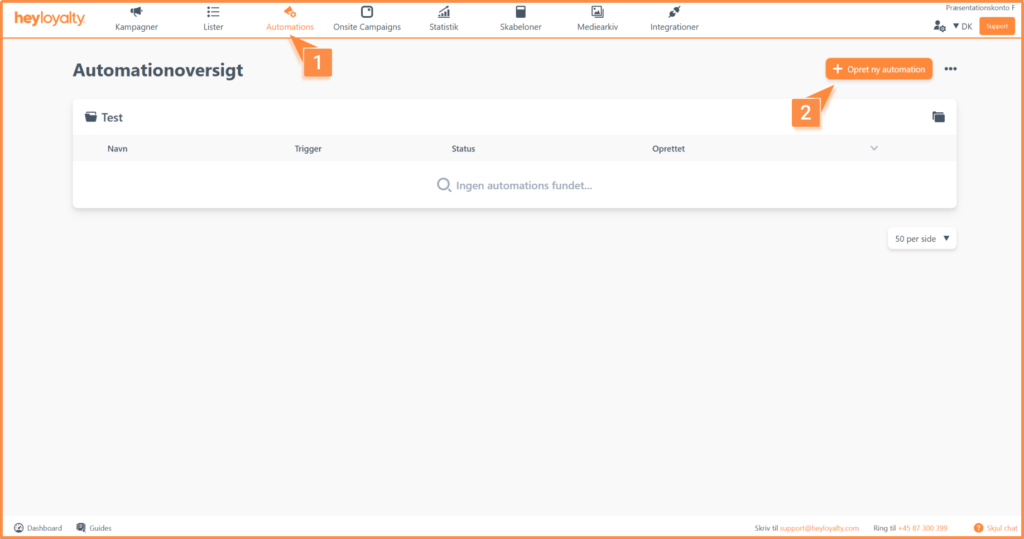
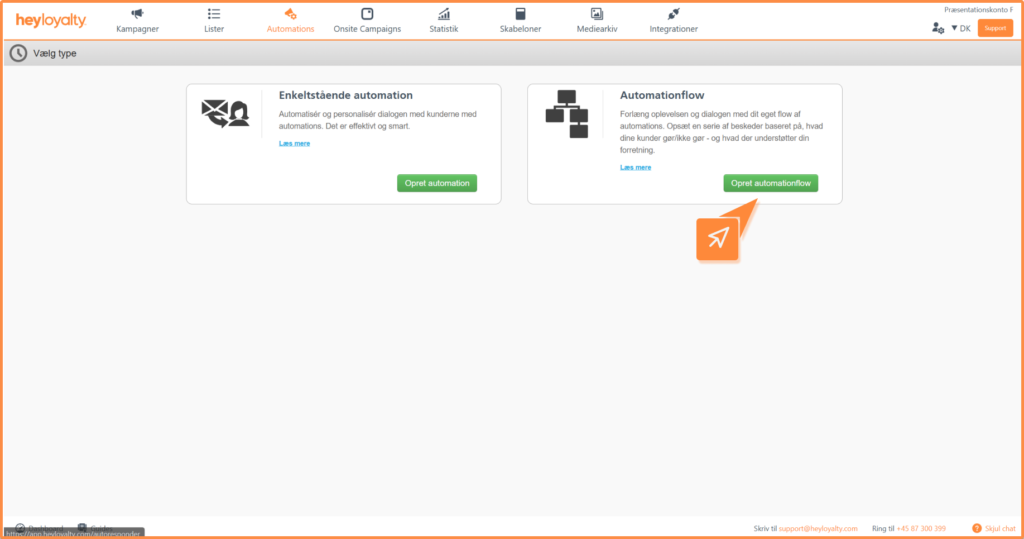
Set up your product interest flow by clicking Automations –> Create new automation –> Create automation flow.
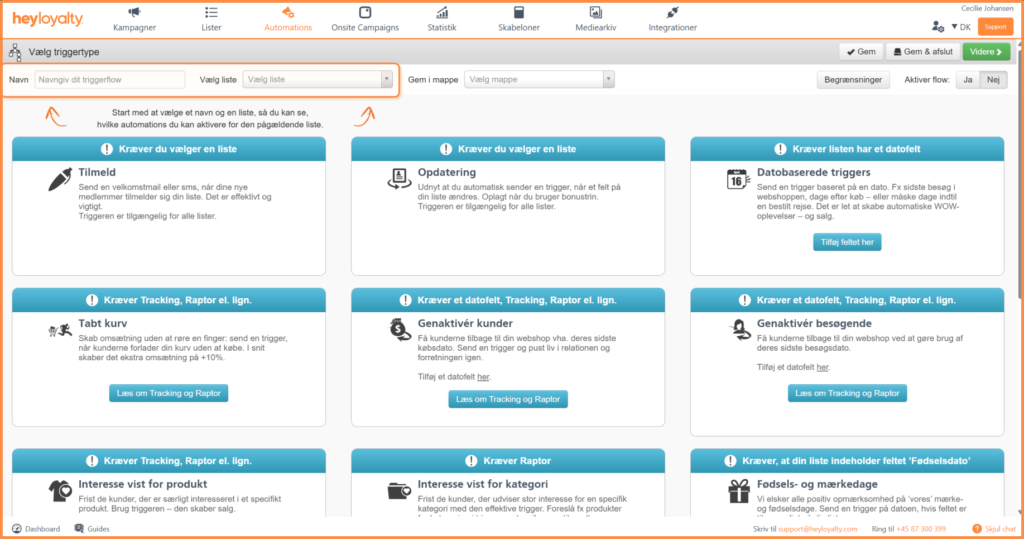
Name your flow and select a list that has tracking set up.
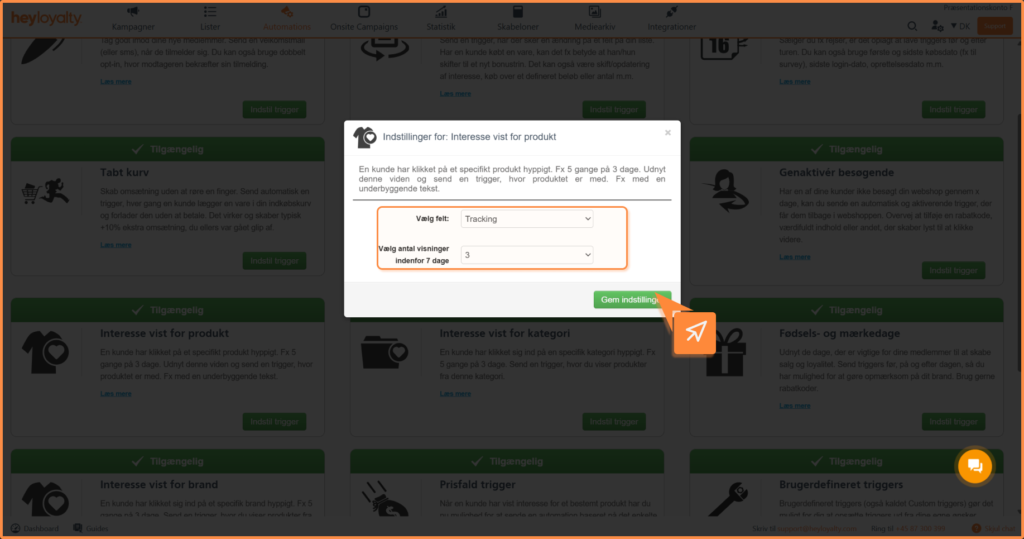
Select the trigger Interest shown for product and Set trigger.
In the subsequent popup, leave the field as Tracking and choose how many impressions of a product it takes for this flow to trigger. A good default is 3 views . Save the settings. Click Next.
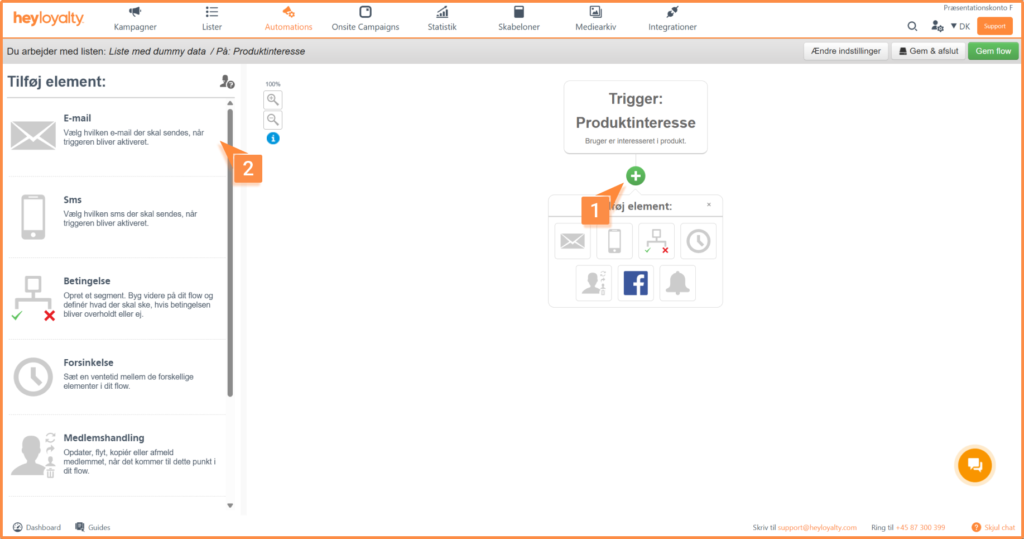
You will now see an empty flow. Start by building your flow by clicking on + and inserting the desired element, which in this case is Email.
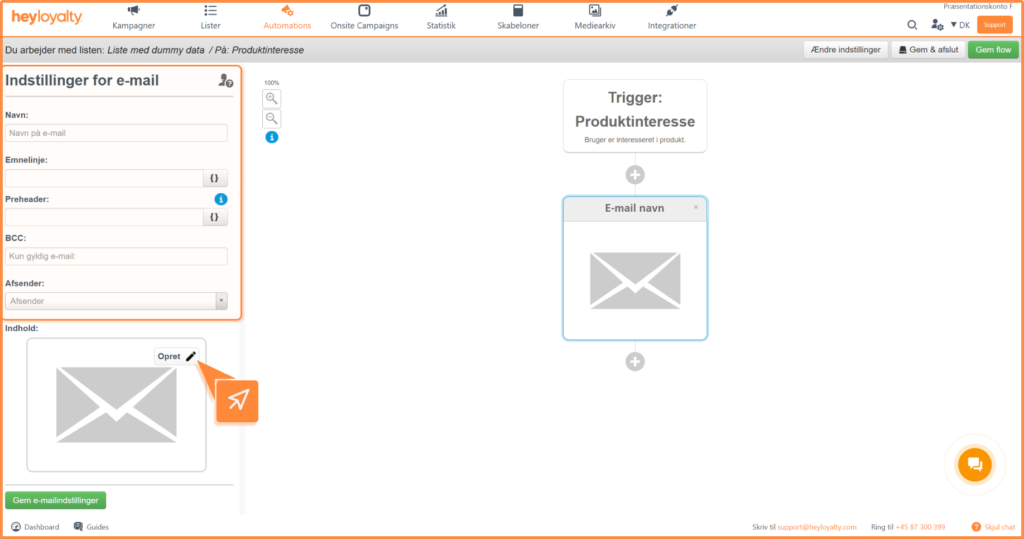
Fill in the information and click Create.
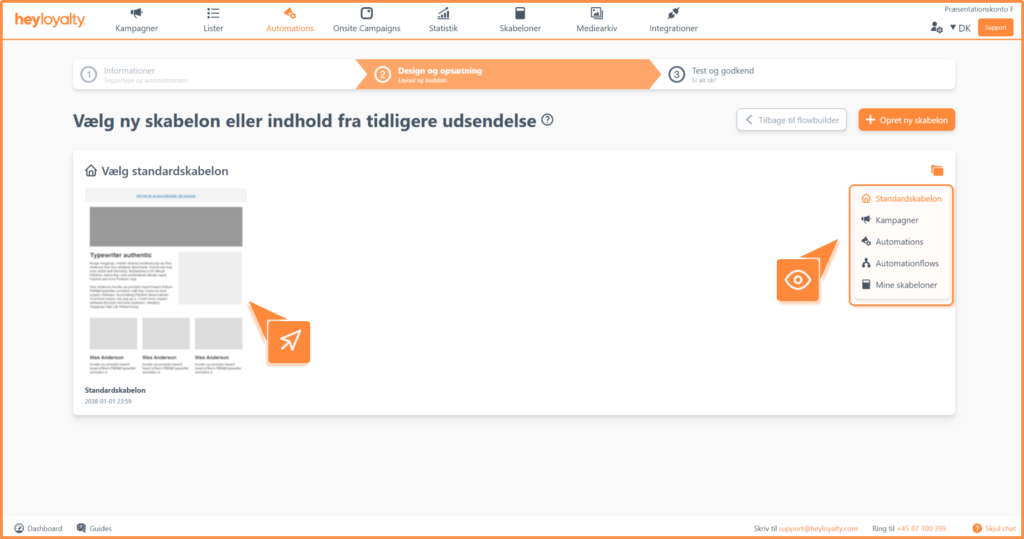
Choose the desired email template and design your email.
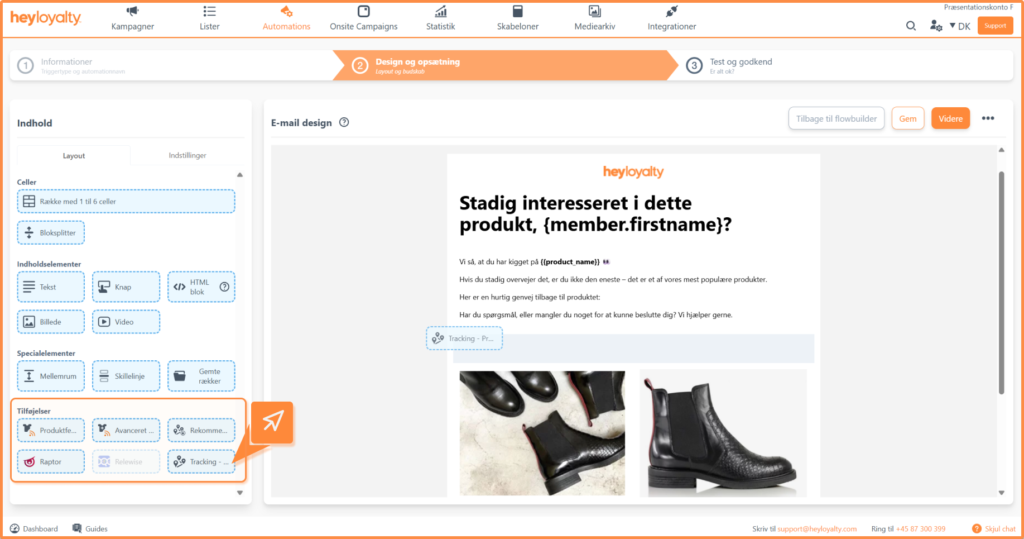
To merge the product(s) into the email, use the Tracking – Product Interest add-on.
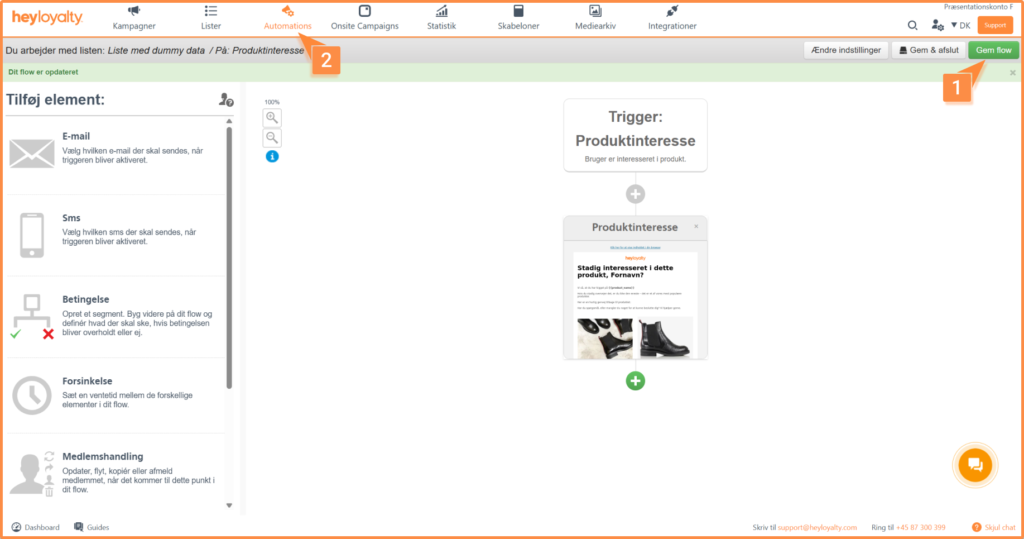
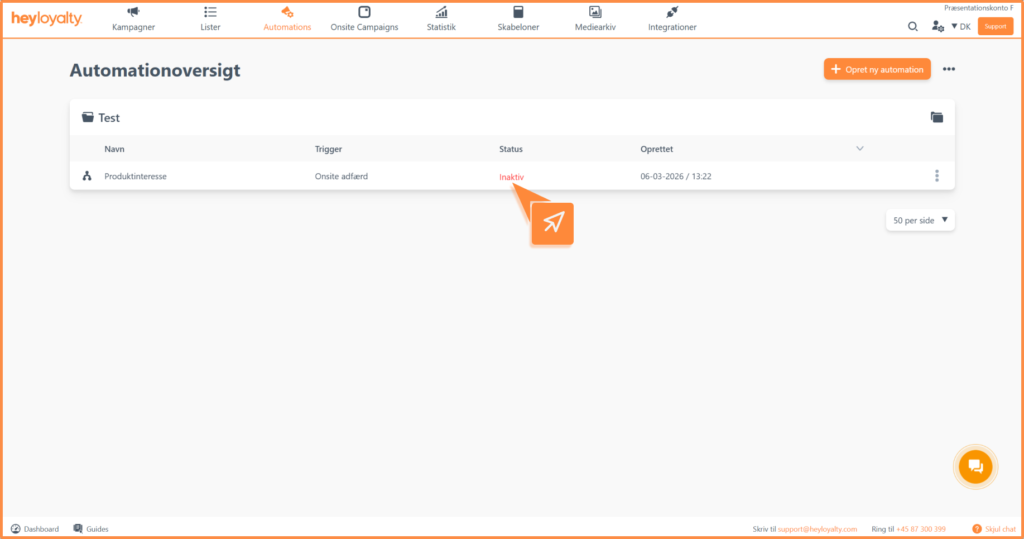
After you’ve designed your email and saved your flow, you can activate the flow by clicking Inactive in the Status column in your automation overview.
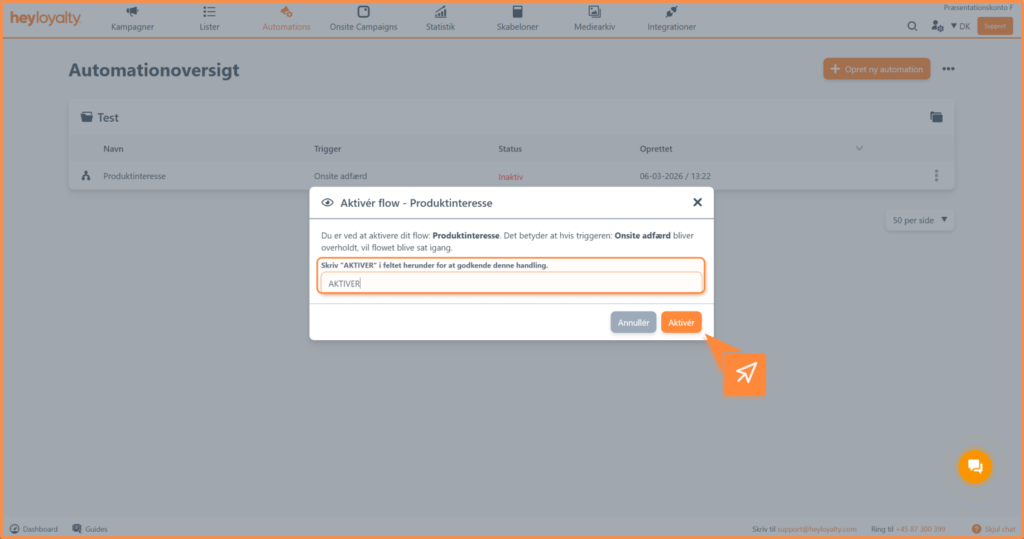
Type Activate in the field and click Activate

Hvis du mangler information eller hjælp, som du ikke finder her på guide sitet, er du altid velkommen til at kontakte vores support!
support@heyloyalty.com / tlf. 87 300 399