Category interest: What is it and what does it require?
If you have a Premium license, you have access to our standard package of behavioral triggers for your automations, including category interest.
With the category interest feature, you can set up an automation that sends when a guest visits the same product multiple times, but without adding it to the cart or buying it.
Before you can set up a category interest flow, you need to make sure that you have a product feed and Tracking on that list. In addition, please note that the guest must be subscribed to your newsletter and have clicked on a newsletter before your category interest flow can be sent to the guest.
See the guide to setting up a product feed with JSON and XML See guide to setting up tracking here
Setup of Category interest
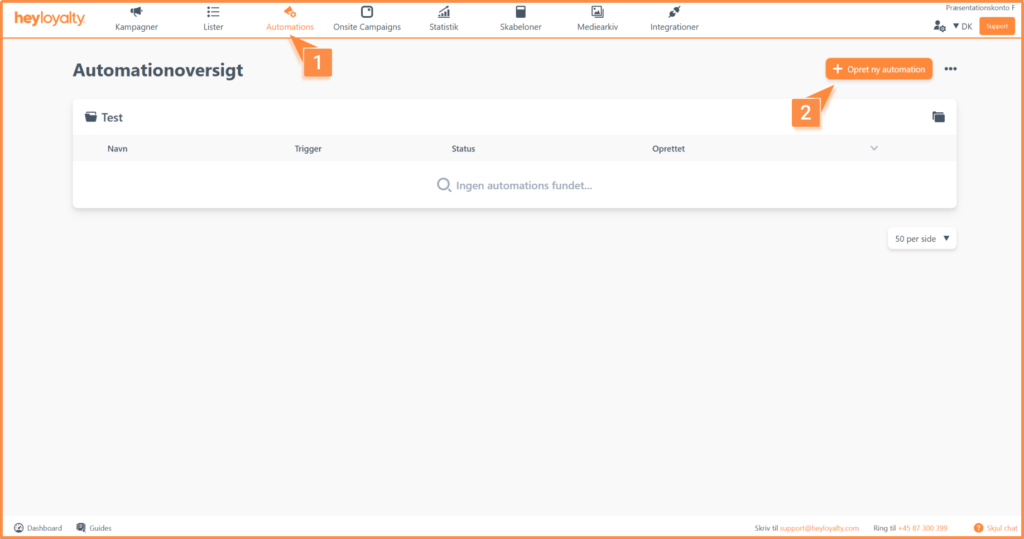
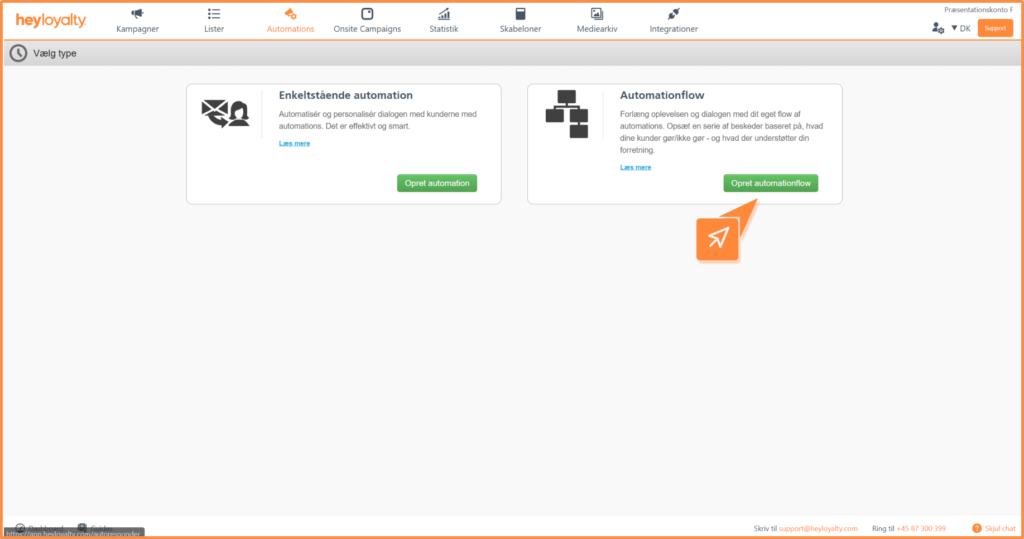
Set up your category interest flow by clicking Automations –> Create new automation –> Create automation flow.
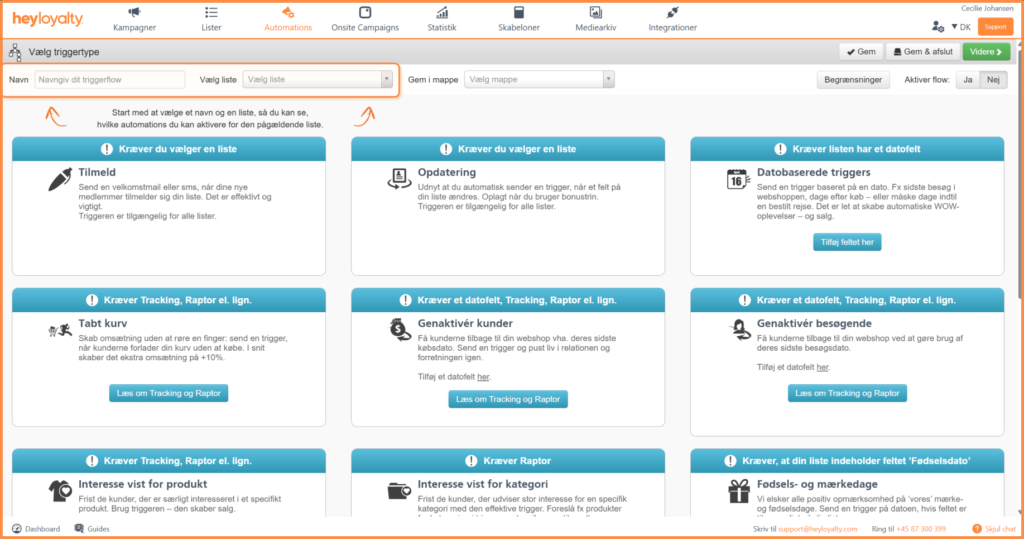
Name your flow and select a list that has tracking set up.
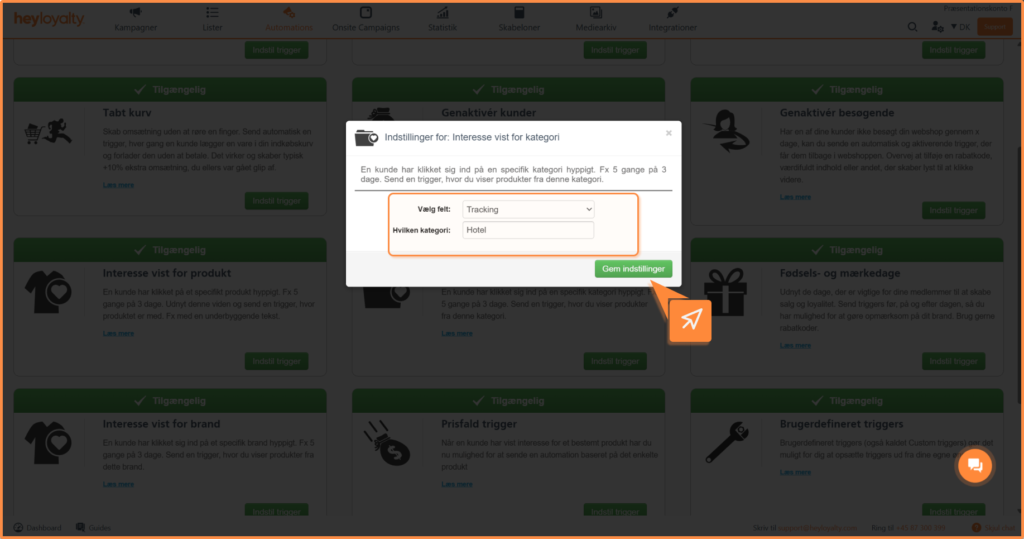
Select the Interest shown trigger in category and Set trigger. In the following popup, you leave the field as Tracking and choose which category this flow should trigger on.
NOTE! It is important that you find the exact name of the category in your product feed. The name of the category may not be the same as on your website.
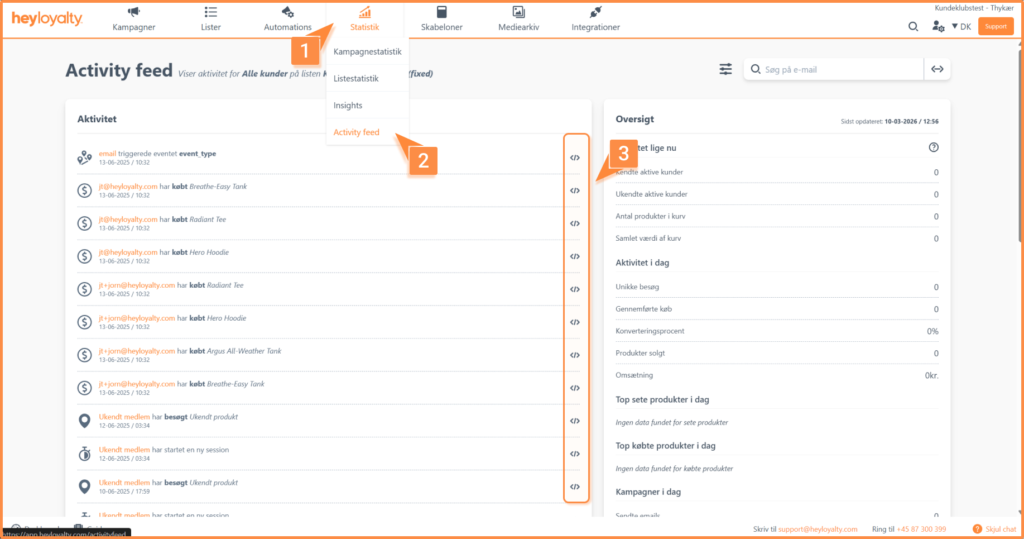
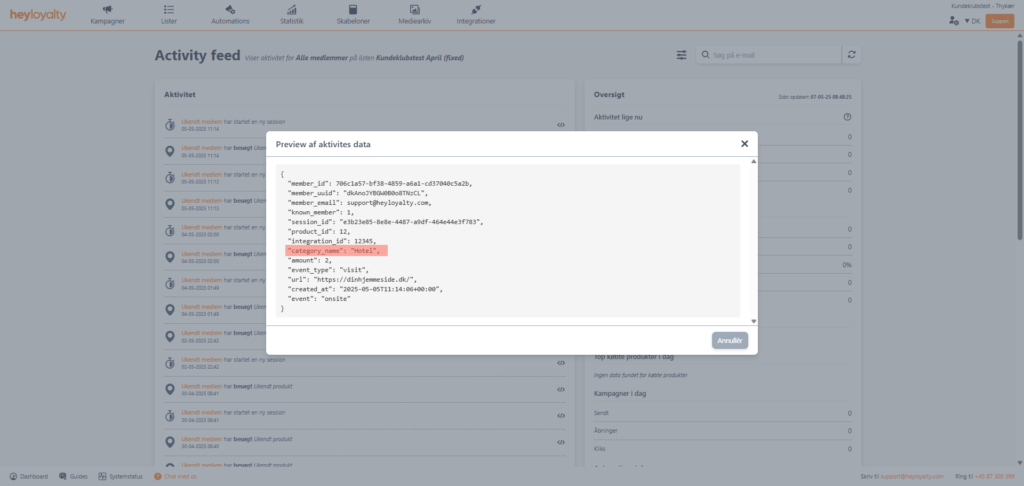
You can see which category Heyloyalty receives from your site/product feed by visiting the relevant product on your site and then viewing the tracking event. Find the tracking event by clicking Statistics –> Activity Feed –> and clicking </> next to an event and finding the line “category_name”. Here you can see the exact category name. In the case below you would type Hotel (without the ”).
Tip: We recommend creating a separate flow for each of your largest and most popular categories. The largest and most popular in this context can be the most visits, item numbers, orders and/or turnover. Start with the categories where you expect to be able to get the most revenue or the best branding.
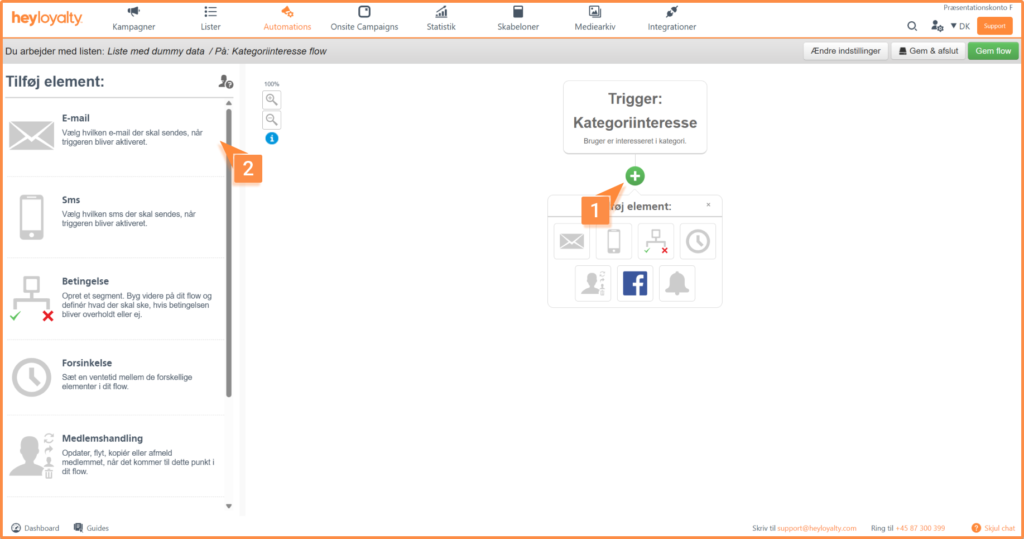
You will now see an empty flow. Start by building your flow by clicking on + and inserting the desired element, which in this case is Email.
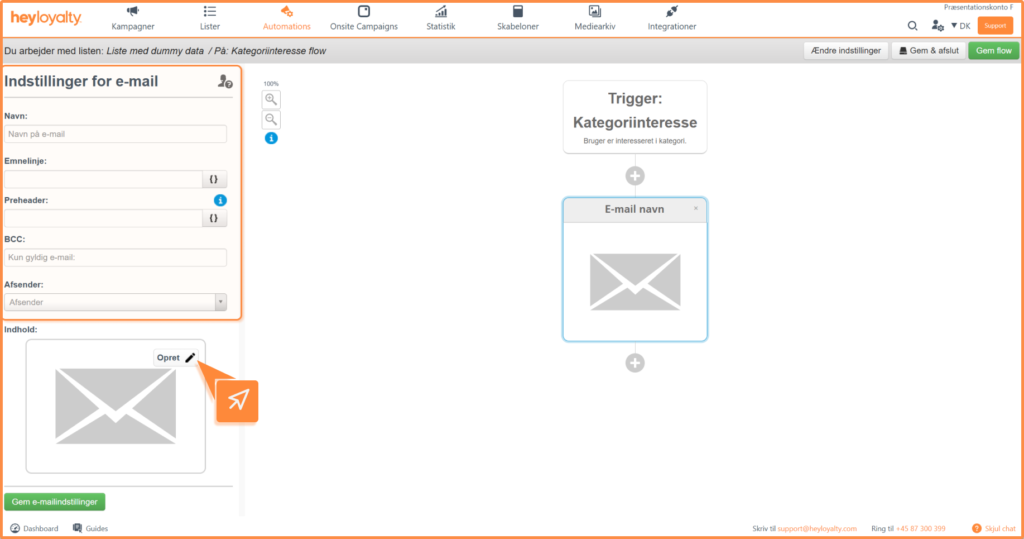
Fill in the information and click Create.
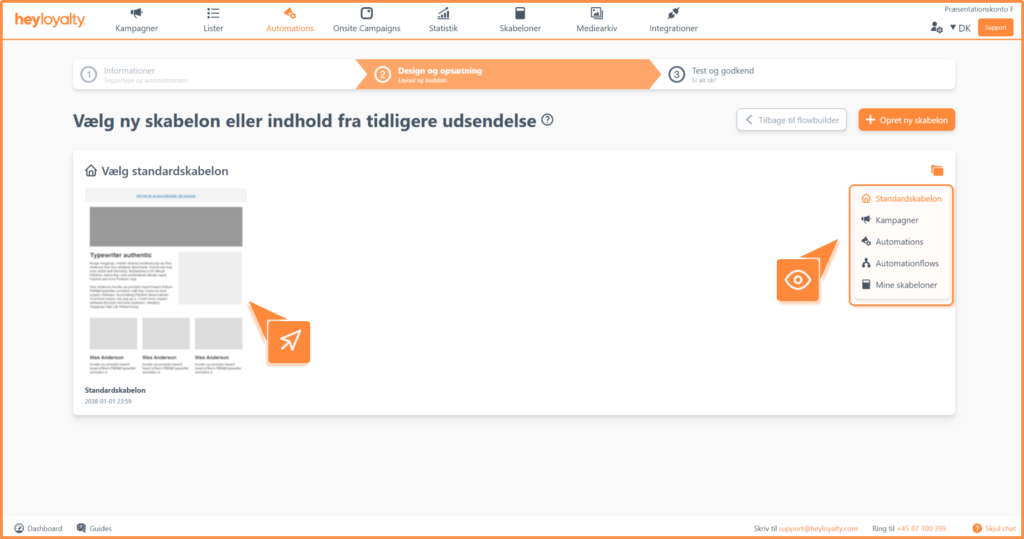
Choose the desired email template and design your email.
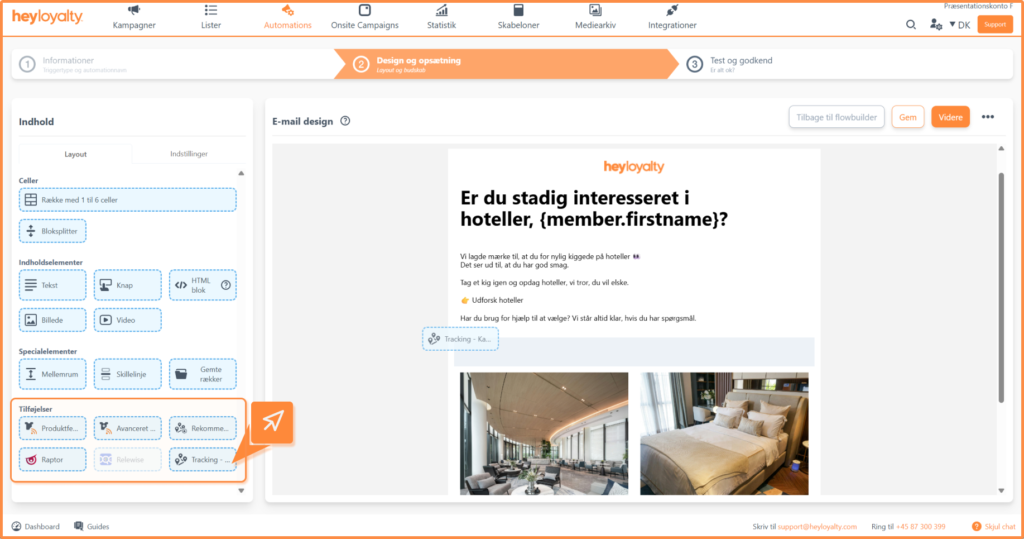
To merge the lost product(s), you need to use the Tracking – Category Interest add-on.
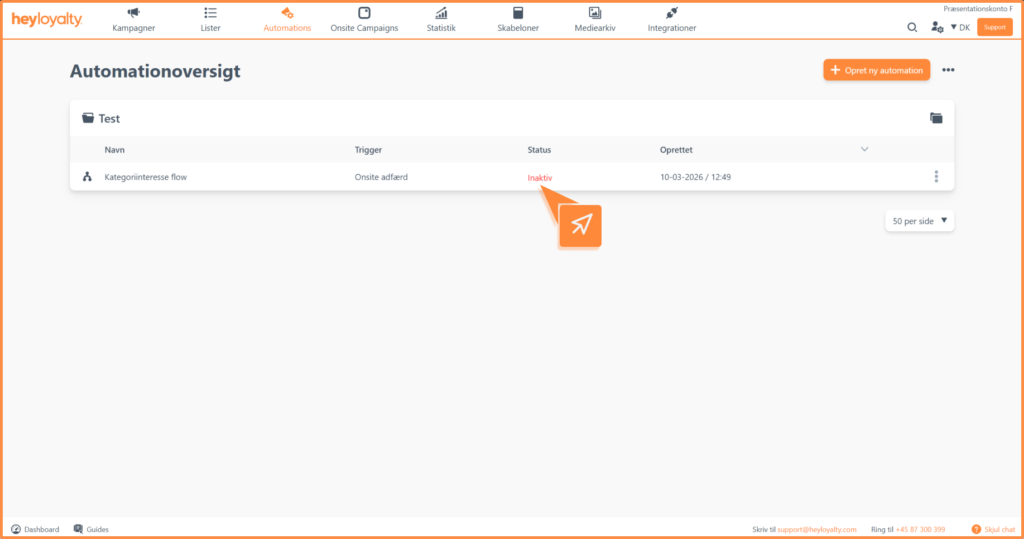
After you’ve designed your email and saved your flow, you can activate the flow by clicking Inactive in the Status column in your automation overview.
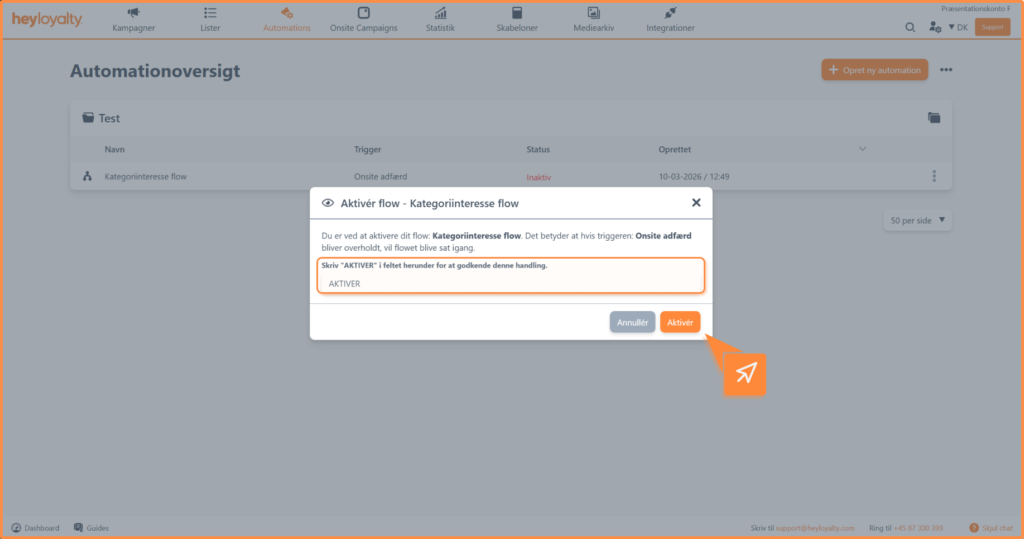
Type Activate in the field and click Activate
Hvis du mangler information eller hjælp, som du ikke finder her på guide sitet, er du altid velkommen til at kontakte vores support! support@heyloyalty.com / tlf. 87 300 399