
When a customer has looked at a rain jacket three times or added it to the basket, your next email is about that rain jacket. With the product merge fields, you can put the product’s name, price and brand from your product feed straight into the subject line and the text. The customer can then tell from the subject line alone which item the email is about, for example “Still interested in Rain Jacket Classic?”.
In this guide, you will see which product merge fields there are and how to insert them in the subject line and in a text field in your flow.
How the product merge fields work
A flow with a tracking trigger knows which product the customer looked at or added to the basket. When the flow sends the email, Heyloyalty fetches data about the first product in the email’s product feed block, for example Tracking - Product interest or Tracking - Abandoned basket. The data comes from your product feed. Each merge field is replaced with the product’s data before the email is sent.
You can use the merge fields in the subject line, in the preheader and in text fields in the email. Under Product in the merge field menu, you will find these:
| Merge field in the menu | What is inserted | Content |
|---|---|---|
| Product name | {product.name} | The product’s name |
| URL | {product.url} | The link to the product page |
| Image URL | {product.image} | The link to the product image |
| Category | {product.category} | The product’s category |
| Brand | {product.brand} | The product’s brand |
| Original price | {product.original_price} | The product’s regular price |
| Sale price | {product.sale_price} | The product’s sale price |
| Event date | {product.eventdate} | The time of the action that started the flow |
You can also type these merge fields yourself, even though they are not in the menu: {product.currency} (currency), {product.description} (description), {product.number} (product number), {product.discount} (discount) and {product.in_stock} (stock status).
Step 1: Insert merge fields in the subject line
Go to Automations, and open your flow. Click the email in the flow. Email settings opens on the left.
Click the { } button to the right of Subject line, and hover over Product. Then click the merge field you want to use, for example Product name. You can also search for it in the Search merge fields field.
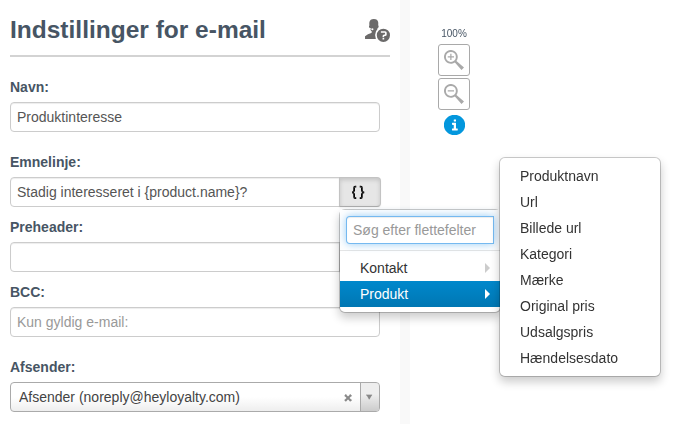
The merge field is added at the end of the subject line, for example {product.name}. Write the rest of the subject line around it, for example Still interested in {product.name}?.
The preheader works the same way. Use the { } button to the right of Preheader.
Click Save email settings.
Step 2: Insert merge fields in a text field
Click Edit under Content in Email settings. The email opens in E-mail design.
Click the text field where the merge field should go. Click {Merge fields} in the toolbar, and choose the merge field under Product, for example Product name. The merge field is inserted where the cursor is.
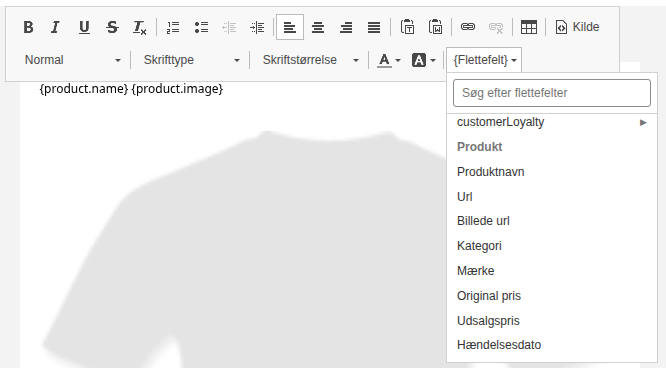
You can also type the merge field straight into the text, for example We have saved {product.name} for you.
Click Save.
Step 3: Test the email
Click Next to go to Test and confirm, and send a test to yourself. In the test, the merge fields are filled in with the first product in the product feed block, so you can see the subject line and the text with real product data.
The email is about the customer’s product
You have now put product data into the subject line and the text of your flow. Each customer gets an email about the product they looked at or added to the basket, without you having to create an email per product.
Use it in your flows for abandoned basket and product interest. A subject line like You left {product.name} in your basket tells the customer what the email is about before they open it. See how to use other merge fields, for example the contact’s first name, in Merge fields.