


Create a form from a list
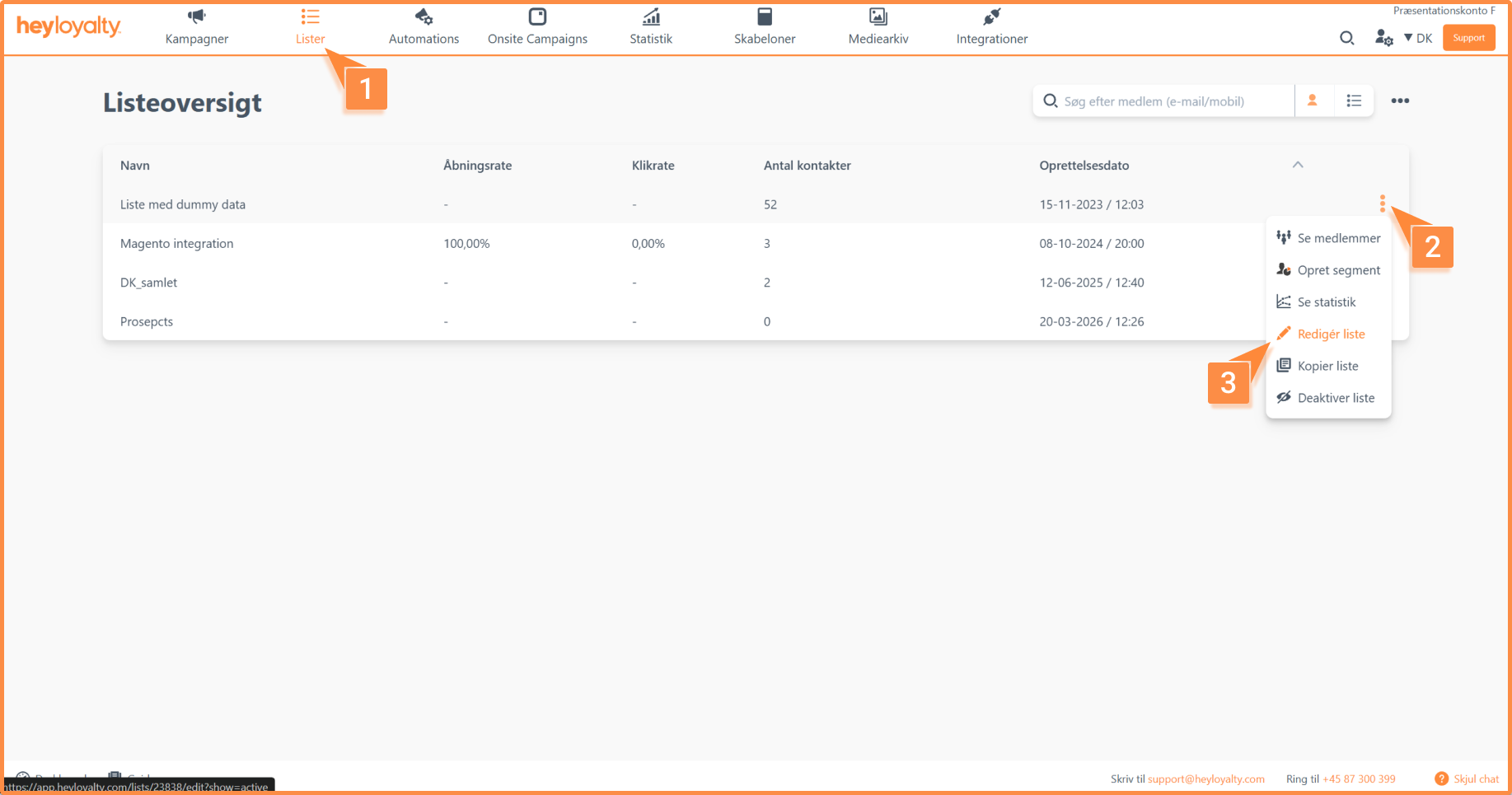
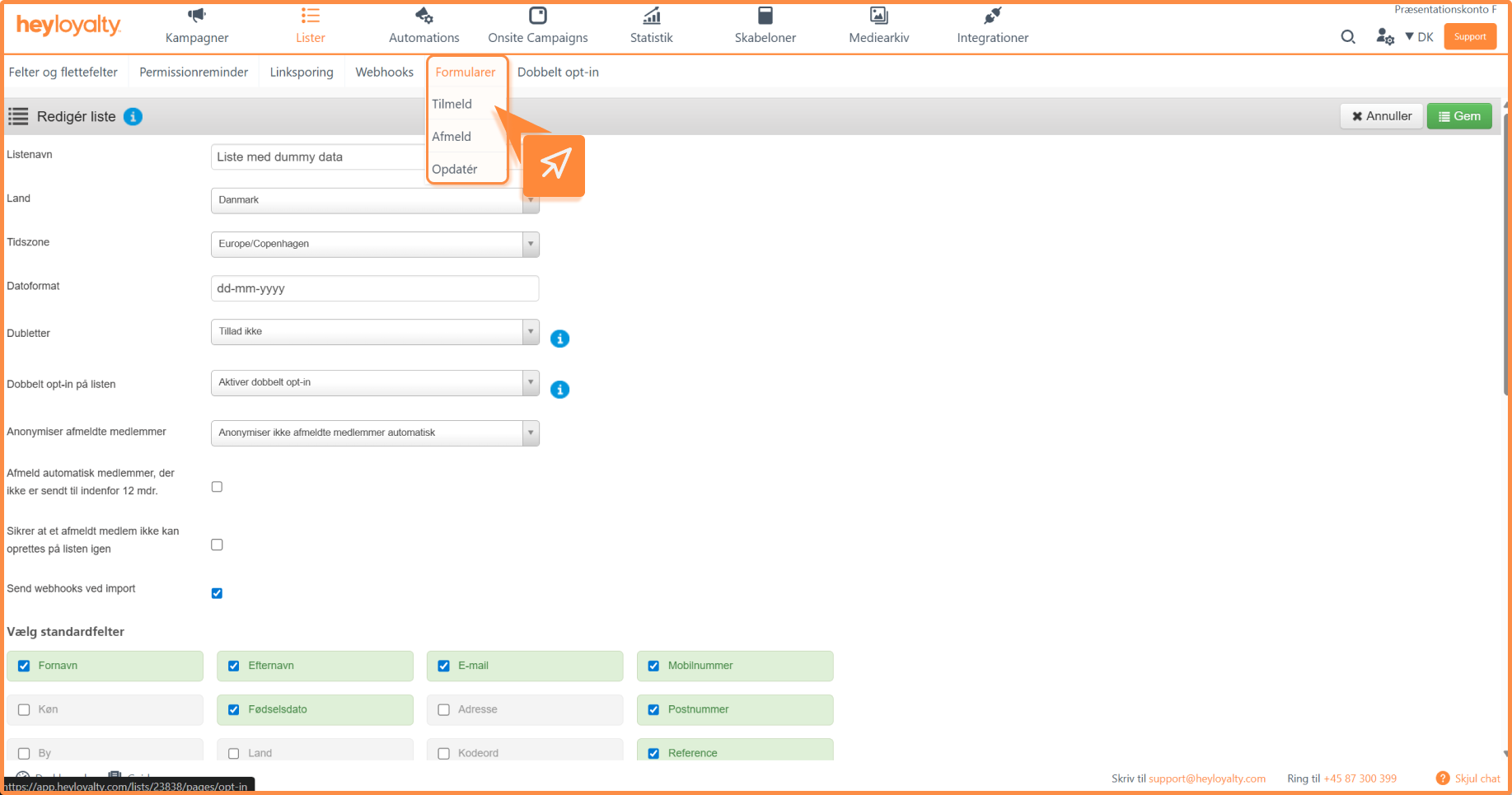
Click Lists –> ⁝ –> Edit List –> Forms –> Select the type of form you want to create
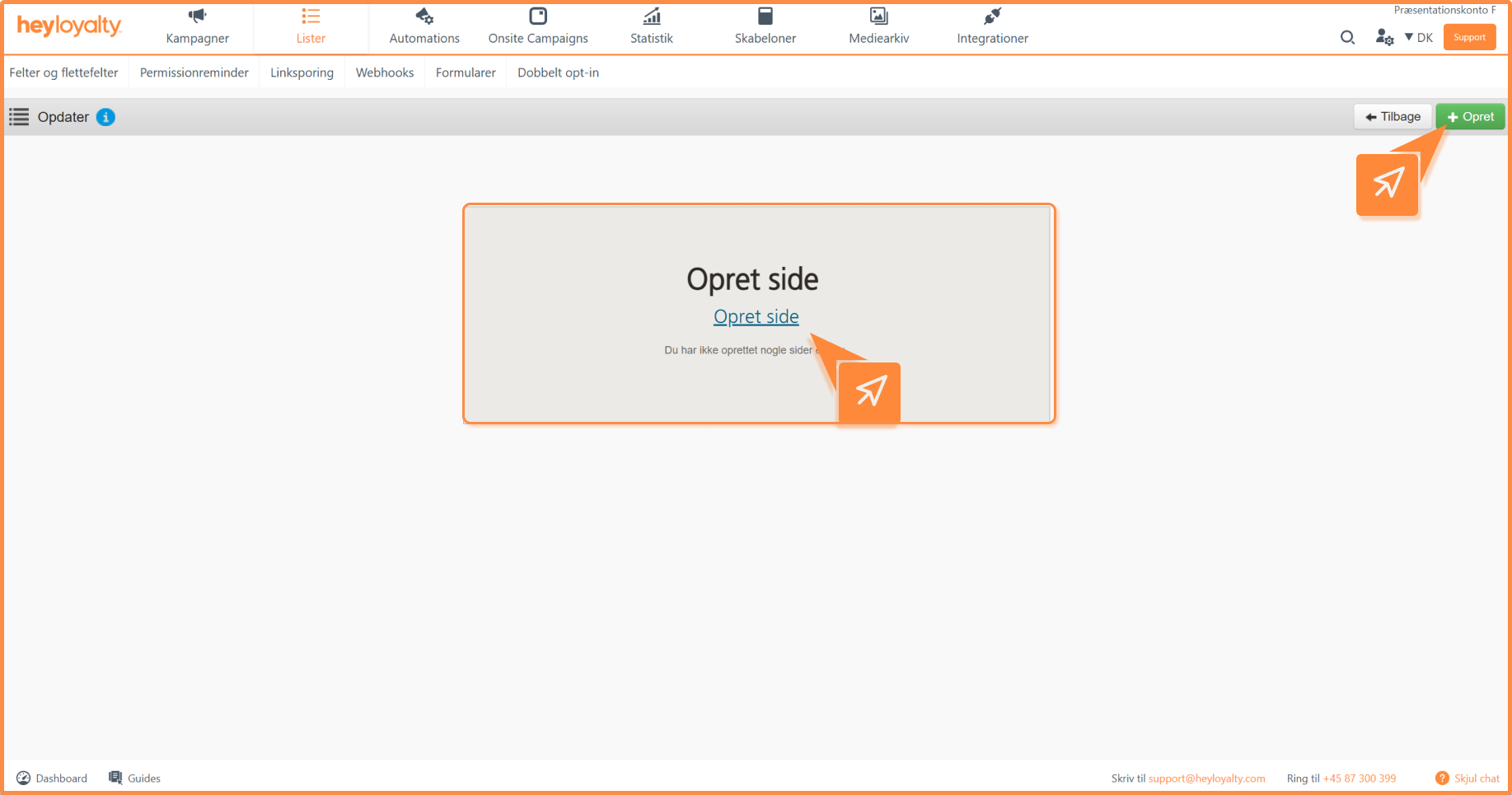
Click Create page if there is not already a form of that type in the list.
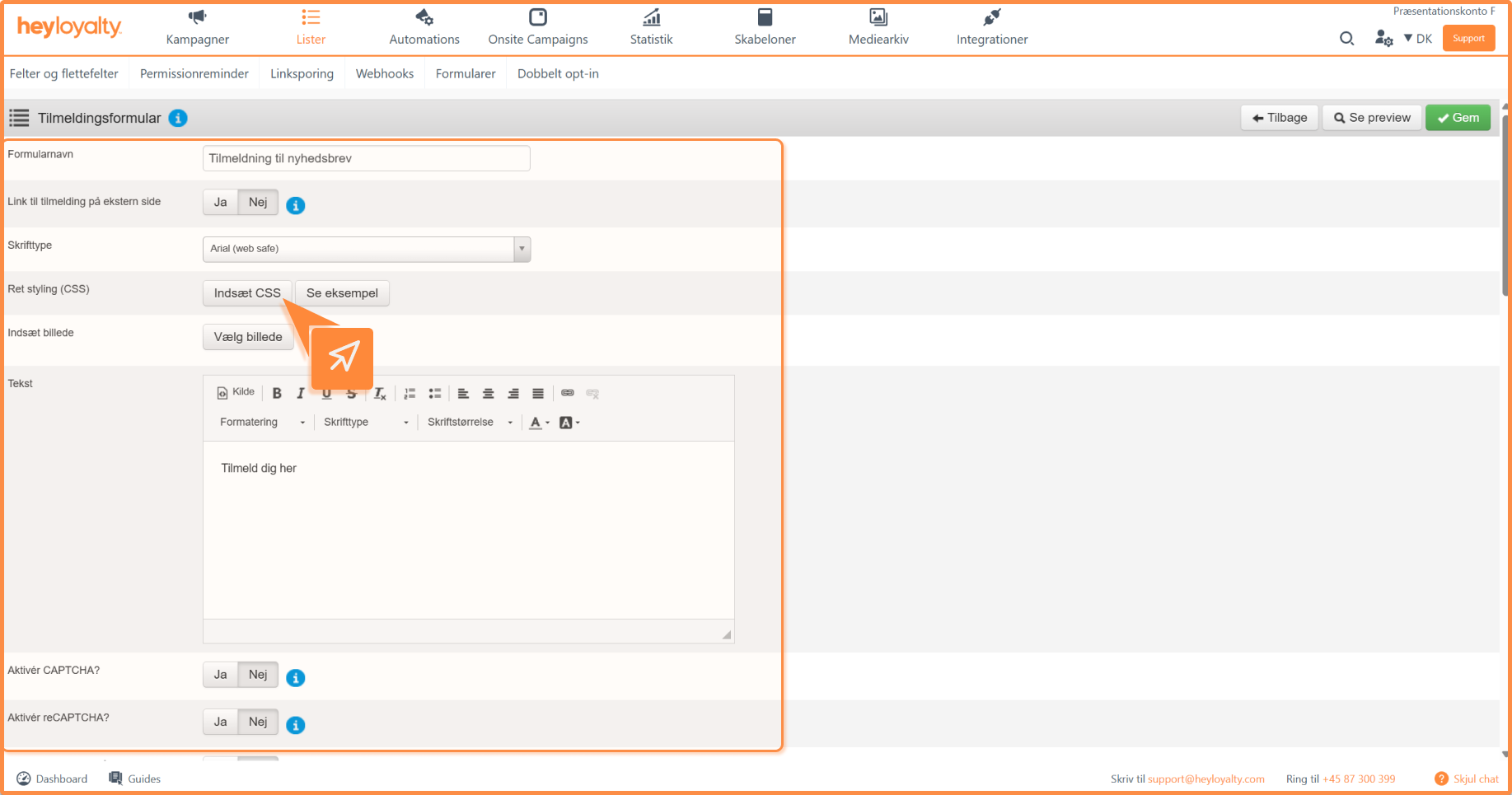
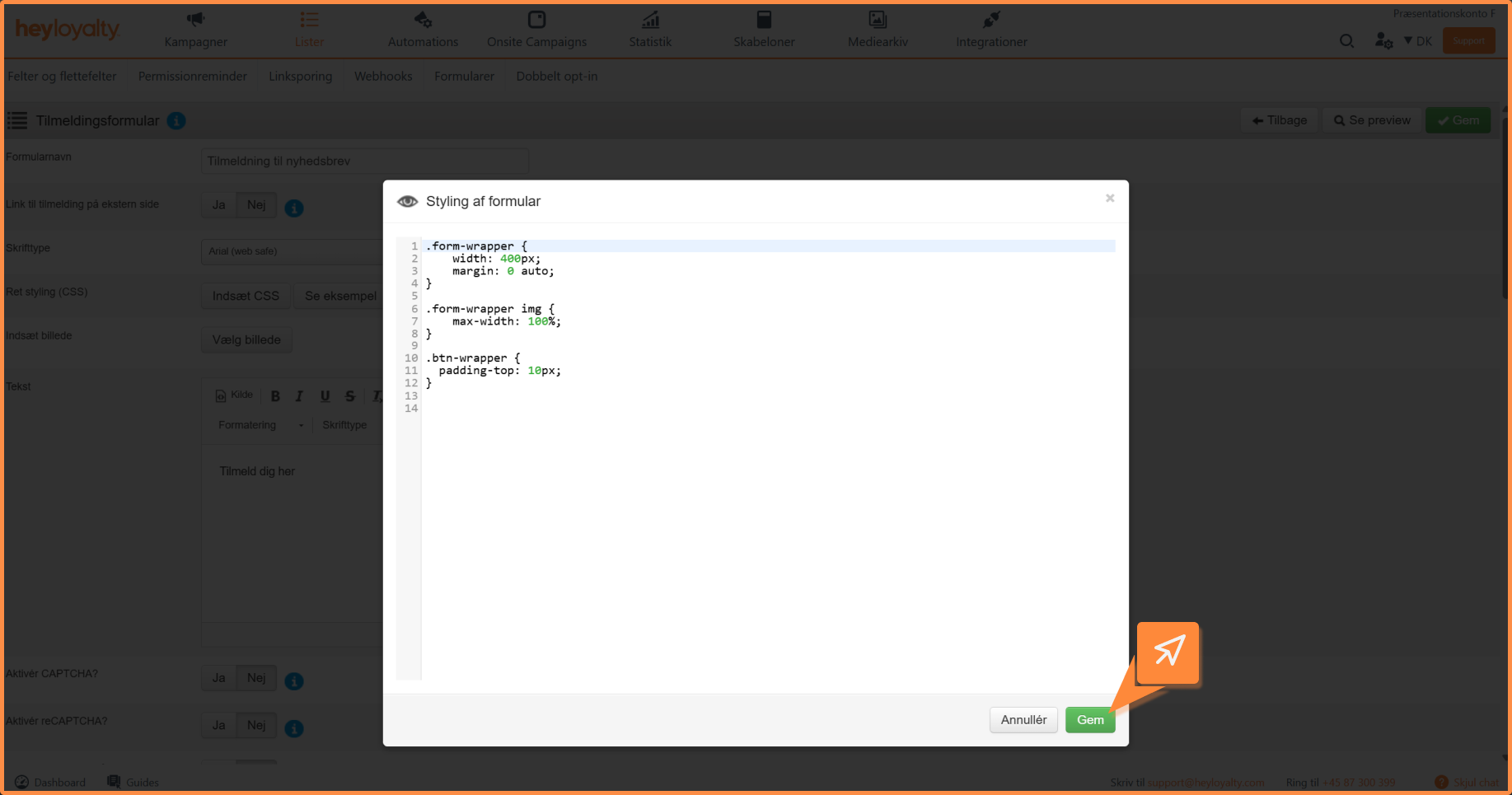
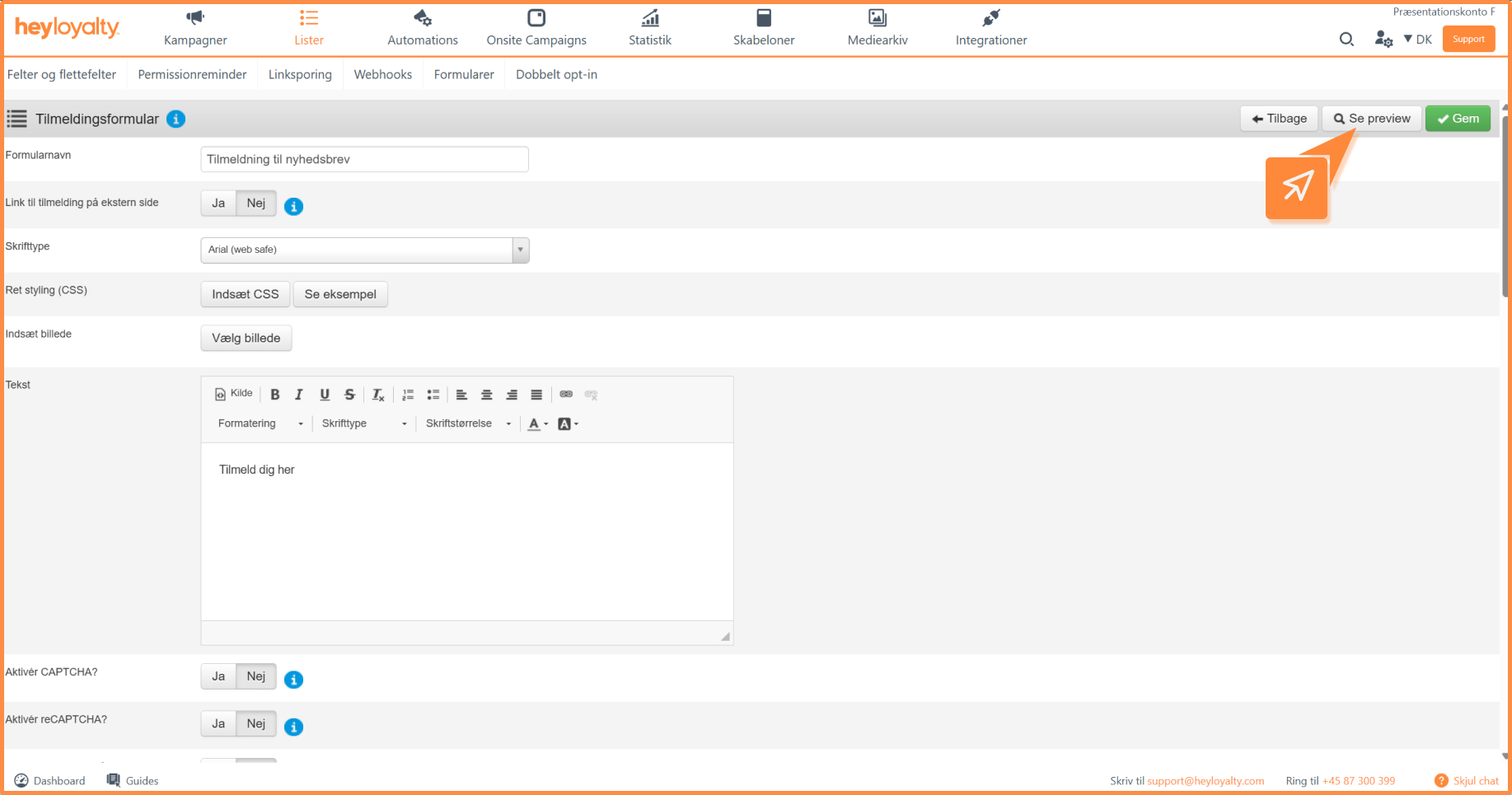
Fill in the information and relate to all the fields. You can change the styling with CSS by clicking Insert CSS.
Scroll down and select which fields should be available in the form.
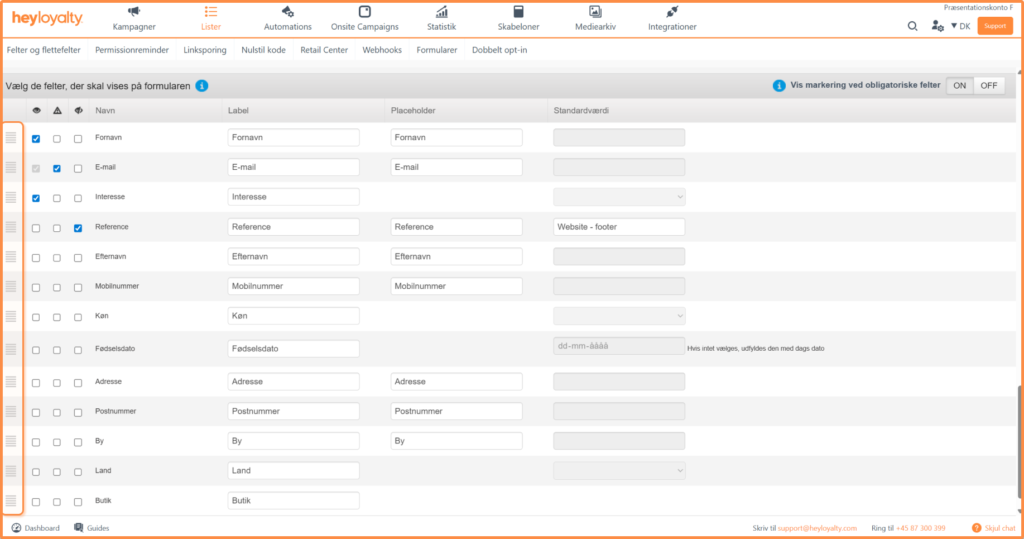
The highlighted column on the left with the burger menu (marked with four horizontal lines) allows you to click-and-hold and drag in that field to change the order of fields.
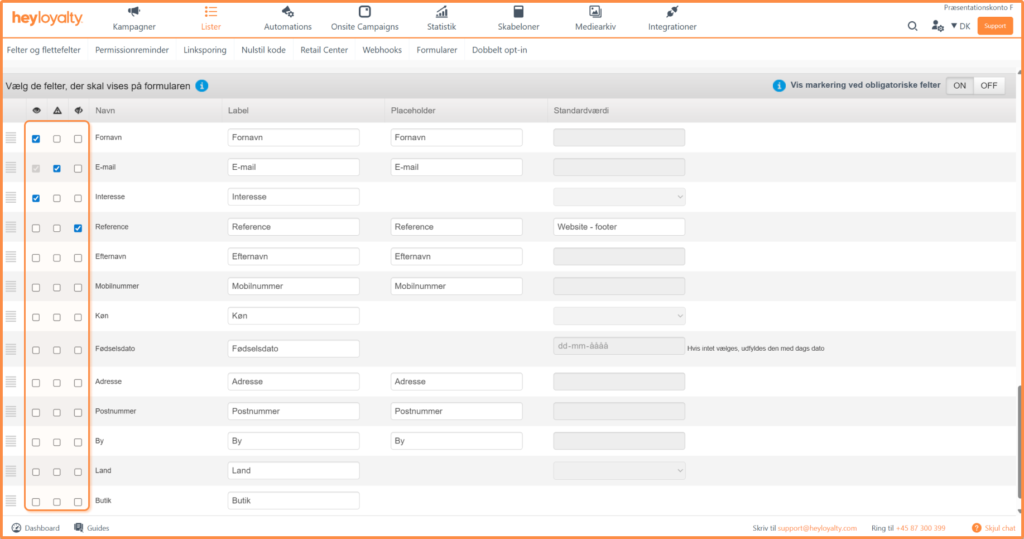
The three highlighted icons define whether a given field is Visible, Required, or Hidden field with value.
If the field is Visible, the user will be able to see the field and type in the field.
If the field is Required, the user will be forced to type something or select an option before the user can submit the form.
If the Hidden field has a value, you can add some data to the form that the user cannot see but that you need. Often the Reference field is used here because you can give yourself a reference of how the user was signed up.
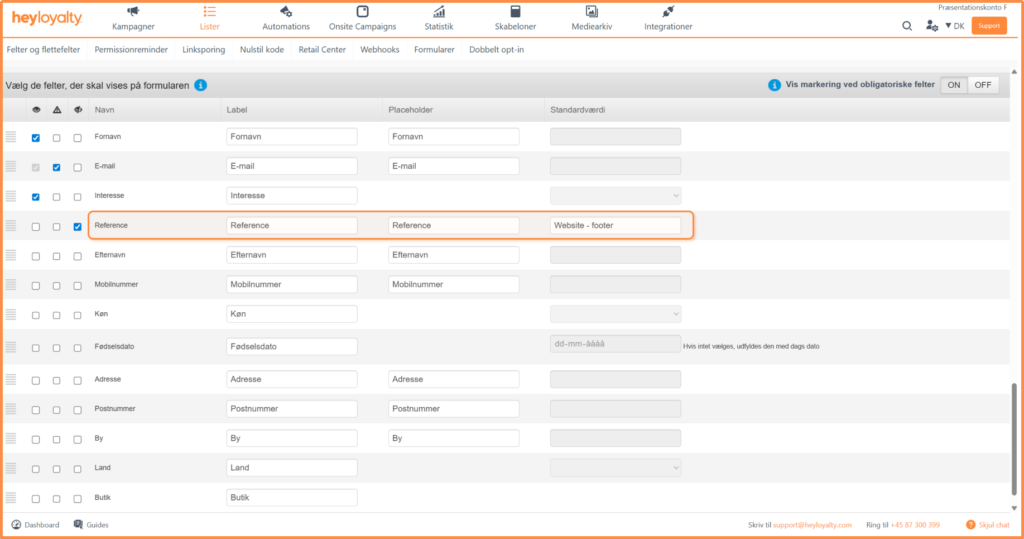
If you are creating a sign-up form and you know that this form will be in the footer of your website, you may want to add Reference as a Hidden field with value. Here you can include Send Website – footer. This way, all users who sign up via this form will have the reference Website – footer, which you can then use to segment in your broadcasts. You can also report on how many signups you get from each channel.
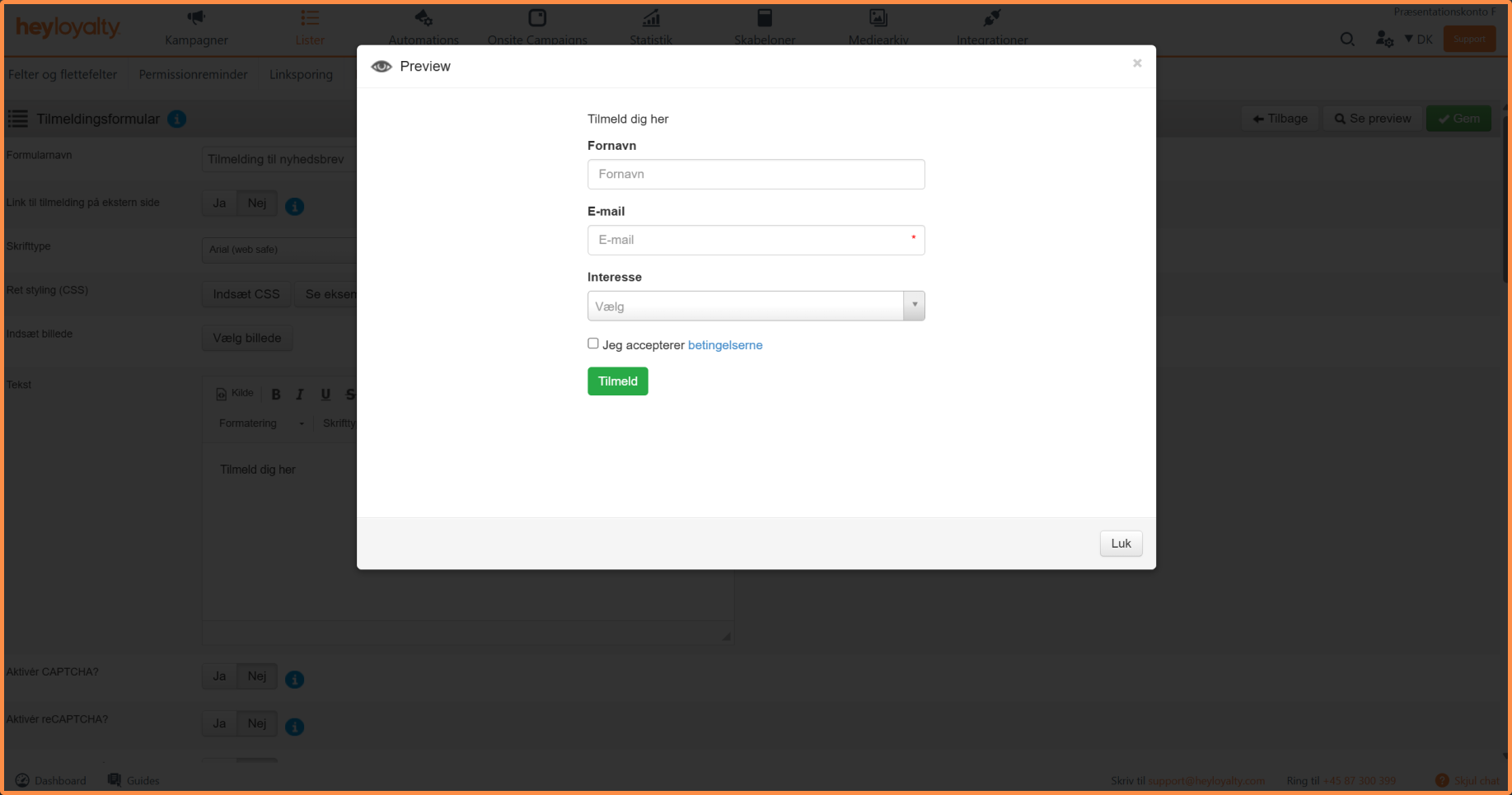
When you have filled in the information and considered which fields should be displayed in the form, you can click on View preview at the top and get a preview of your form. Click Close and then Save if you are satisfied with your form.
On the overview page of your forms of that type on this list, you will also be able to find the Embed code so that you can get the form into your website.
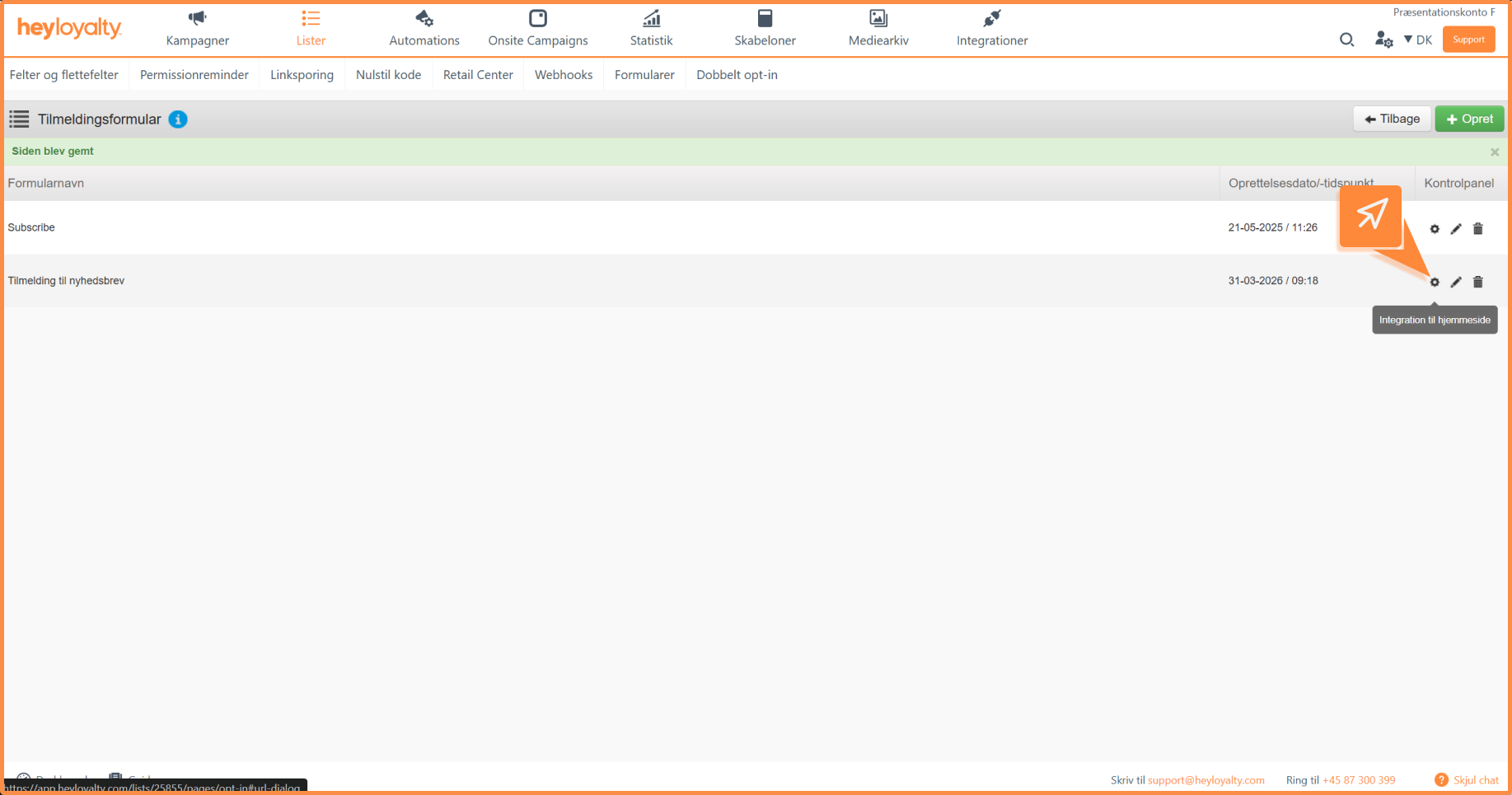
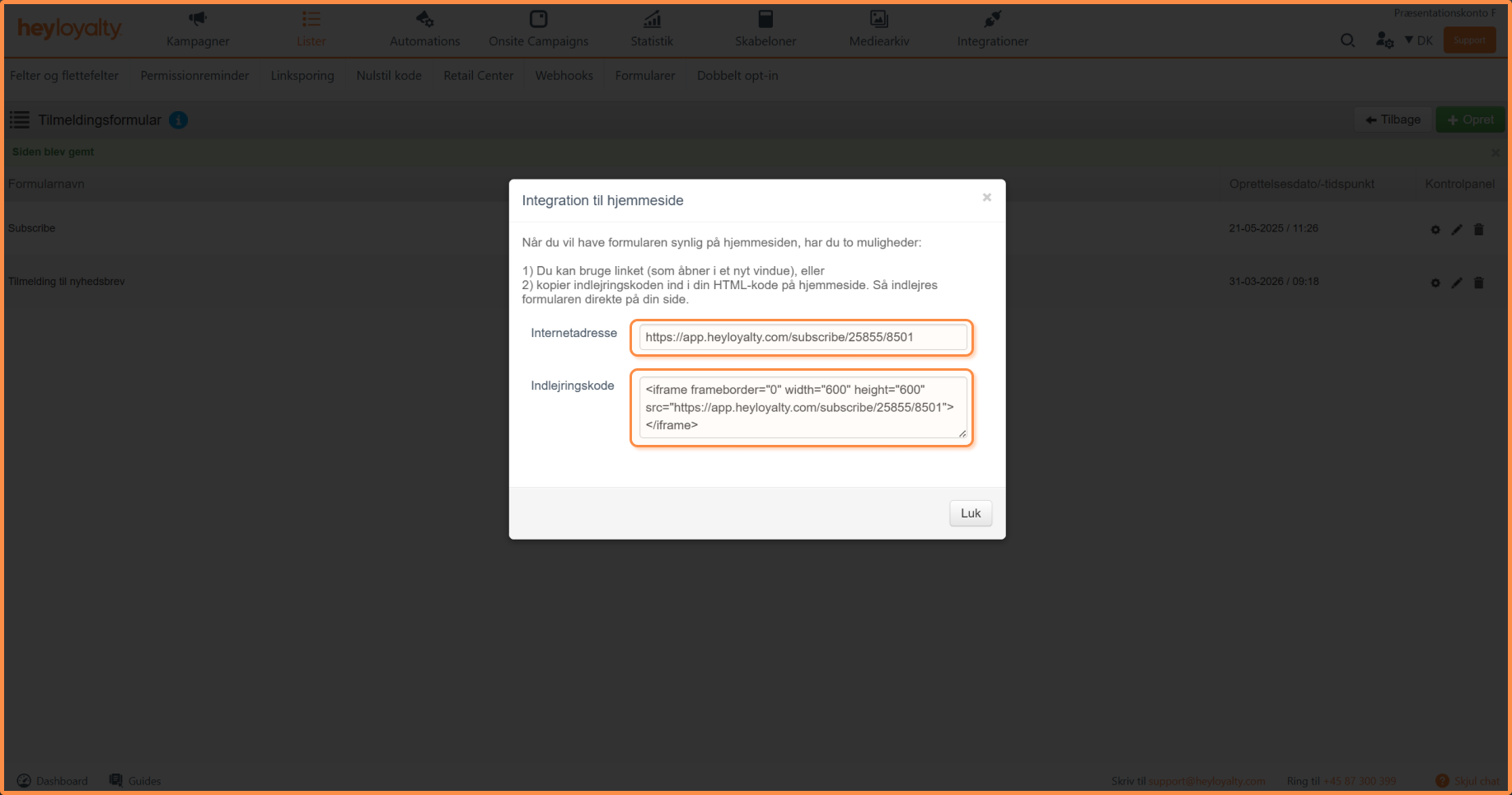
Click on the Gear icon and choose whether you want to copy a link to the form (Internet address) or Embed code, which is a standard iframe.
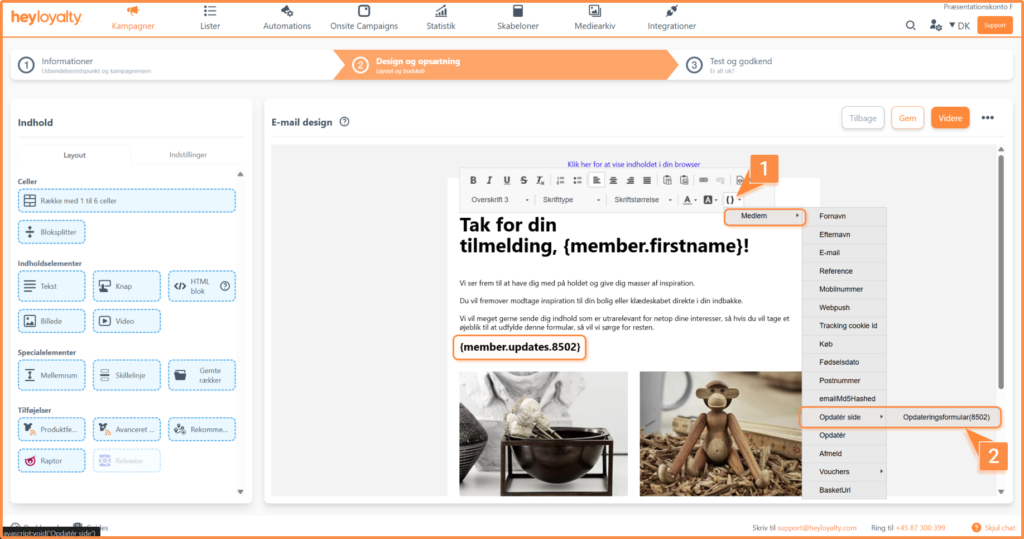
If you have created an update form and want to link to it in an email, you use a merge field to link to the form.
A link to an update form will look like this: {member.updates.XXXX} where XXXX is replaced by four digits, which is an ID for the specific form.

Hvis du mangler information eller hjælp, som du ikke finder her på guide sitet, er du altid velkommen til at kontakte vores support!
support@heyloyalty.com / tlf. 87 300 399