


An Open Graph feed makes it possible to pull article data directly from your website’s metadata and use it in Heyloyalty. By mapping your Open Graph feed correctly, you ensure that the right information – such as title, image, description and link – is available. You will then be able to insert your articles into your campaigns and automations.
In this guide, we will walk you through step-by-step how to create and map an Open Graph feed in Heyloyalty so you can use the content dynamically in your communication. The guide assumes that you already have access to the URL of your Open Graph feed.
Setting up Open Graph feed
The Open Graph feed is set up as a product feed. So in the feed setup, product feed fields will be referenced in the feed setup, but it still deals with setting up the Open Graph feed.
Step 1
Before you start mapping your product feed, make sure you have a URL for your Open Graph feed. Once you have this URL, you can map your feed. You do this under the menu item Integrations > Integrations. Then find your “Product Feed” and press “Set up integration” or “Edit integration”.
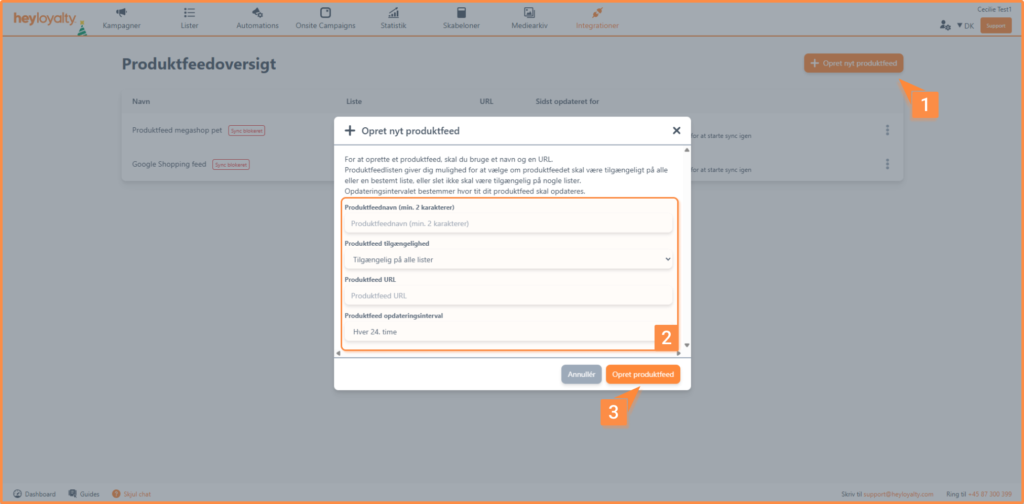
Now click on Create new product feed. Product feed name is a name you give it, so you can identify the feed later on. Unless you have different languages or different webshops combined on one account in Heyloyalty, it often makes good sense that Product feed availability is set to Available on all lists. In the Product feed URL field, insert the URL for your Open Graph feed and then select an interval at which your Open Graph feed automatically updates. In most cases, every 24 hours is sufficient. Finish with Create product feed.
Step 2
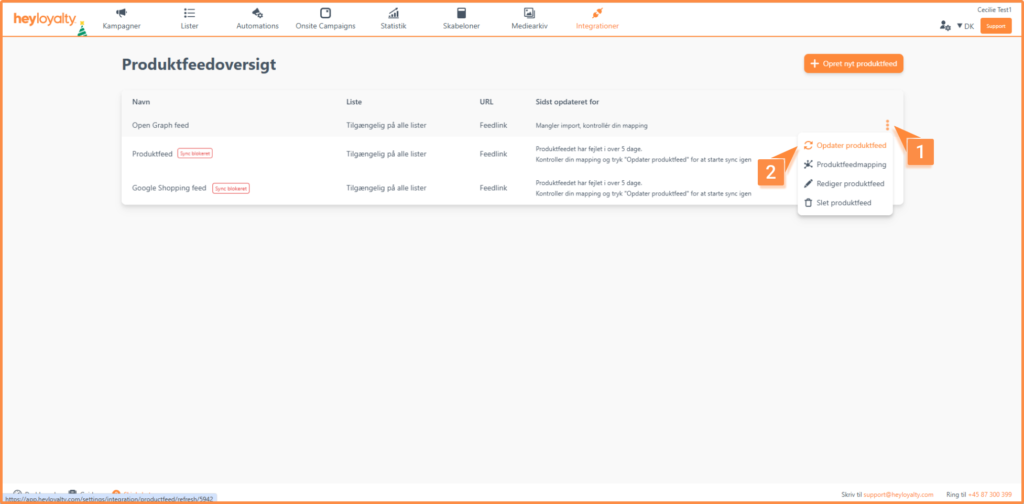
When you click create product feed, you should enter the product mapping page. If not, you should click on the three dots next to your product feed and select Product feed mapping.
Step 3
Now you’re ready to map your feed. We’ll first go through the settings for your Open Graph feed.
- Under Field type set it to Open Graph.
- Under field name you don’t set anything.
- If you also haven’t made any changes for: Html tags and Idn and URL encode URL fields you should not change anything on these fields either.
It should look like this:
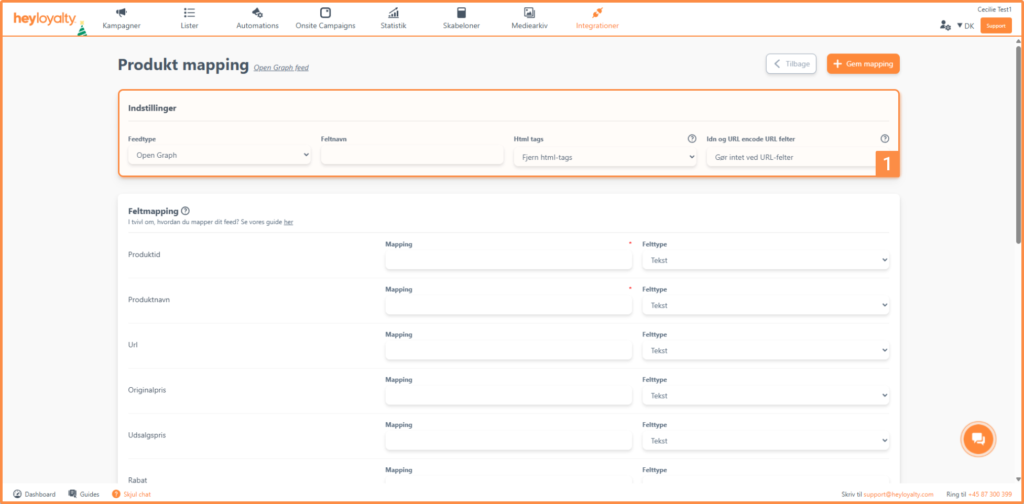
Next, you need to set your product feed mapping. Under Product time, you can just set an arbitrary mapping, as an Open Graph feed does not contain this, but it must be filled in before the mapping takes effect. We recommend that you insert ID.
Then you map each field that matches the fields above in Heyloyalty. You can see the content of your Open Graph feed by accessing one of your articles on your website, and then accessing the source code from the article and finding all the og: tags that are available and mapping them to the fields in Heyloyalty mapping. See more about Open Graph here if needed.
An example of mapping can look like this:
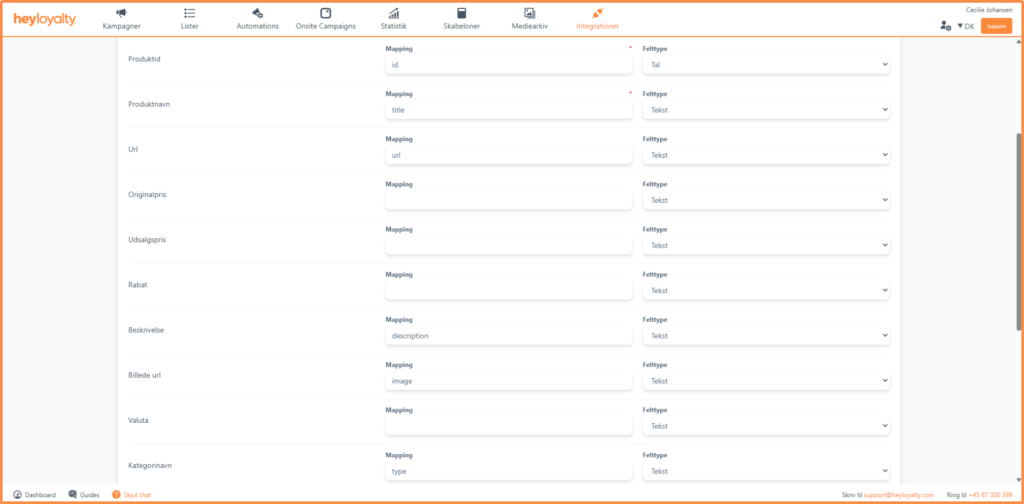
When you have filled out field mapping, you can click save mapping at the top or bottom of the page
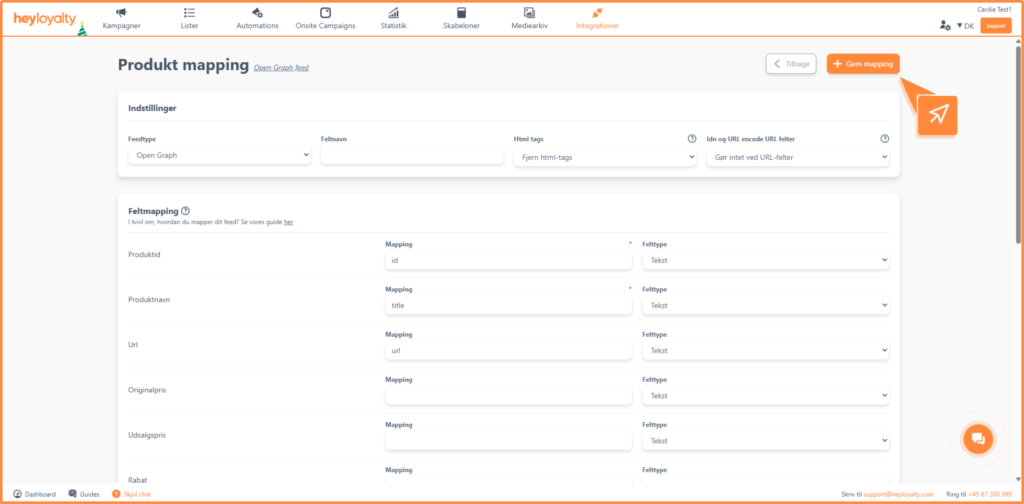
Tip: We recommend you double-check that the mapping has taken effect. If not, then we recommend going in and editing your mapping again. If you can’t see mapping on the fields you mapped previously, it may be because you haven’t mapped the required fields.
Step 3
When your mapping looks correct, you need to update your product feed. You do this by clicking on the three dots and clicking Update product feed.
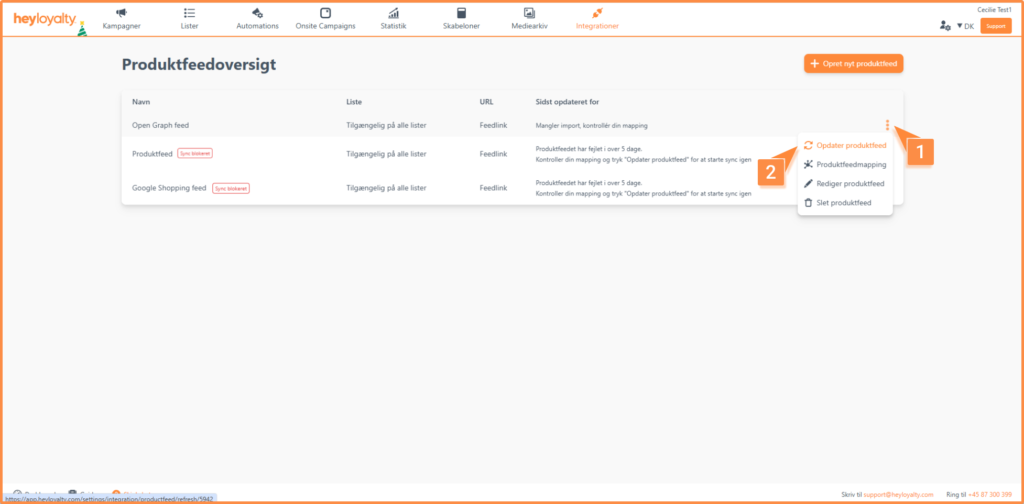
Now you’re ready to use your Open Graph feed in your campaigns and automation flows. Read here how to inserta product feed into your campaign.
Step 4
Now you are ready to use your Open Graph feed in your campaigns and automation flows.
To insert your articles into your campaigns, you need to use our advanced product feed:
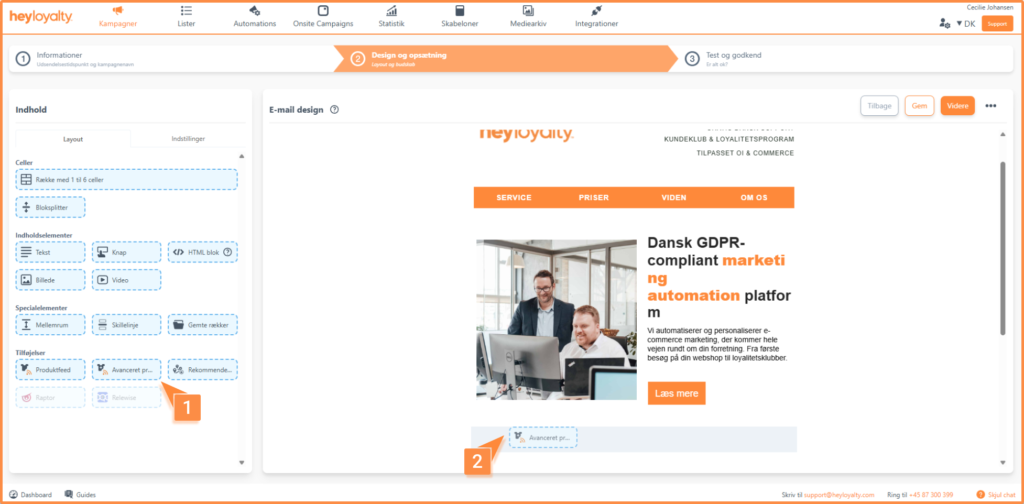
If you want the product feed to show the newest articles first, you must set the settings below:
During product search, you set the following settings:
- Sort by: Product Id
- Direction: Ascending
In addition, you must add a search criterion using the Add new search criterion button. Here you set the search criterion according to these settings:
- Fields: Image URL
- Actions: Contains
- Value: http
Ready to use your Open Graph feed
Once your Open Graph feed is correctly mapped and updated, your articles will automatically become available in Heyloyalty with the fields you have set up. This means you can easily insert dynamic article content in both campaigns and automations – without manual updates from time to time.
Remember that if you change your Open Graph setup on your website, you may need to adjust your mapping in Heyloyalty and update the product feed again.
With the right setup, you’ll save time and ensure your content is always up-to-date and consistent across your communications.

Hvis du mangler information eller hjælp, som du ikke finder her på guide sitet, er du altid velkommen til at kontakte vores support!
support@heyloyalty.com / tlf. 87 300 399