


In this guide you will get a step-by-step guide on how to set up your sender profile. It is important that you set up a sender profile, as it is mandatory in Heyloyalty in order for you to send emails. The sender profile is used as sender information when you send emails or SMS.
At the end of the guide, we will explain how to validate your sender profile so you can send to more than 10 recipients.
Setup of Sender profile
Create your sender profile by clicking Settings –> Sender profiles
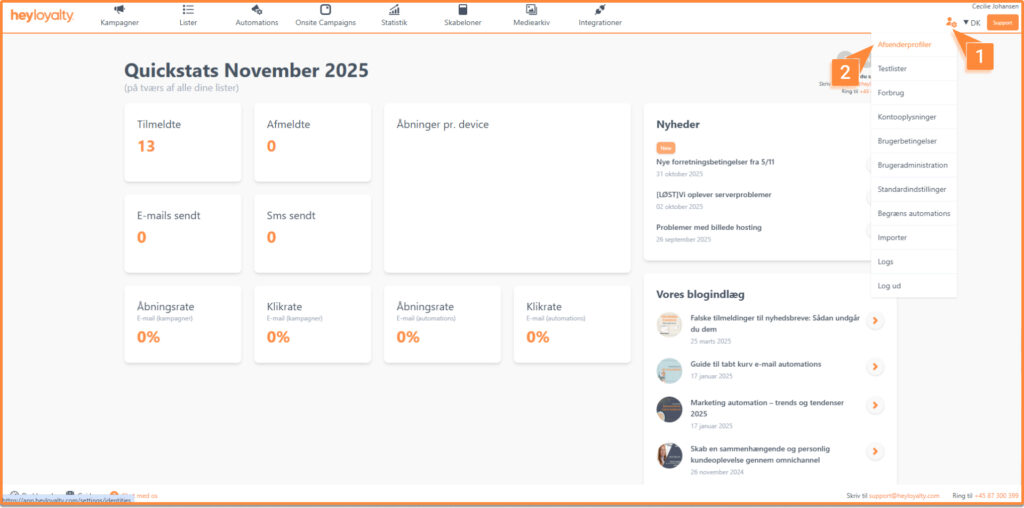
–< 0 > Create new sender.
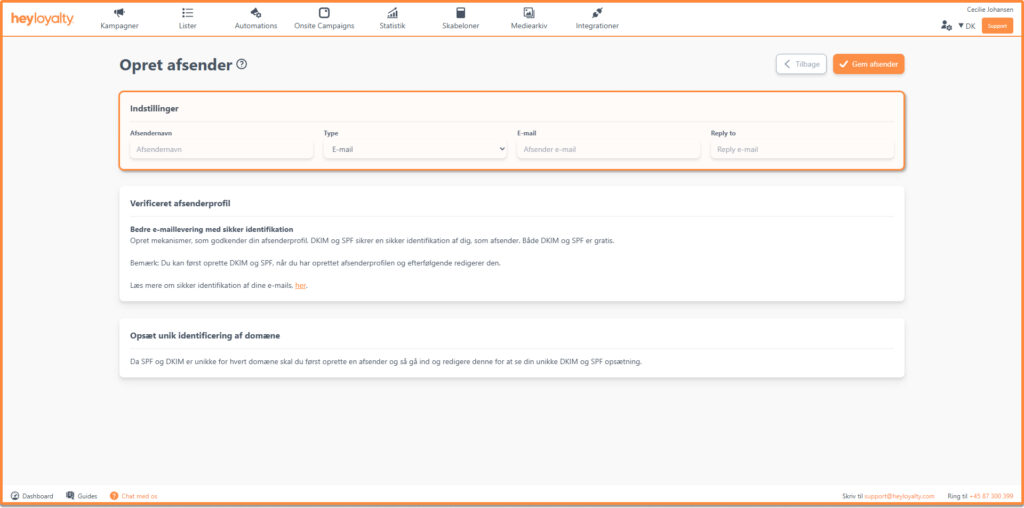
Fill in the information.
- We recommend that you make the sender name a little personal.
- Type: Here , you choose whether the sender profile should be for email or SMS. If you want to send both emails and SMS messages, please note that you must create two separate sender profiles—one for emails and one for SMS.
The SMS sender name must be between 3 and 11 characters. The sender name cannot exceed 11 characters because the full name will not be displayed in the recipient’s email client.
- Email is the email address that your recipients will recognize as the email address that sent the email. Here too, it can be a good idea to create a personalized email address. To avoid one of your employees’ inboxes being flooded with inquiries, autoresponders, etc., consider creating a new inbox that can receive all of this.
- Reply to is the email address that by default receives the reply if a recipient presses ‘Reply’ on one of your newsletters. In principle, this email address can be different from the sender, although we recommend that it is the same email address.
Finish by clicking Save sender.
Validate sender
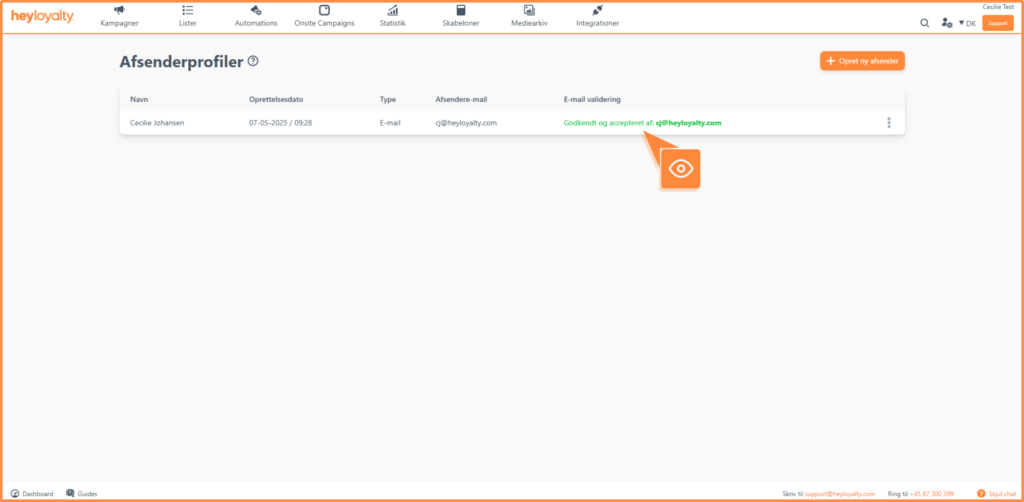
After you click save sender, you will receive a confirmation email where you need to approve the sender profile. Once you have approved the sender profile, you will be able to see it under your sender profiles.
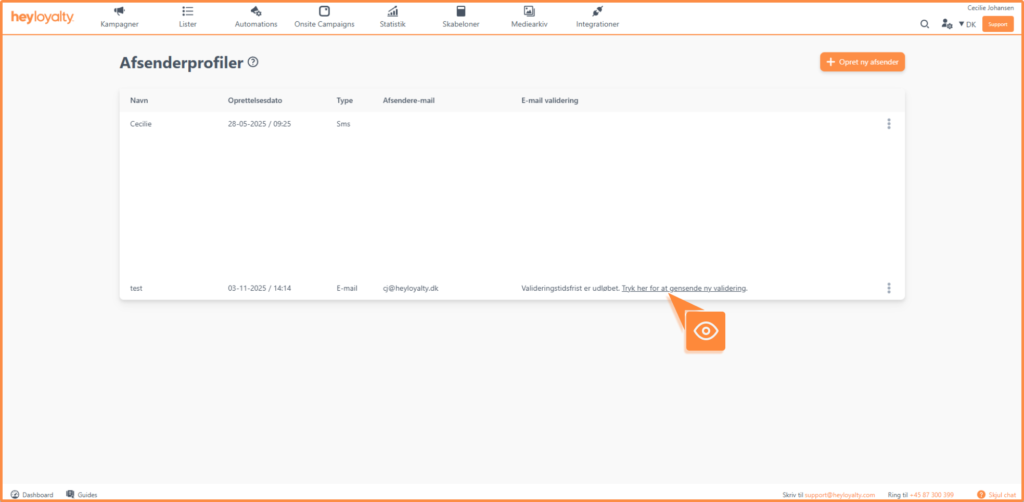
If you didn’t have time to approve your sender profile, you will be able to resend the confirmation email. To do this, go to the sender profile and click Click here to resend validation.
DNS setup
In order to send valid emails, your sender profile must be verified. You can do this by setting up DKIM and SPF, which are used to confirm that the sender profile is valid and belongs to your company. This setup also ensures that Heyloyalty’s server providers can send emails on your behalf without any issues. It also reduces the risk of your newsletters ending up in recipients’ spam folders.
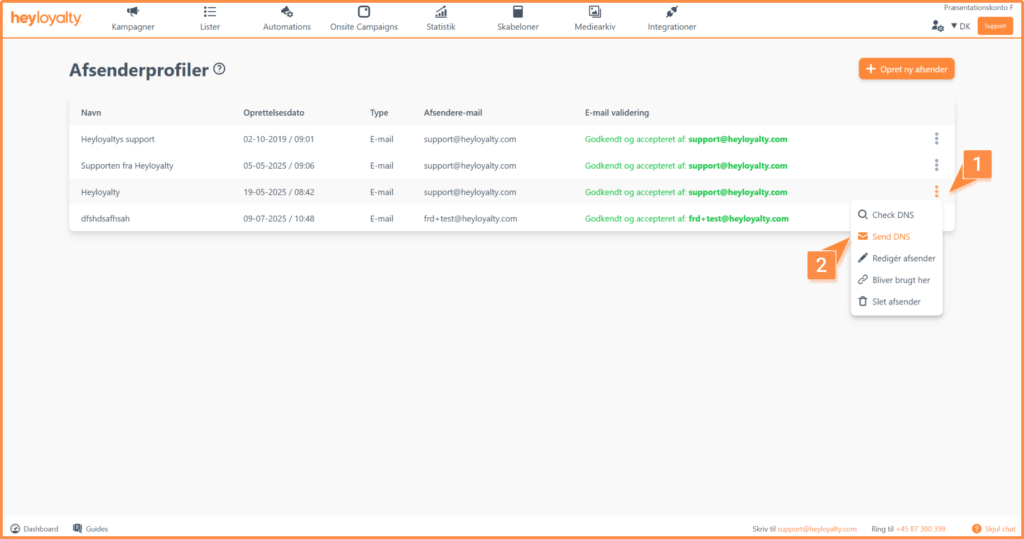
You can now access both SPF and DKIM information on the sender overview. If you have an IT administrator at your company, you can send an automatically generated email to that person by clicking ⁝ — > Send DNS.
Fill in the name and email address of the IT manager, who will receive the email below with exactly the information the person needs to be able to verify your sender profile.
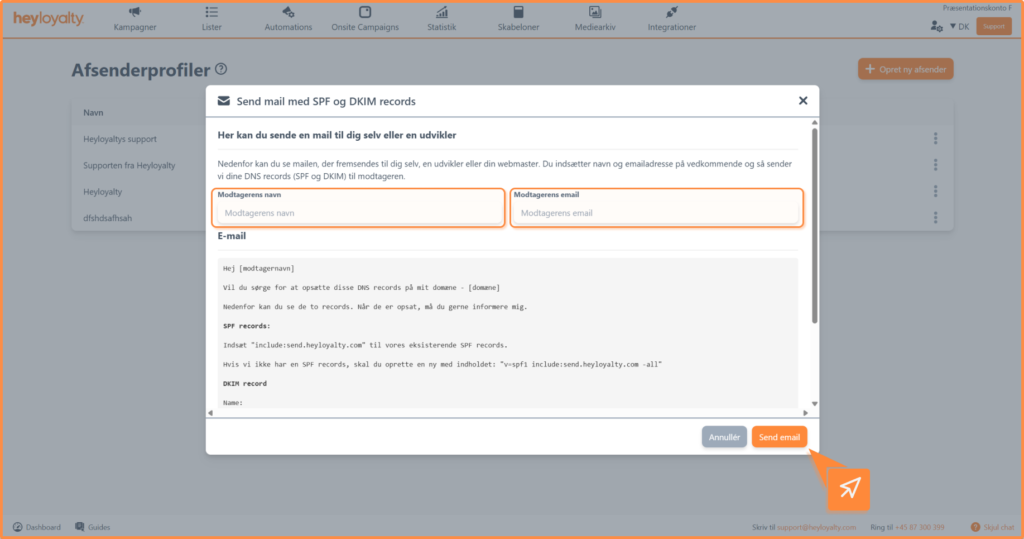
Send the auto-generated email by clicking Send email.
Once SPF and DKIM have been set up, you can check if the setup has gone through and/or done correctly by clicking on ⁝ –> Check DNS.
There will now be either a red or green bar at the top, telling you if the setup has been done correctly:
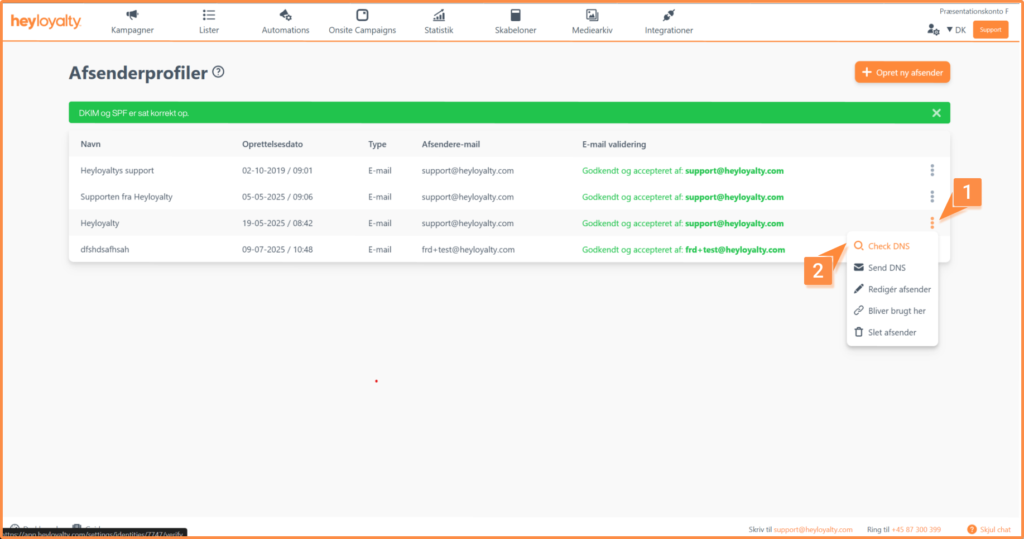
If it says DKIM and SPF is set up correctly, you are now ready to use the sender profile and can send both campaigns and automations in Heyloyalty.
Overview of Your Sender Profile
Here is an overview of the sender profiles you have created:
- Creation Date: When the profile was created
- Type: SMS or email sender
- Sender Email: Which email address is used for the various profiles
Your sender profile has now been created
By following this guide, you have now successfully created and secured your sender profiles. By setting up both email and SMS profiles, you ensure that your messages are delivered correctly and without any issues. Continue exploring Heyloyalty’s features to further improve your campaigns.

Hvis du mangler information eller hjælp, som du ikke finder her på guide sitet, er du altid velkommen til at kontakte vores support!
support@heyloyalty.com / tlf. 87 300 399