


The value of integration
Strengthened loyalty
Marketing automation and personalized messaging enable NGOs and member organizations to engage donors and regular supporters with tailored content, creating a deeper connection and increased loyalty.
Improved visitor experience
By sending timely and relevant messages based on real-time data, NGOs and membership organizations can improve the overall experience by offering valuable information, promotions and offers that match supporters’ interests and needs.
Targeted communication
Advanced segmentation options enable targeted communication, allowing NGOs and member organizations to reach specific audiences with personalized messages tailored to their demographics, preferences and behaviors.
Dropout prediction and prevention
Marketing automation tools help identify members at risk of churn by analyzing their engagement and visitor behavior, and enable proactive strategies to retain them through targeted campaigns and incentives.
Streamlined processes
By automating marketing processes and using personalized messaging, NGOs and membership organizations can streamline operations, save time and resources, and deliver relevant and impactful messages to their target audience.
The integration between Online Fundraising and Heyloyalty provides you with an unparalleled data foundation for automating much of your communication with your supporters.
Before you start
To make it easier for yourself, we recommend that you read the frequently asked questions and find the various documents, IDs, login information, etc. that you need for the setup. See more below.
Frequently asked questions
Do I need a developer?
No, you don’t.
How long does it take to finish setting up the integration?
10 minutes and a few minutes of preparation to find the items from the list below first.
Does the integration retrieve data backwards?
Not automatically, but you can have the integration retrieve data for the past 12 months.
Do I need access to other systems?
You’ll need access to both Heyloyalty and the Settings page in Online Fundraising to complete the setup.
What data is imported?
Read the section Fields in the integration at the bottom of this page to get the full overview.
Can I segment on data coming through the integration?
Yes, you can. Any data that comes through the integration can be used to segment your future communication. You can also use this data to start and stop your flows.
What you need to set up the integration
Keep “Online Fundraising” open on the Settings page. Leave it open, as you’ll need to copy some information from here shortly. You’ll need the following:
- Payment API Token
- Payment Url
- DataSet API Token
- DataSet Url
The integration works through the Online Fundraising API and Heyloyalty’s tracking database. Learn more about tracking here.
Setting up the integration
With the above preparations complete, you are now ready to set up the integration between Online Fundraising and Heyloyalty.
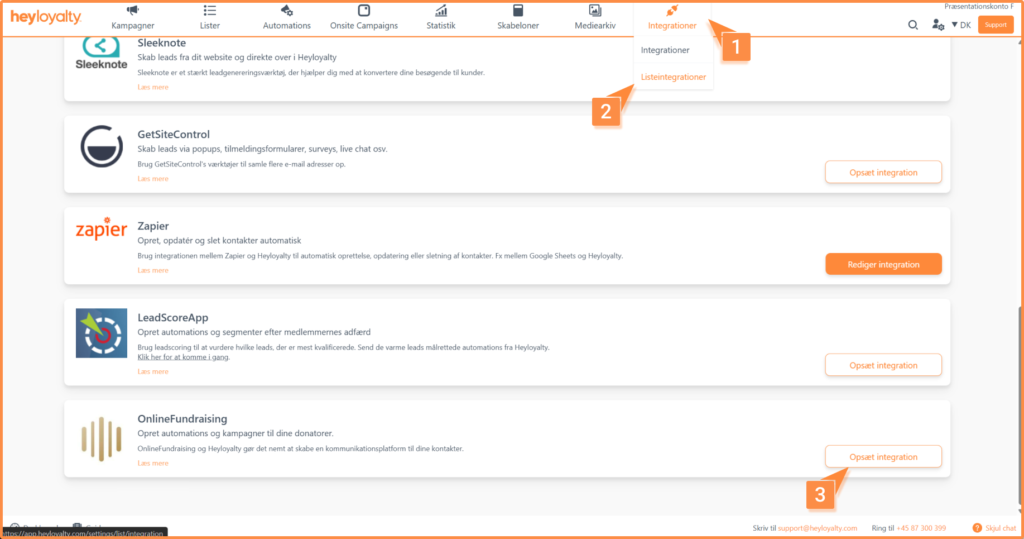
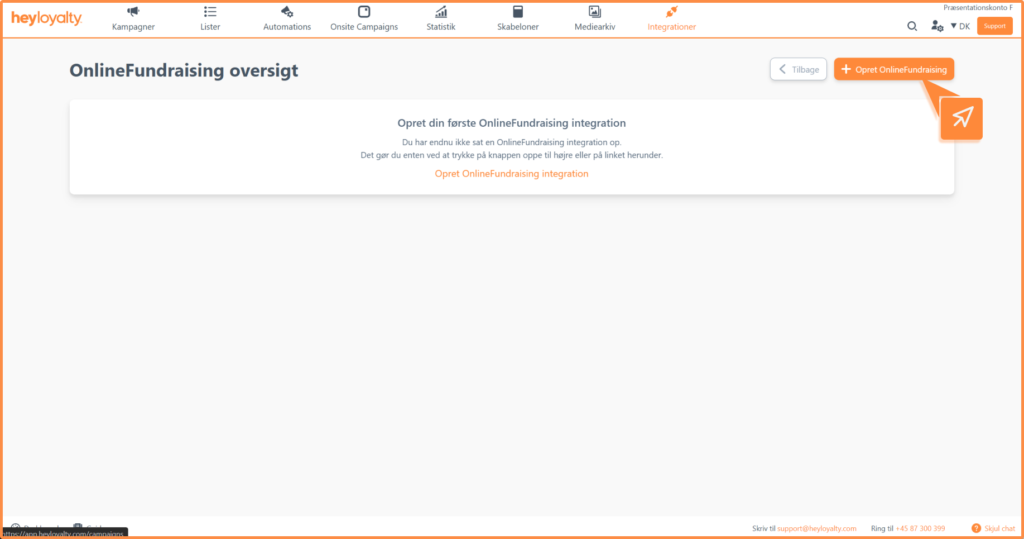
Set up Online Fundraising by clicking Integrations — > List Integrations — > Online Fundraising –> Set up integration — > Create Online Fundraising
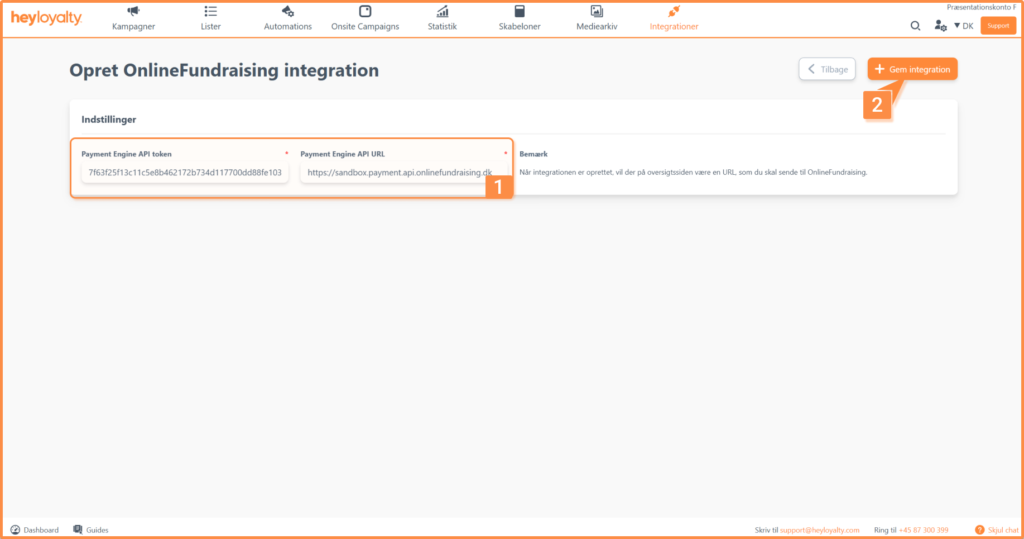
Now enter the Payment API Token and Payment URL. Copy these from the Settings in Online Fundraising (which you already have open as part of your preparation).
Finish with Save integration.
For data to be sent to Heyloyalty, you need to set up webhooks in Online Fundraising. You can read here how to set up webhooks in Online Fundraising.
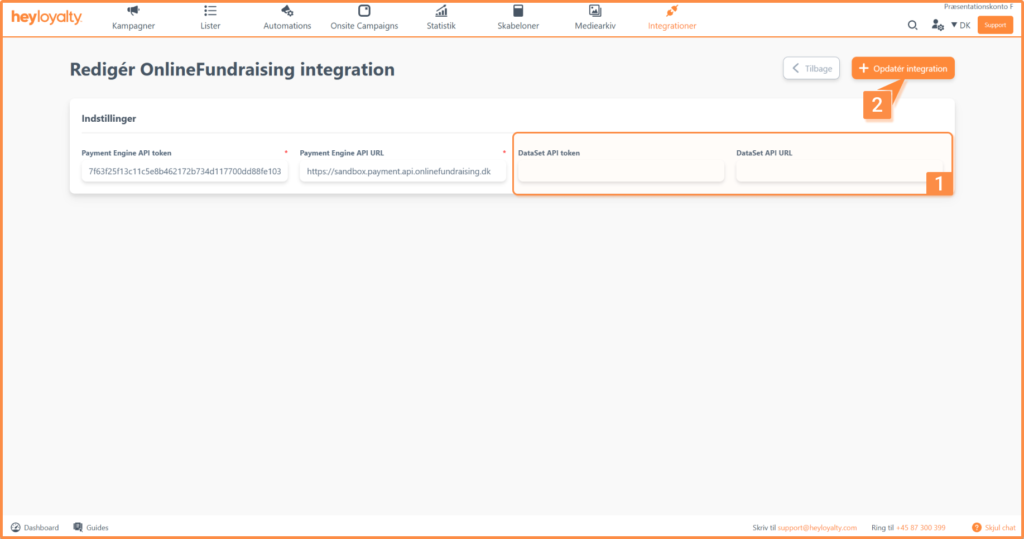
Now click on ⁝ — > Edit Online Fundraising.
Now enter the DataSet API token and the DataSet URL. Both of these can also be found under ” Settings” in Online Fundraising.
Finish with Update integration.
Your integration is now ready and will retrieve all future transactions from Online Fundraising.
If you want to import all the data you already have in Online Fundraising, scroll down to the section Importing backward data.
It is recommended that you send the transactional data below from Online Fundraising to Heyloyalty:
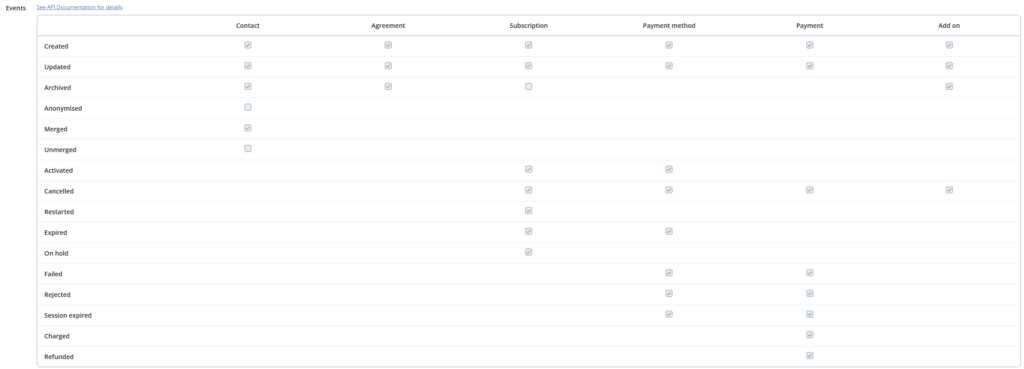
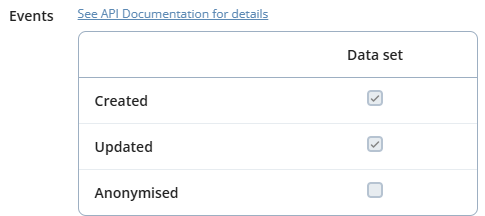
In addition, the following events must be sent for DataSet in Online Fundraising:
Integration in general
Establishing Contact:
Once the integration is set up, Heyloyalty creates a contact when a contact is created in Online Fundraising. However, the contact is only created if Online Fundraising has an email address or phone number for that contact. If this contact opted out of receiving the newsletter when signing up or creating an account in Online Fundraising, it is your responsibility to unsubscribe the contact in Heyloyalty using Heyloyalty’s unsubscribe features.
The contact will not be created if only the contact information is updated. We always check first to see if the contact already exists (based on OF ID, mobile number, or email). If it does, we update the existing member record instead of creating a new one.
More information about this:
- The contact is NOT automatically removed from Heyloyalty when the contact cancels their subscription (i.e., the paid subscription through Online Fundraising).
- The contact is automatically updated in the tracking database. This means that you can, among other things, segment based on whether the contacts in Heyloyalty have an active subscription in Online Fundraising or not. You can also dig a little deeper and segment based on whether a contact has an active subscription (and, for example, combine this with the amount of their monthly donation).
In addition, please note that all contacts created in Online Fundraising are, by default, paying customers, which is why they are created in Heyloyalty as soon as they are created in Online Fundraising. Here are some specific examples of this:
- If a contact sets up a subscription in Online Fundraising that doesn’t start until next month, that contact is created immediately in Heyloyalty. For example, a member might start a subscription on January 10, but the first payment isn’t due until February 1. This contact will appear in Heyloyalty starting January 10, but as noted in the segmentation options above, you can segment based on whether or not the member has an active subscription. From January 10 through January 31, the contact does not have an active subscription, but starting February 1, this contact will be included in segments that determine whether contacts have an active subscription.
Subscription data
An order in Heyloyalty is a subscription or a one-time donation in Online Fundraising. You can find these in Heyloyalty under Statistics — “> ” Activity Feed.
When a payment or donation is recorded, the order data is sent to the Activity Feed. However, the payment does not automatically create a contact in Heyloyalty. Instead, the system only attempts to link the payment to an existing contact.
Why might there be donation data without a contact?
If you can see donation data in the Activity Feed but there is no corresponding contact, it is typically due to one of the following reasons:
- A payment was recorded without a contact having been created beforehand.
- The contact was missing an email address or a cell phone number and therefore could not be created or matched.
To resolve this, you’ll need to perform a manual import in Heyloyalty. Read the section below. Once the contact has been created in Heyloyalty, it can be linked to the existing donation data.
Importing backward-looking data
To import historical data, click Integrations — > List Integrations — > Online Fundraising –> Edit Integration — > ⁝ — > Retrieve data from Online Fundraising.
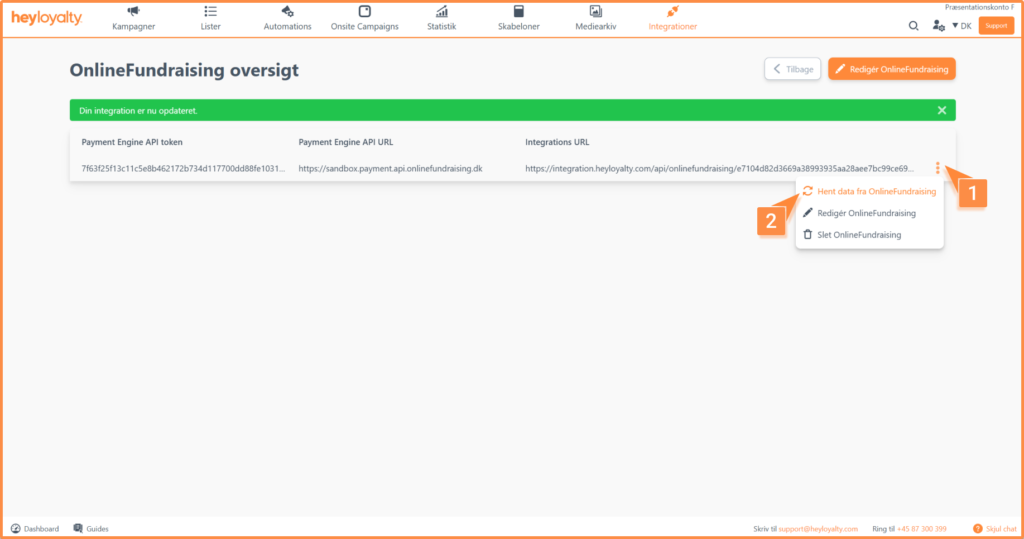
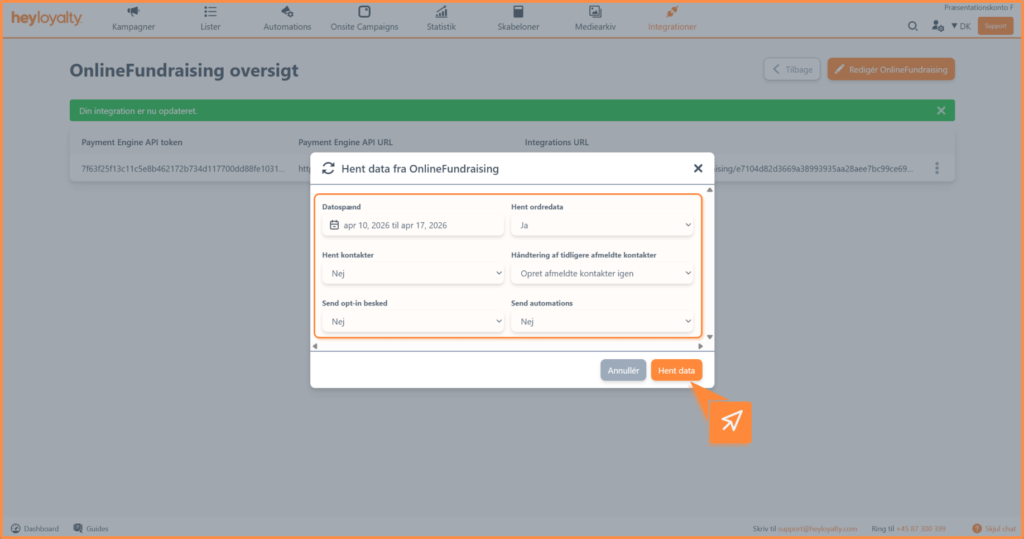
There are now six fields to consider:
- Date range
What time period do you want to retrieve data? Is it one specific month? One week? A quarter?
TIP: You can go back up to one year. The reason why the import is limited to 12 months is that contacts that have not been communicated with in the last 12 months no longer have an active newsletter permission
- Retrieve order data
Should you retrieve data for subscriptions, datasets, payments, etc.?
TIP: This includes all data related to a payment in Online Fundraising
- Get members
If you select Yes, members will be created in Heyloyalty
- Handling previously unsubscribed members
If you are importing data for the first time, you should select Create unsubscribed members again, as there are no unsubscribed members in Heyloyalty yet.
However, if this is not the first time you are doing a backward import of data, there may be some members who have been unsubscribed and will be created again. It is your responsibility to know who you can communicate to
- Send opt-in message
If you select No, the import will create members without double opt-in.
If you do not use double opt-in on the list, leave the field set to No.
If you select Yes, make sure you have an active double opt-in automation
- Send automations
Any automations, such as the welcome flow or the post purchase flow, will be sent to the members created in the backward import if you select Yes.
These members may have had a relationship with you for a longer period of time, so consider whether it makes sense to send these types of automations for this import.
Often it makes the most sense to leave the field set to No.
If you find that some contacts are not being created, it may be due to the following. We only create contacts during a manual import based on the following criteria:
- The contact was created within the selected date range
- The contact has an email address or cell phone number
- the contact is not already listed with an email address or cell phone number. This may be due to duplicate entries.
Fields in integration
For a complete overview of the fields in the integration, you can see an overview here.
A general rule for the entire integration is that every field created and updated in Heyloyalty has exactly the same name as the one you’re familiar with in Online Fundraising.
The above list is data that Heyloyalty retrieves in connection with a payment. a payment.

Hvis du mangler information eller hjælp, som du ikke finder her på guide sitet, er du altid velkommen til at kontakte vores support!
support@heyloyalty.com / tlf. 87 300 399