


In this guide you will learn how to save an Excel file as a CSV UTF-8 file for import into Heyloyalty.
The correct file format ensures that special characters such as æ, ø and å are displayed correctly after import.
Step 1 – Save the file as CSV UTF-8
Start by opening Excel. Go to the Data tab and find the Get data option . Here you select From file:
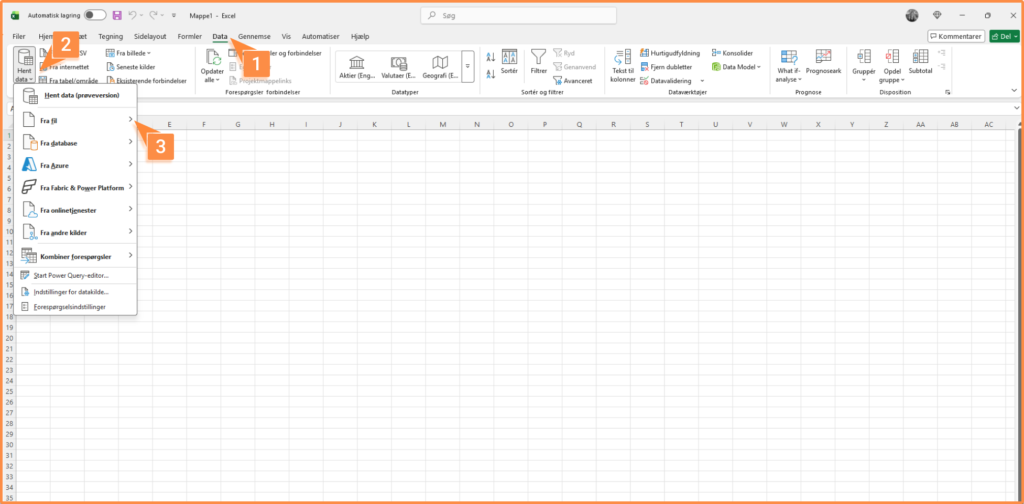
Here you will see a modal showing how to insert the data into Excel. If it looks correct, press Load at the bottom of the modal.
Then save the file as a CSV UFT-8. The image below shows how to do this:
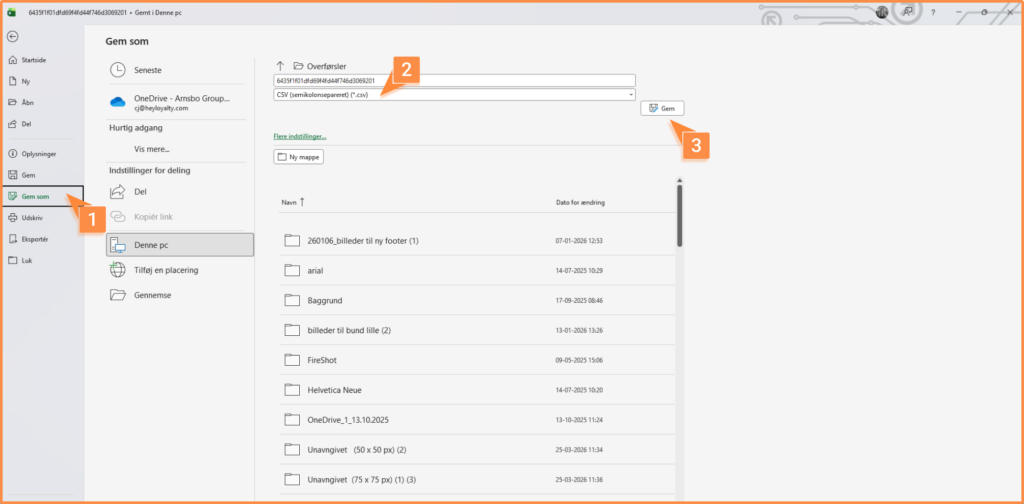
Step 2- Check file format
We find that Excel can save it as a file format Heyloyalty cannot handle, so to make sure the file format is correct, open the file in a note program.
- Notepad (Windows)
- TextEdit (Mac)
If you can’t see the file, you can select All files here. Finally, select Open.
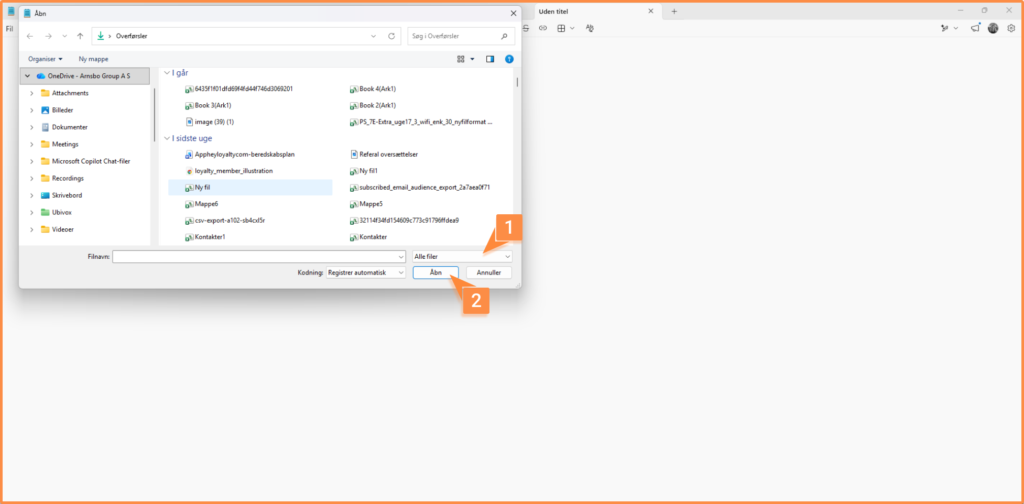
Once you have opened the file, check if the file is a UFT-8 file. You can see in the image where you check it:
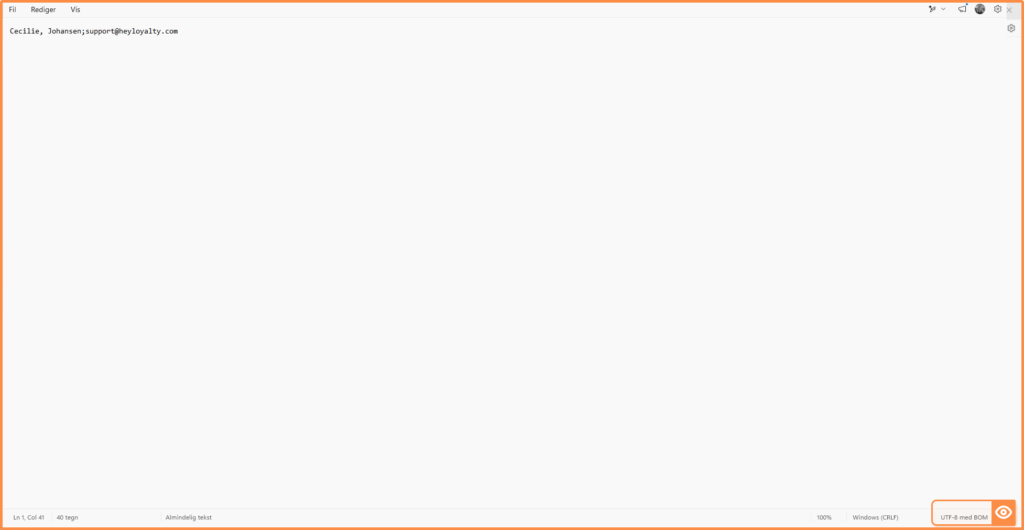
If it just says UFT-8, you don’t need to change the file and you can simply upload it to Heyloyalty.
If it says otherwise, follow the next instructions.
You need to save the file as:
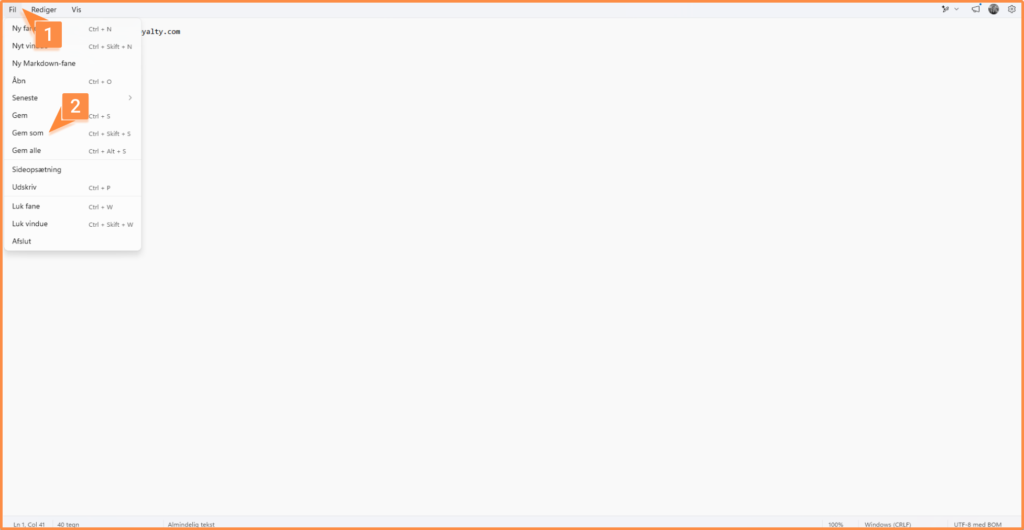
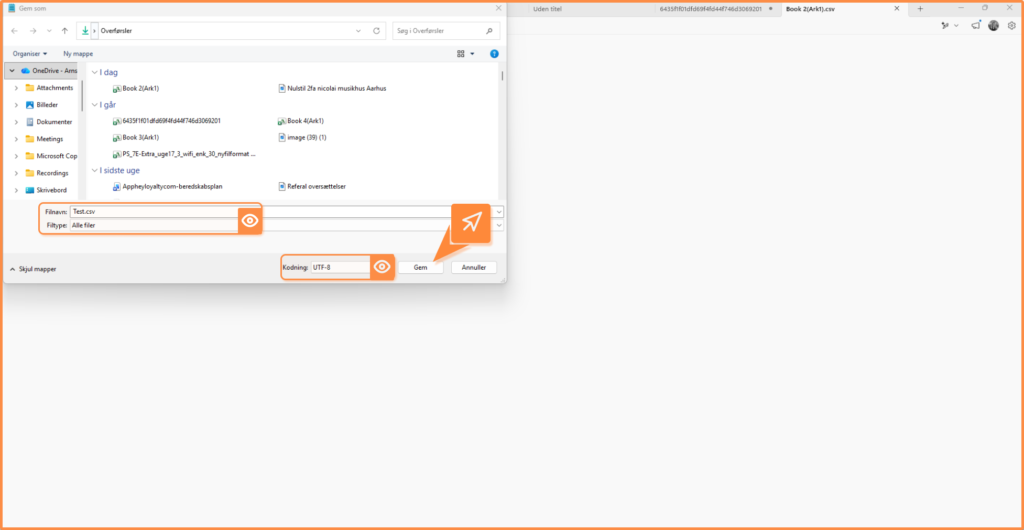
When you save the file as, select the options below:
- File name: You give the file a name and after the name you put .csv. For example, it could look like this: test.csv
- File type: All files
- Coding: UFT-8
Finally, press Save.
Settings will look like this:
Once you have saved the file with the correct settings, you are ready to import your contacts. You can read here how to import contacts.

Hvis du mangler information eller hjælp, som du ikke finder her på guide sitet, er du altid velkommen til at kontakte vores support!
support@heyloyalty.com / tlf. 87 300 399