


With the Customer Loyalty Center, you can make it easy for your existing members to recommend the loyalty club to friends, family or other interested parties. When a member shares their personal referral link, the new person can sign up via a form and Heyloyalty will automatically register who made the referral.
The setup consists of a referral form and three automated flows that ensure that both the referred person and the member who made the referral receive the right communication at the right times. You also have the option to reward members who help bring new members to the customer club.
In this guide, we’ll walk you through step-by-step how to create the necessary automation flows, insert the correct merge fields and get the recommendation feature ready to use. Once setup is complete, your members can start sharing the loyalty club with others and the whole process is handled automatically by Heyloyalty.
Before you get started
You must first have created a CLC form. Read the guide here on how to set it up. The form is used to sign up new people when a member recommends the loyalty club.
Step 1: Create the “Recommend” automation
This automation is sent to the person who has signed up on the recommendation form. The trigger is used for the person to confirm that they would like to sign up for the loyalty club.
You set up the flow like this:
- Go to Automations.
- Find the Customer Loyalty Center trigger.
- Click on Set trigger.
- Select the Recommend trigger.
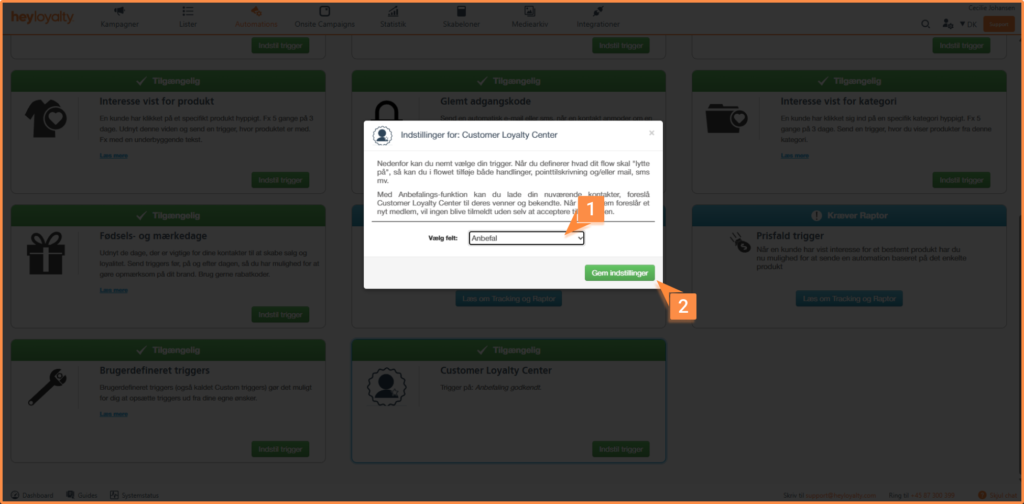
Once the trigger is selected, you can proceed to the flow builder by clicking Next. Find this button by scrolling up to the top.
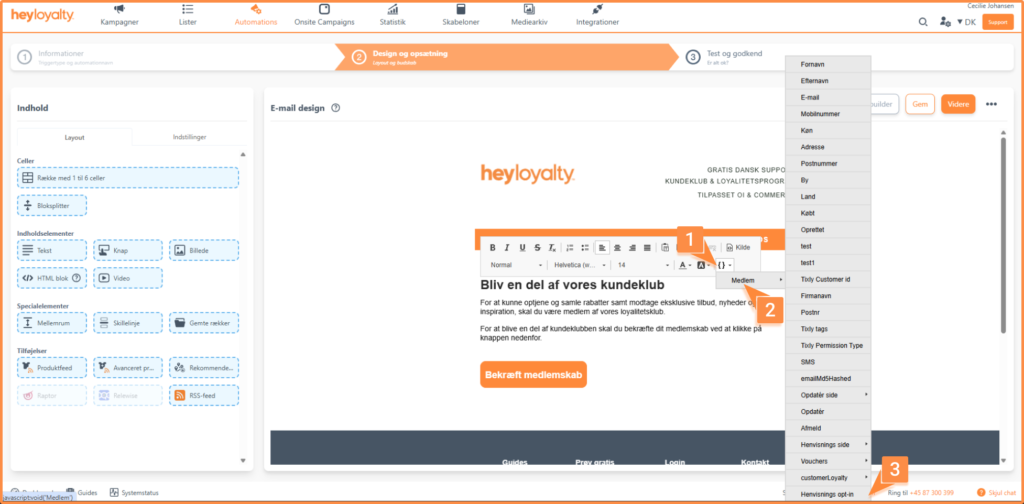
Here you set up an email, inside the email you write the communication you want to inform the person who is about to sign up for your loyalty club. In addition, it is important that you insert the opt-in merge field for your loyalty cube. You can find the merge field here:
Linket/flettefeltet du indsætter i dit automationsflow vil ikke virker på step 3 eller i testudsendelse. Det virker kun i reel udsendelse, da vi bruger medlemsdata til at skabe linket.
Once you have finished designing the email, you can save it and activate the flow.
Step 2: Create the automation “Friend has approved recommendation”
Denne automation sendes til det medlem, der har henvist en ven. Så her kan du sende kommunikation på, at din ven er oprette i loyalitetsklubben. Du kan ligeledes vælge at give dette medlem en belønning ved at tildele point til medlemmet. Read here how to do it.
Creating the automation flow should be set up like this:
- Go to Automations.
- Find the Customer Loyalty Center trigger.
- Click on Set trigger.
- Select the trigger Friend has approved recommendation.
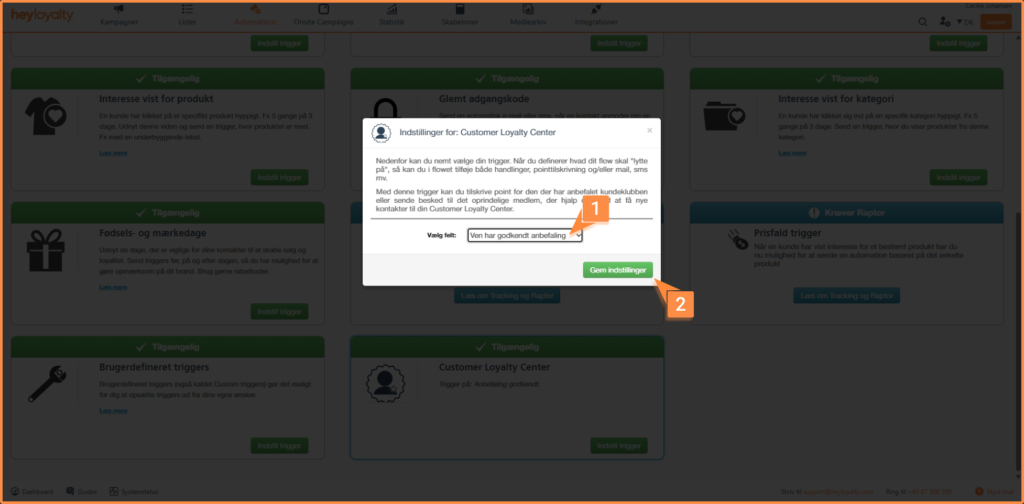
Once the trigger is selected, proceed to the flow builder. To do this, click Next. Find this button by scrolling to the top. Now you are ready to set up the flow. In the flow, you can insert an email telling the member that the referred person is now part of the customer club. As mentioned earlier, you can also choose to reward the member by awarding points in the flow.
Step 3: Create the “Recommendation approved” automation
This automation is sent to the person who has agreed to join the customer club.
The automation flow is created like this:
- Go to Automations.
- Find the Customer Loyalty Center trigger.
- Click on Set trigger.
- Select the Recommendation approved trigger.
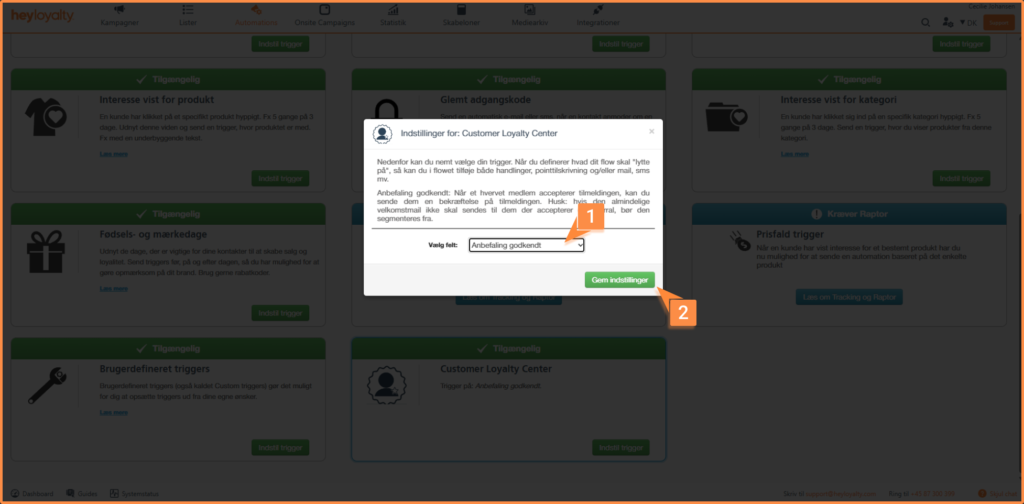
Once the trigger is selected, click Next to open the flow builder. If the button is not visible, you can scroll to the top of the page where it is located on the right side.
You are now ready to build the flow. Here you can, among other things, insert an email that informs the member that they have now become a member of the customer club. In addition, you can choose to reward the member for signing up by awarding points. Read here how to assign points.
Step 4: Send the recommendation link to your members
Once the three automations are set up, your existing members should have the opportunity to recommend the customer club.
You do this by sending a campaign or automation to the members who need to be able to refer others.
You send this email like this:
- Go to the campaign/automation where the recommendation link should be inserted.
- Go to step 2
- First insert a row in the email and then add a text element in the row.
In the text element, insert the merge field for your referral form. You find the merge field under the Referral page in the merge field menu. See the image below for the location.
The merge field typically has the format: {member.loyalty_referrals.id}. Here the id is automatically replaced with the ID of the referral form you select.
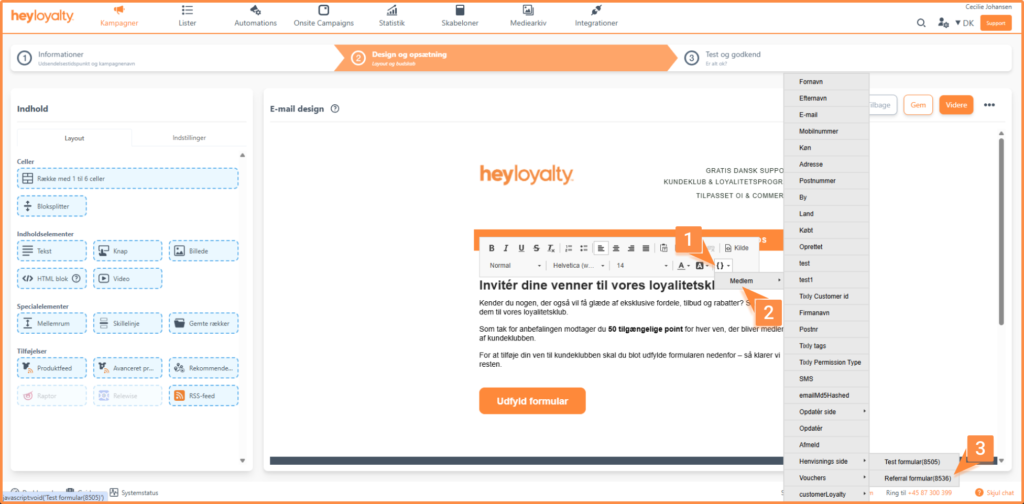
The merge field creates a personalized URL for your CLC form.
The URL contains a member-specific ID so Heyloyalty can see which member has recommended the customer club.
In addition to inserting the referral link in the email, you should also explain to the recipient how to use the link. Describe that the link can be shared with friends, family or other interested parties who can then open the link and fill out the form to sign up for the customer club.
That way, the recipient knows both the purpose of the link and how they can use it to invite new members to the customer club.
You’re ready to send recommendations
You have now set up the entire referral flow in the Customer Loyalty Center. This means that your members can share their personal referral link with friends, family and other interested parties who can then sign up for the customer club via your referral form.
When a person signs up through the form, the automation flows set up automatically handle the communication to both the new sign-up and the member who made the recommendation. This way, everyone gets the relevant messages at the right time without you having to manage the process manually.
If you have chosen to reward members for their recommendations, points or other benefits will also be awarded automatically through your flows. This makes it easy to motivate existing members to help grow your customer club.
We recommend that you test the entire setup before sending out the referral link to your members. This way you can ensure that the form works correctly, that the automation flows are activated as expected and that all emails contain the desired messages and links.

Hvis du mangler information eller hjælp, som du ikke finder her på guide sitet, er du altid velkommen til at kontakte vores support!
support@heyloyalty.com / tlf. 87 300 399