


In this guide, we will walk you through step by step how to set up a customer club based on the earning type Points (steps) in Customer Loyalty Center.
With Points (steps) you can reward your customers based on their purchases by creating different levels where customers earn more points the more they shop.
The guide will help you set up the integration, configure the necessary settings and define your steps to get started with your customer club.
Step 1 – Create integration
To set up the integration, navigate to: integration –> List integration. Then find Customer Loyalty Center and click Set up integration.
If you can’t set up the integration, it’s because you don’t have a premium license.
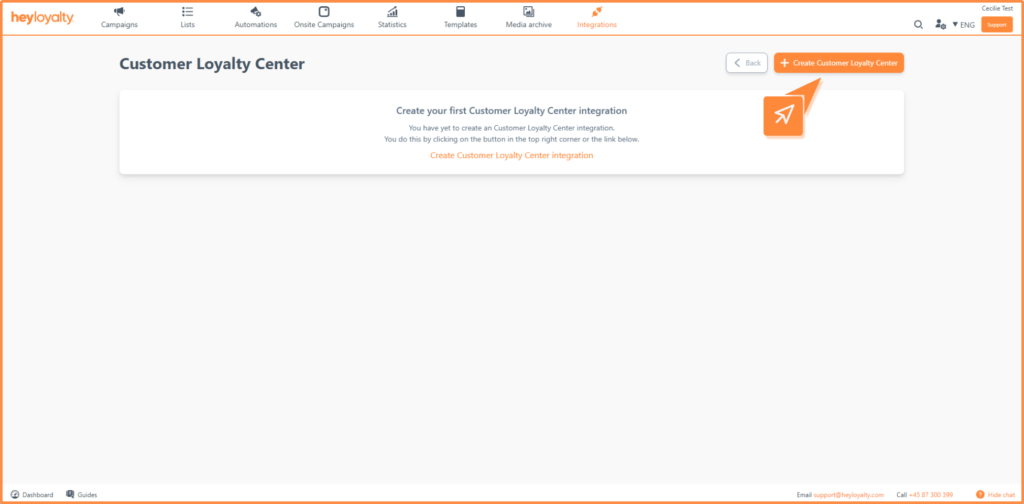
Then click Create Customer Loyalty Center.
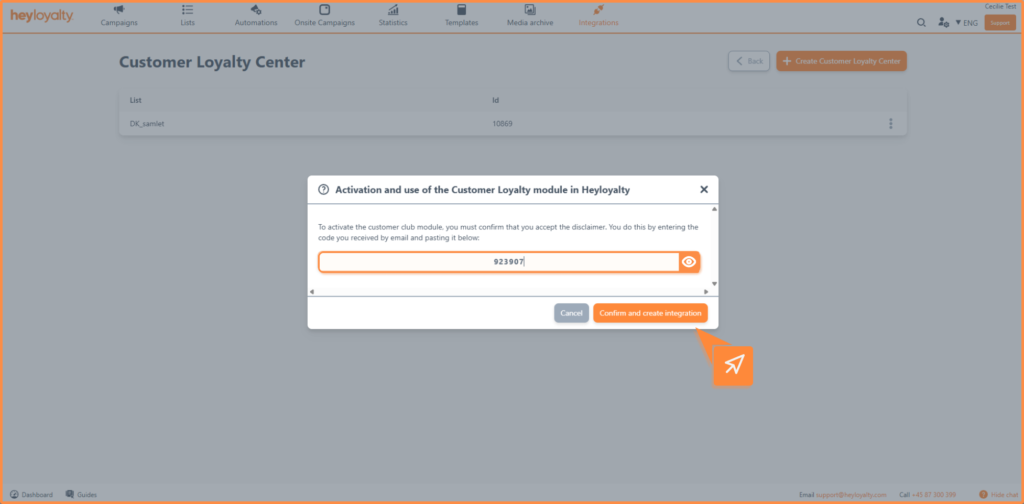
The first time you set up an integration, you must accept the terms. This is done by confirming with a one-time code that you receive via email.
Step 2 – Set up settings for the integration
Once the integration is created, you will be greeted by a number of settings, which are reviewed below:
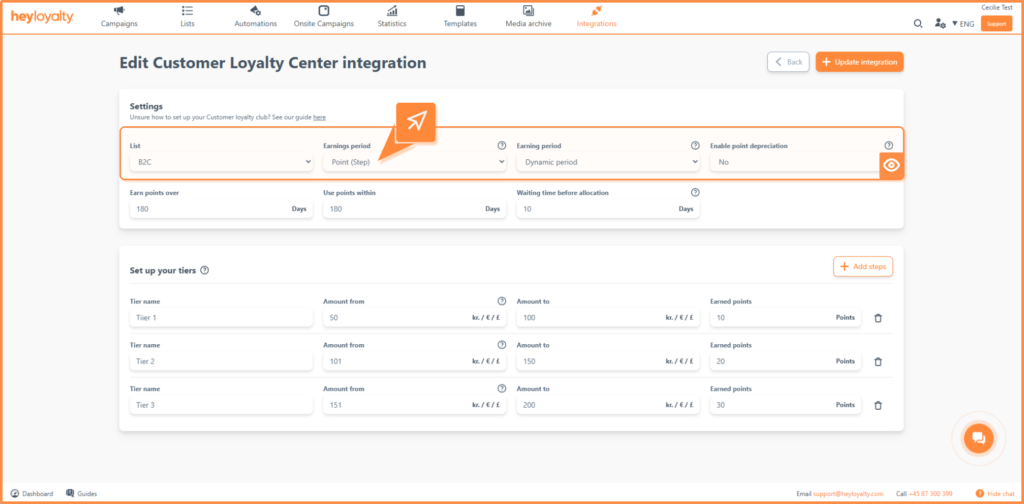
- List: Select the list you want the integration to be associated with. Only contacts on this list will earn points.
- Earning type: Here you select Points (step)
- Earning period: You can choose between two types:
- Fixed period: The earning period and points validity are set to fixed dates. Heyloyalty automatically updates the year when the period expires. Read more about the recommendation here.
- Dynamic period The earning period is calculated continuously for each customer based on their activity. Read more about the settings here.
- Enable score impairment: You can choose from the following options:
- No: Points can only be reduced if the customer uses our removePoints function via the API’s removePoints endpoint.
- Yes: Points can be subtracted if they are included in the tracking script or sent via the CreateOrder endpoint.
Step 3 – Set up your steps
In this section, you define your steps, which determine how many points customers earn based on their purchases.
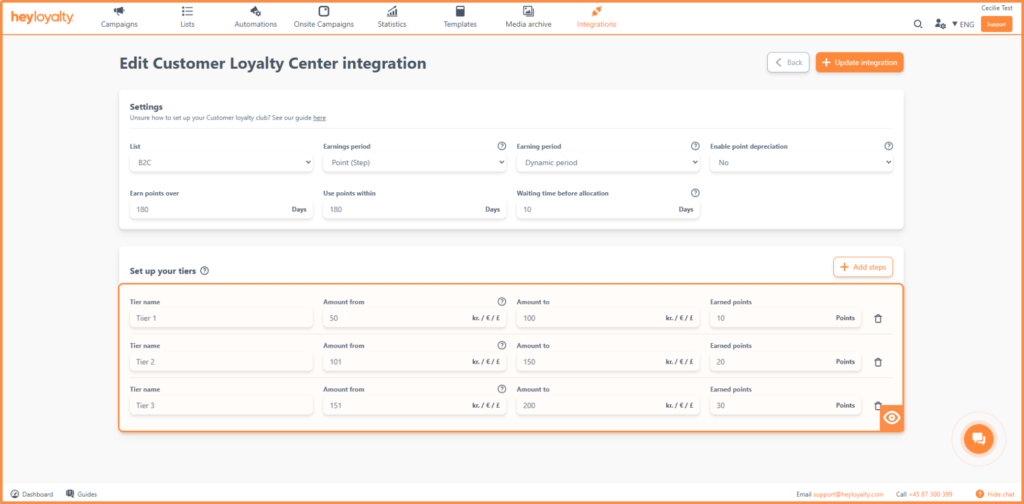
Each step contains the following fields:
- Level name: What name should the level have. Example:
- Level 1
- Level 2
- Level 3
- Amount from: The minimum amount the customer must purchase to fall within this tier.
- Amount to: The maximum amount for this step.
- Points earned: The number of points the customer earns within the amount range of the stage.
Example of steps
Level 1
- Amount from: 200
- Amount to: 500
- Points earned: 10 points
Level 2
- Amount from: 501
- Amount to: 1000
- Points earned: 20 points
Level 3
- Amount from: 1001
- Amount to: 2500
- Points earned: 30 points
Add and delete Step
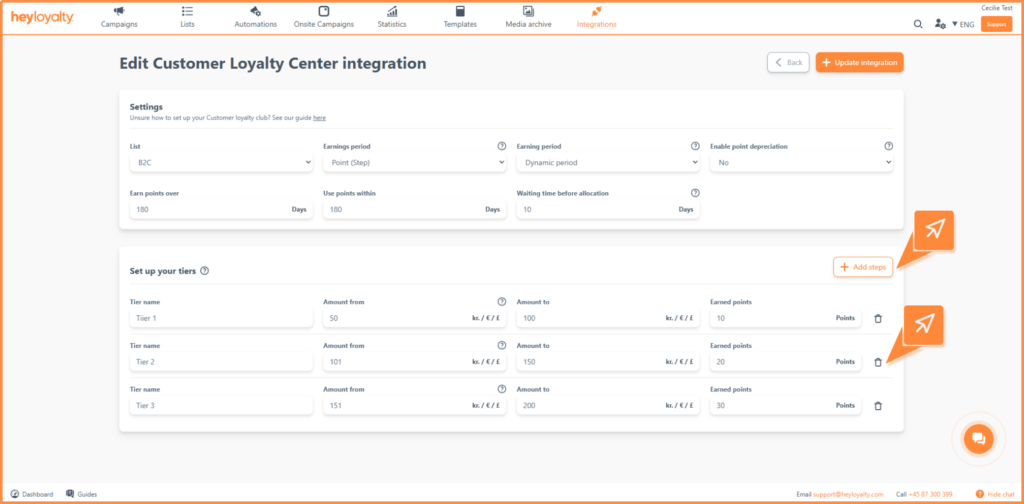
- Add step: Click “Add step” to create more steps.
- Delete step: A step can be removed by clicking on the trash can icon.
This means that the higher the total purchase amount the customer has within the earning period, the more points are earned.
Once you have set up your steps, click Save or update integration.
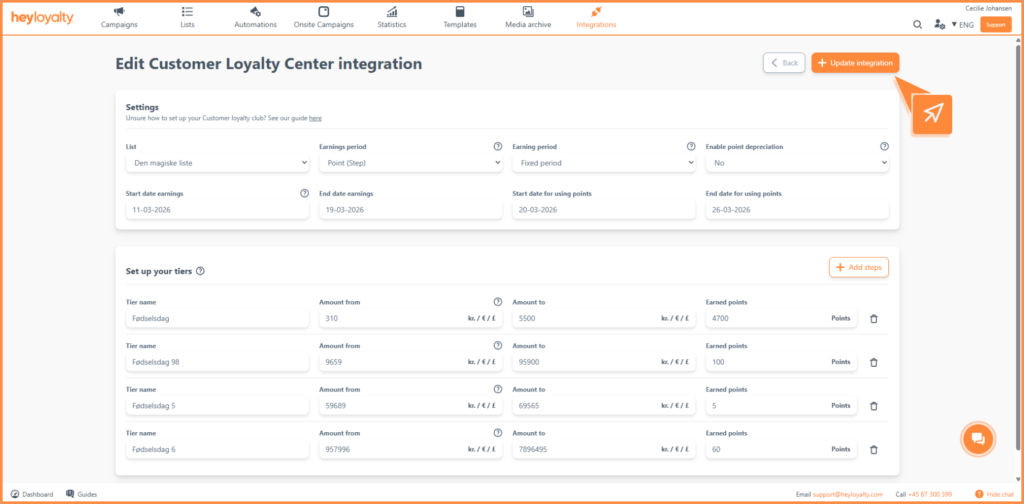
Once the integration is active, your members will earn points based on their purchases going forward – provided Heyloyalty can identify the member.
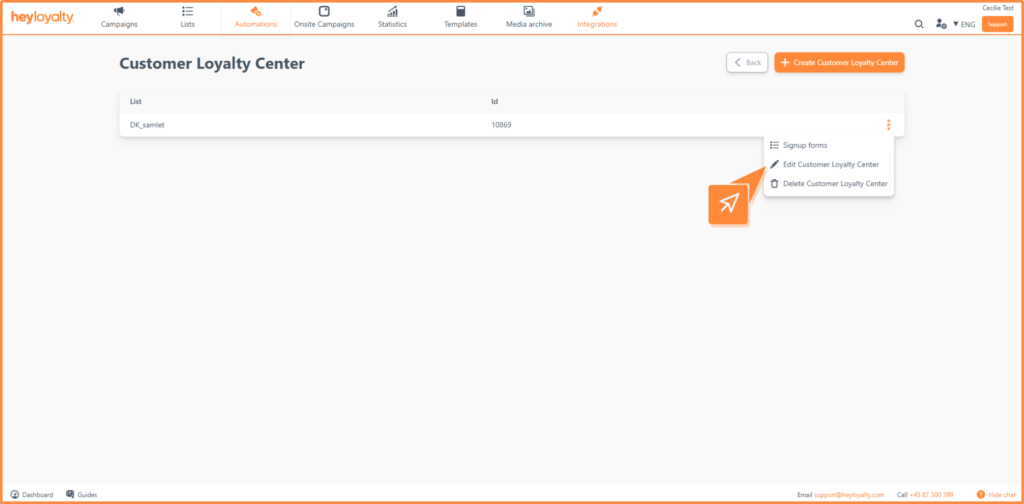
Editing customer club integration
You can always edit your setup. To do so, click the three dots next to the integration and select Edit Customer Loyalty Center.
From here, you also have the option to delete the integration if necessary.
Ready to activate your customer club
You are now ready to get started with your customer club based on Points (steps). By setting up tiers and rewarding your customers for their purchases, you create a strong incentive for both repeat purchases and higher order value.
To get the most out of your setup, we recommend combining your customer club with relevant campaigns and automated flows. For example, use emails to inform your customers about their points, their level and remind them to use their earned benefits.
The more actively you work with your customer club, the more impact you’ll see – both in engagement and revenue. 🚀

If you need information or help that you cannot find here on the guide site, you are always welcome to contact our support!
support@heyloyalty.com / tel. 87 300 399