


If you want your users to be able to join or unsubscribe from your customer club, you can create a form directly in Heyloyalty.
In this guide, we’ll walk you through how to create a form for your customer club.
Create form
You can create a Customer Loyalty form once you have created an integration for your list. If you have not yet created the integration, you can find a guide here.
Create form via lists
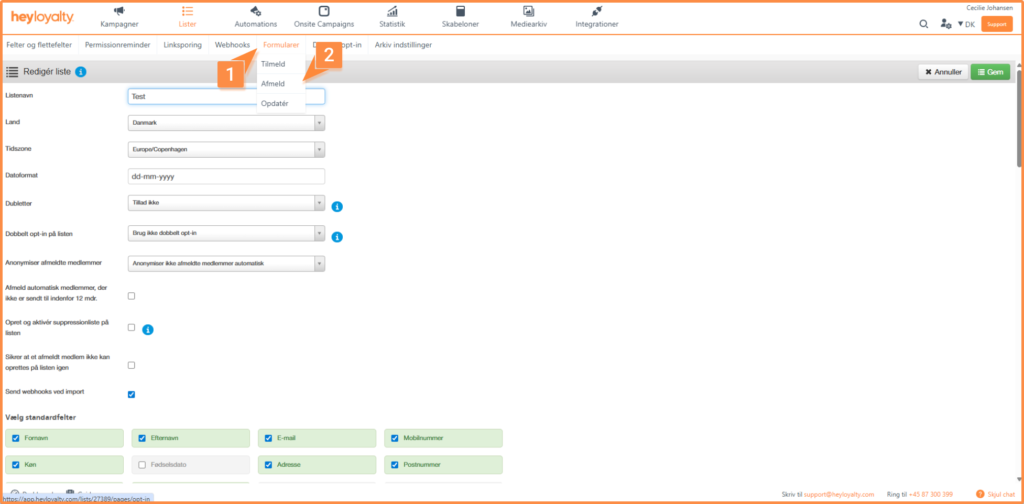
You can create the form directly from your list. Here you select Edit list –> Form. Here you select the type of form you want to create. You can choose between subscribe, update and unsubscribe. If you create the form via this method, go to the section Customer Loyalty form setup.
Create signup form via integration
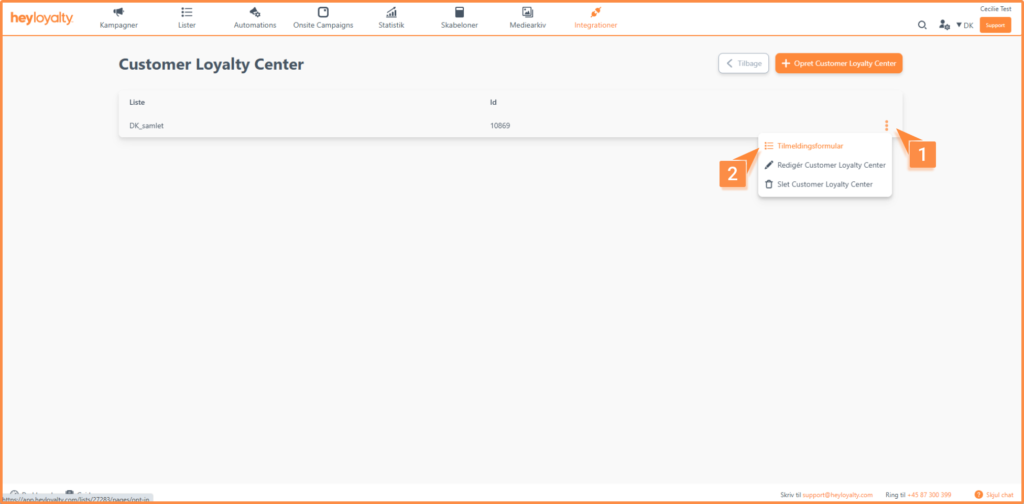
You can also create the sign-up form through your Customer Loyalty Center integration. Here you get to: Integrations –> List integrations –> edit integration. From the integration you want to create the form for, click on the three dots. Here you select Sign up form.
Setting up a Customer Loyalty form
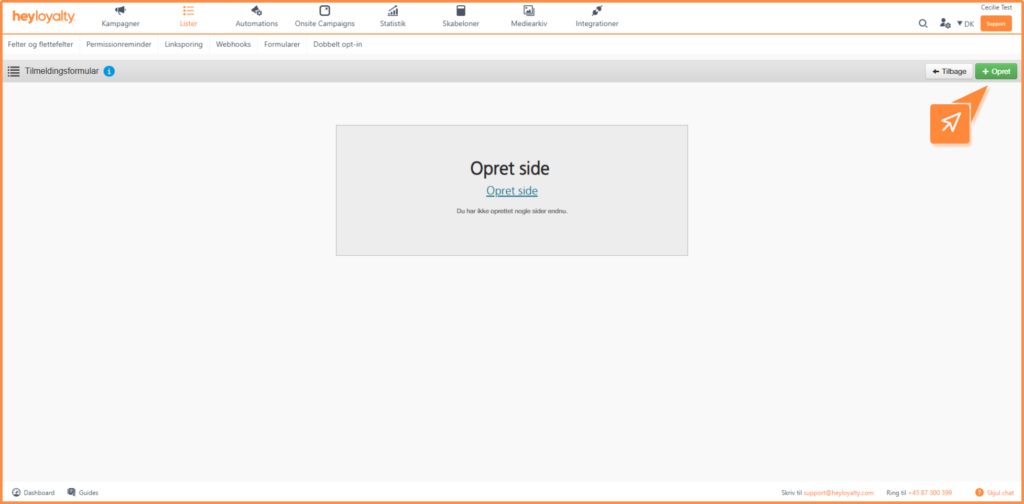
Then click on Create page
To make the form a Customer Loyalty Center form, enable the option: “Convert to Customer Loyalty Center form” and set it to Yes.
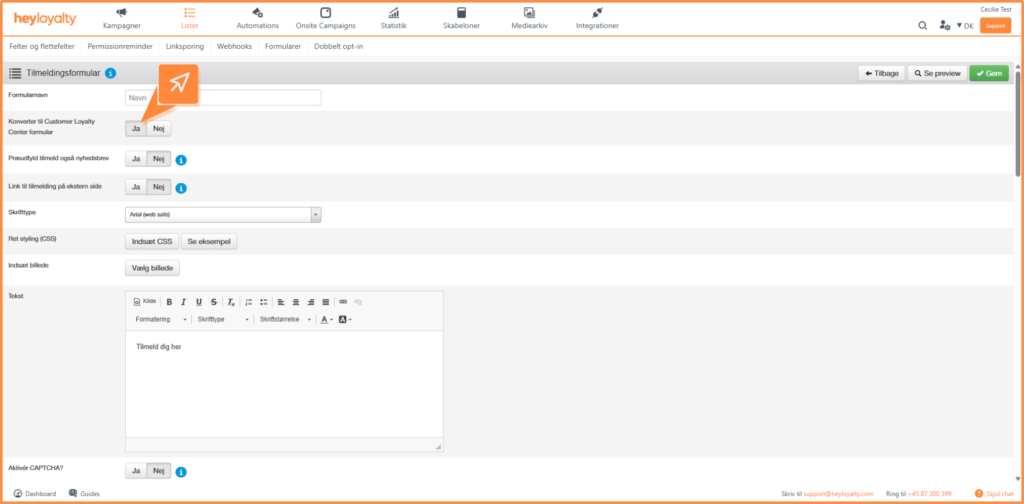
Next, you need to fill in the following information:
- Form name: The name of the form. The name is for internal use only.
- Pre-fill also sign up for newsletter: If the field is set to Yes, the user will be signed up as both a customer club member and newsletter recipient.
The rest of the form setup follows the standard form setup in Heyloyalty. You can read more about this in the general form guide.
When you have filled in all settings, click Save.
You can then implement the form on your website. You can find a guide on how to do this here.
Onsite Campaing – customer club member creation
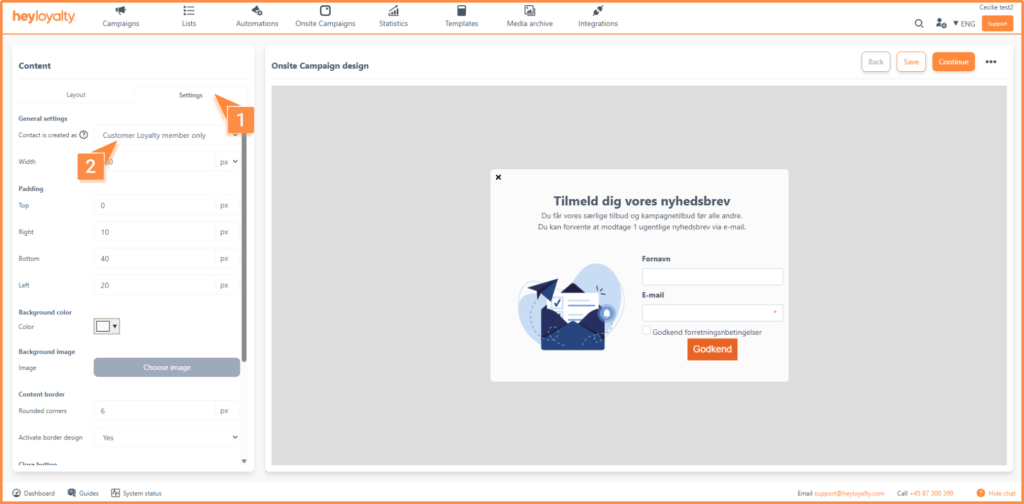
If you have an active Customer Loyalty integration on the list you have selected for your Onsite Campaign, you can set how people who sign up via your Onsite Campaign are created.
You can choose from the following options:
- Newsletter recipient: The person is created as a contact in the list.
- Newsletter recipient and Customer Loyalty member: The person is created as a contact on the list and becomes a member of the customer club.
- Customer Loyalty member only: The person is only created as a member of the customer club.
The creation setting can be found on the design page of your Onsite Campaign under the Settings tab:
Make signing up for your customer club simple and efficient
With a Customer Loyalty form or Onsite Campaing, you make it easy for your users to sign up for your customer club and start earning points. At the same time, you ensure that the sign-up is done correctly and linked directly to your existing list and integration.
By combining customer club and newsletter signup in one form, you can create a more cohesive user experience and strengthen the relationship with your customers from the first contact.

Hvis du mangler information eller hjælp, som du ikke finder her på guide sitet, er du altid velkommen til at kontakte vores support!
support@heyloyalty.com / tlf. 87 300 399